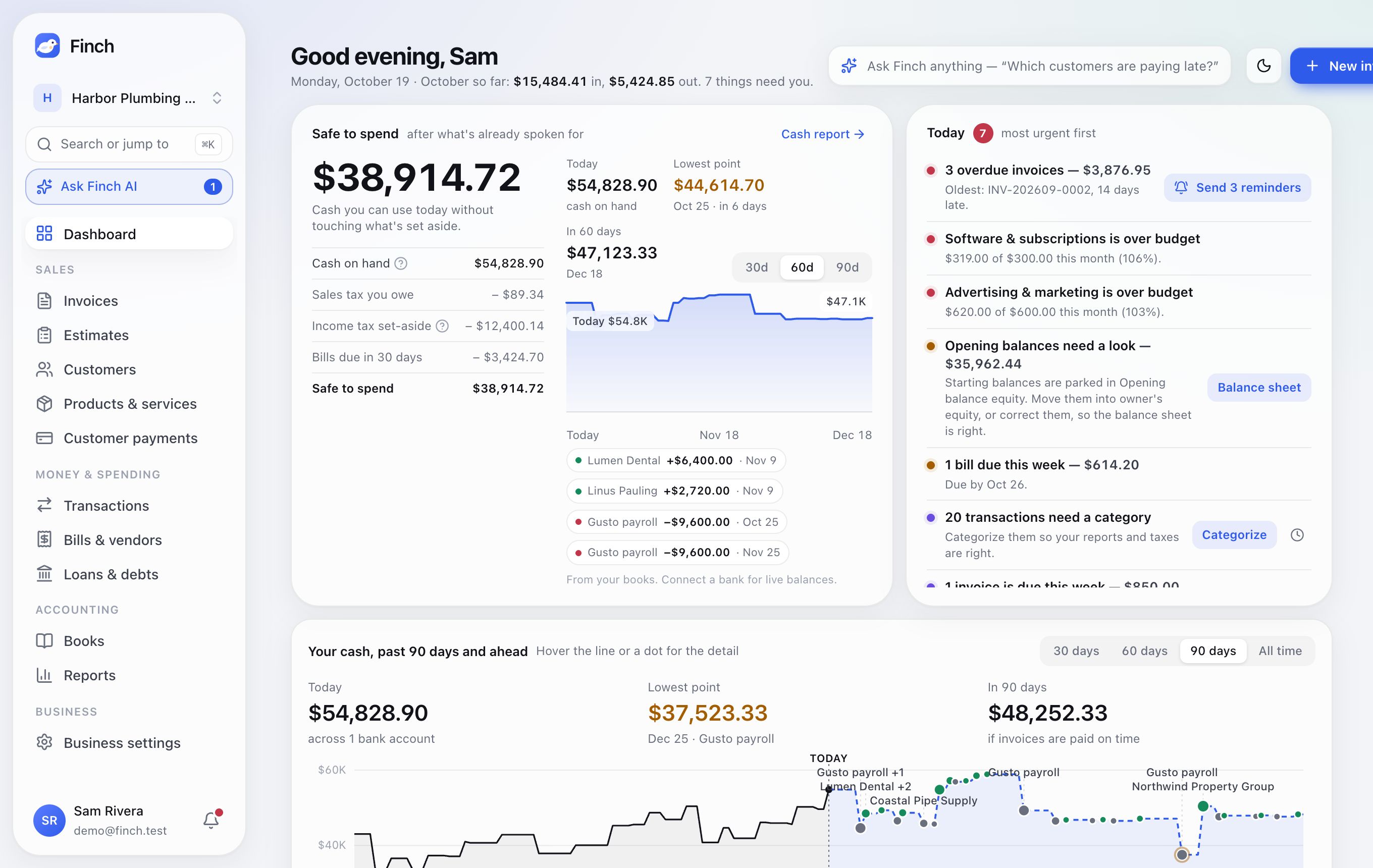
How to use this manual. Start with Quick start if you're new. Every other chapter stands on its own: each one says where the feature lives in the menu, walks through the common jobs step by step, and ends with the details. Words in bold are the names of buttons and menus exactly as they appear in Finch. Some actions depend on your role in a business (Owner, Admin, Staff, Accountant or View only). See Team & access.
The screenshots show Harbor Plumbing & Heating, a fictional business. Its customers, amounts and people are made up.
1. Quick start#
Fifteen minutes from a new account to your first invoice.
Step 1: Create your account#
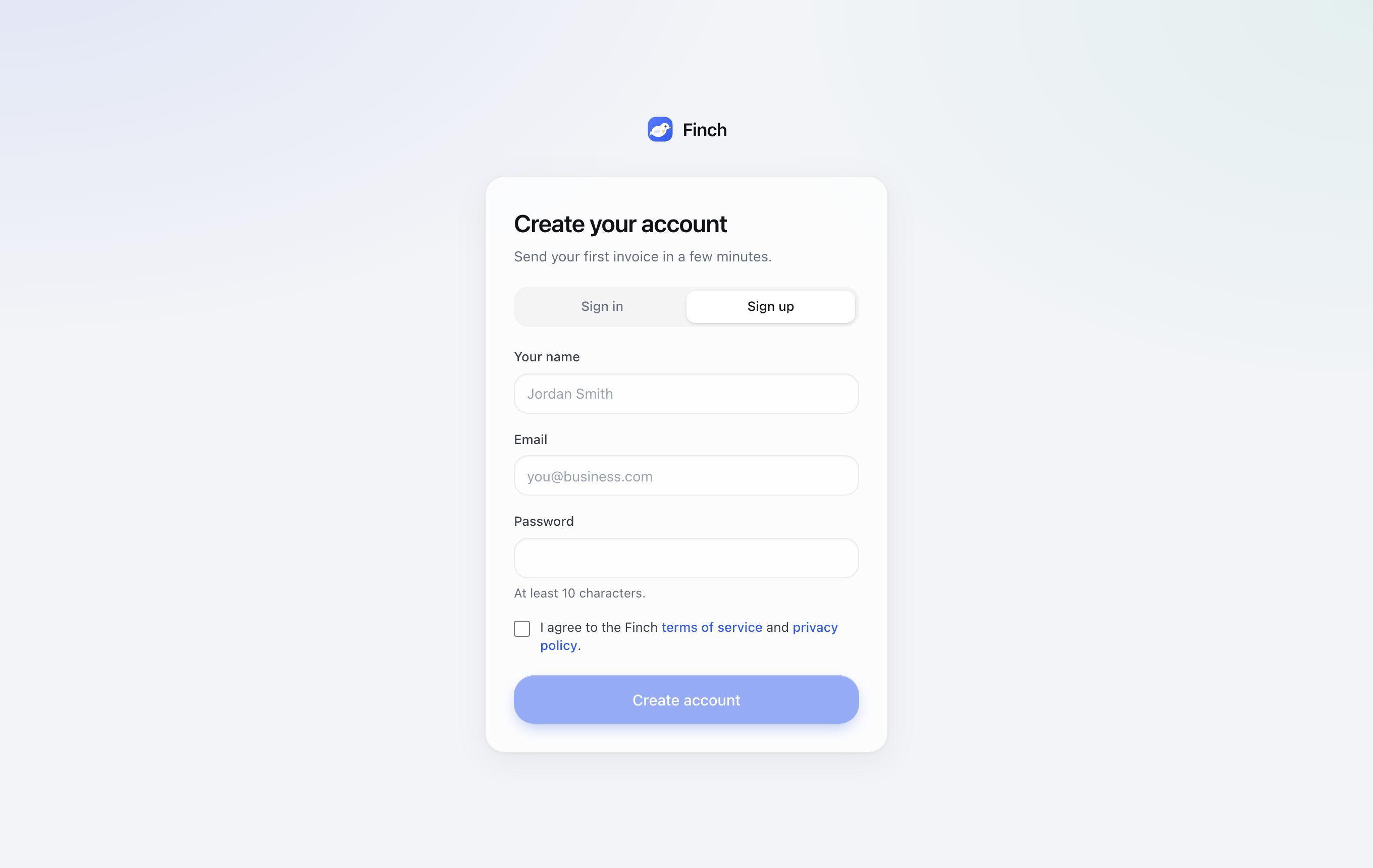
- Go to the Finch sign-in page and choose Sign up.
- Enter Your name, Email and a Password of at least 10 characters.
- Tick I agree to the Finch terms of service and privacy policy, then click Create account.
- Confirm your email. Finch emails you a 6-digit code. Enter it and click Confirm email, or choose Skip for now and do it later in Your settings → Sign-in & security.
Step 2: Name your business#
Enter your Business name and Time zone, then click Create business. You're its Owner, and it starts with a ready-made chart of accounts. Your time zone decides due dates, "today" and when reminders go out.
Next, Finch asks a few optional questions: what kind of business it is, what you sell in a sentence, what customers buy, how they pay you, whether you run payroll, and who owns it (with each partner's share). Your answers turn on the categories you'll need (for example Payroll & wages and Payroll taxes if you run payroll, or Rental income if you rent property out), list the owners, and give Finch AI notes it uses to sort your bank transactions from the first sync. Click Save and continue, or Skip for now. You can answer or change them later in Business settings → Finch AI → About.
Step 3: Make it look like you#
Open Business settings → Invoice settings → Design. Upload your logo, pick a template and an accent color. The preview on the right shows the invoice exactly as your customer will get it. Click Save.
Step 4: Add a customer and send an invoice#
- Click New invoice (top right of the Dashboard).
- Under Customer, choose New customer, type their name and email, and save.
- Add a line: what you did, quantity and price.
- Click Review & send, check the email, and click Send invoice.
The full walk-through is in Create and send an invoice.
Step 5: Get paid online (optional)#
Open Business settings → Online payments and click Apply for online payments. It takes about five minutes. Once approved, every invoice has a Pay button for card, Apple Pay, Google Pay and bank transfer. See Online payments.
Step 6: Connect your bank#
Open your account menu → Bank connections and follow the three steps to connect through SimpleFIN Bridge. Finch then brings in up to two years of history and keeps it up to date. See Connect a bank.
Step 7: Look after the books once a week#
Open Transactions, confirm Finch's suggested categories, and file anything new. The Dashboard's Today list tells you what else needs you.
2. Signing in and keeping your account safe#
Where: the sign-in page, and your account menu → Your settings → Sign-in & security.

Signing in#
Enter your email and password and click Sign in. If you've turned on two-step sign-in, Finch then asks for the 6-digit code from your authenticator app.

Forgot your password#
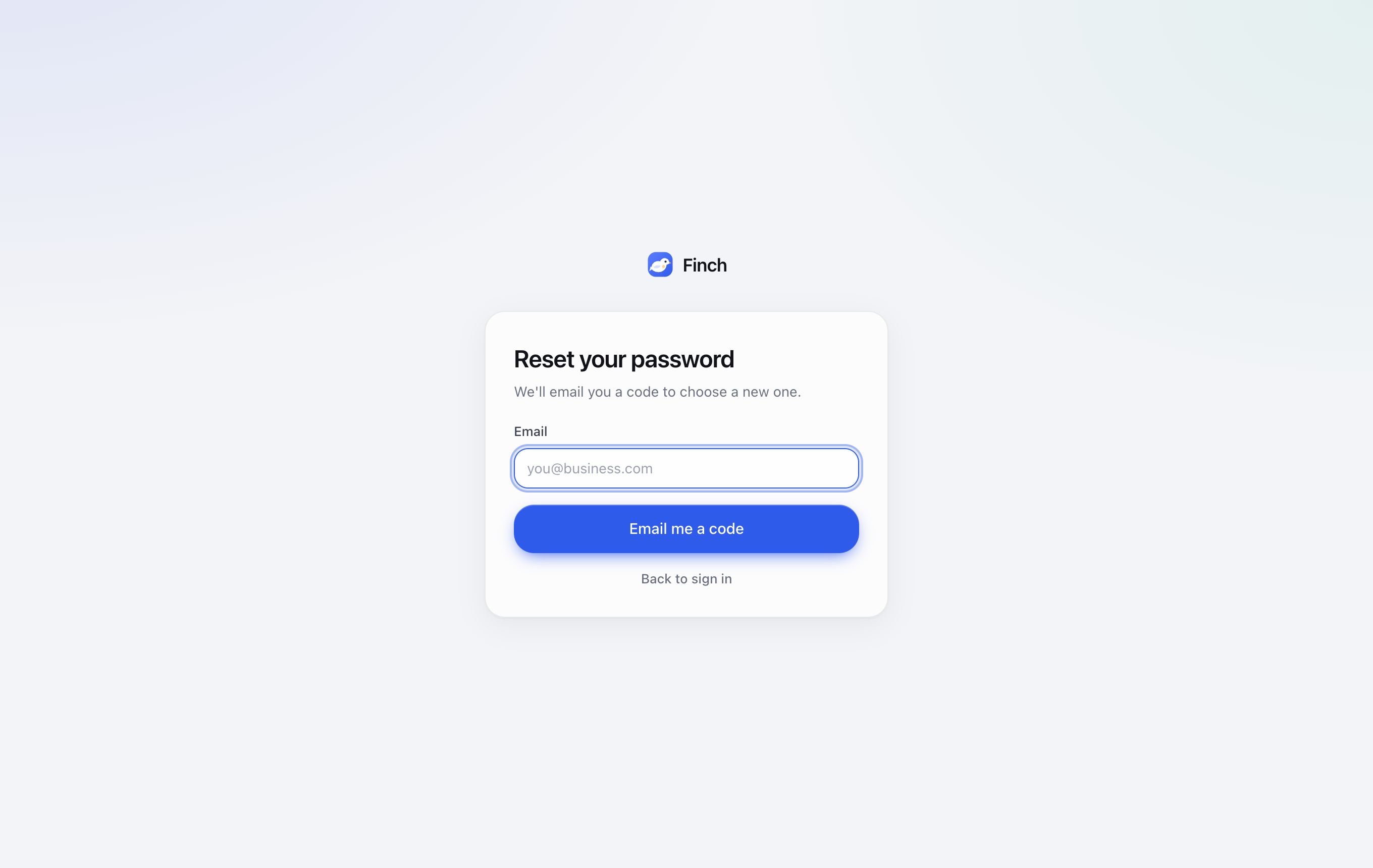
- On the sign-in page, click Forgot password?
- Enter your email and click Email me a code.
- Finch emails an 8-digit code. Enter it with your new password (twice) and click Save new password and sign in.
- Codes work for 15 minutes. You can ask for one a minute, and five an hour.
- Resetting your password signs out every other device.
- If two-step sign-in is on, Finch still asks for your code after a reset.
Confirm your email#
Your settings → Sign-in & security → Email address → Confirm email. Click Send code, then enter the 6-digit code from the email. It works for 15 minutes. After five wrong tries, send a new one.
Two-step sign-in#
Two-step sign-in means a stolen password isn't enough to get into your account: Finch also asks for a code from an app on your phone. It's free. The codes are made on your phone, not sent by text message.
Turn it on:
- Your settings → Sign-in & security → Two-step sign-in → Turn on.
- Open an authenticator app (1Password, Google Authenticator, Authy or your phone's Passwords app) and scan the QR code. Or type in the key shown under it.
- Enter the 6-digit code the app shows and click Turn on.
- Save your recovery codes. Finch shows ten one-use codes, once. Click Copy or Download and keep them somewhere safe, like your password manager.

Good to know:
- Every device you're already signed in on asks for a code the next time you use it.
- Lost your phone? On the sign-in code screen, choose Use a recovery code. Each code works once, and Finch emails you when one is used.
- Five wrong codes in a row pause two-step sign-in for 15 minutes.
- New recovery codes replaces the whole set. Turn off needs a current code.
- Lost your phone and your recovery codes? Email support from your account's email address. Finch support can reset two-step sign-in once they've checked it's you, and you'll get an email saying so.
Change your password, and sign out other devices#
- Password: enter your current password and the new one twice, then click Change password. Every other device is signed out.
- Signed-in devices: shows how many other browsers and devices are signed in. Sign out everywhere else signs them all out without changing your password.
Finch emails you whenever your password changes or two-step sign-in is turned on, off or reset. If you didn't do it, reset your password straight away and contact support.
Terms and privacy#
You agree to Finch's terms of service and privacy policy when you sign up. When either changes, Finch asks you to read and agree to the new version the next time you open it. Each agreement is recorded with its version and time.
3. Finding your way around#
The sidebar#
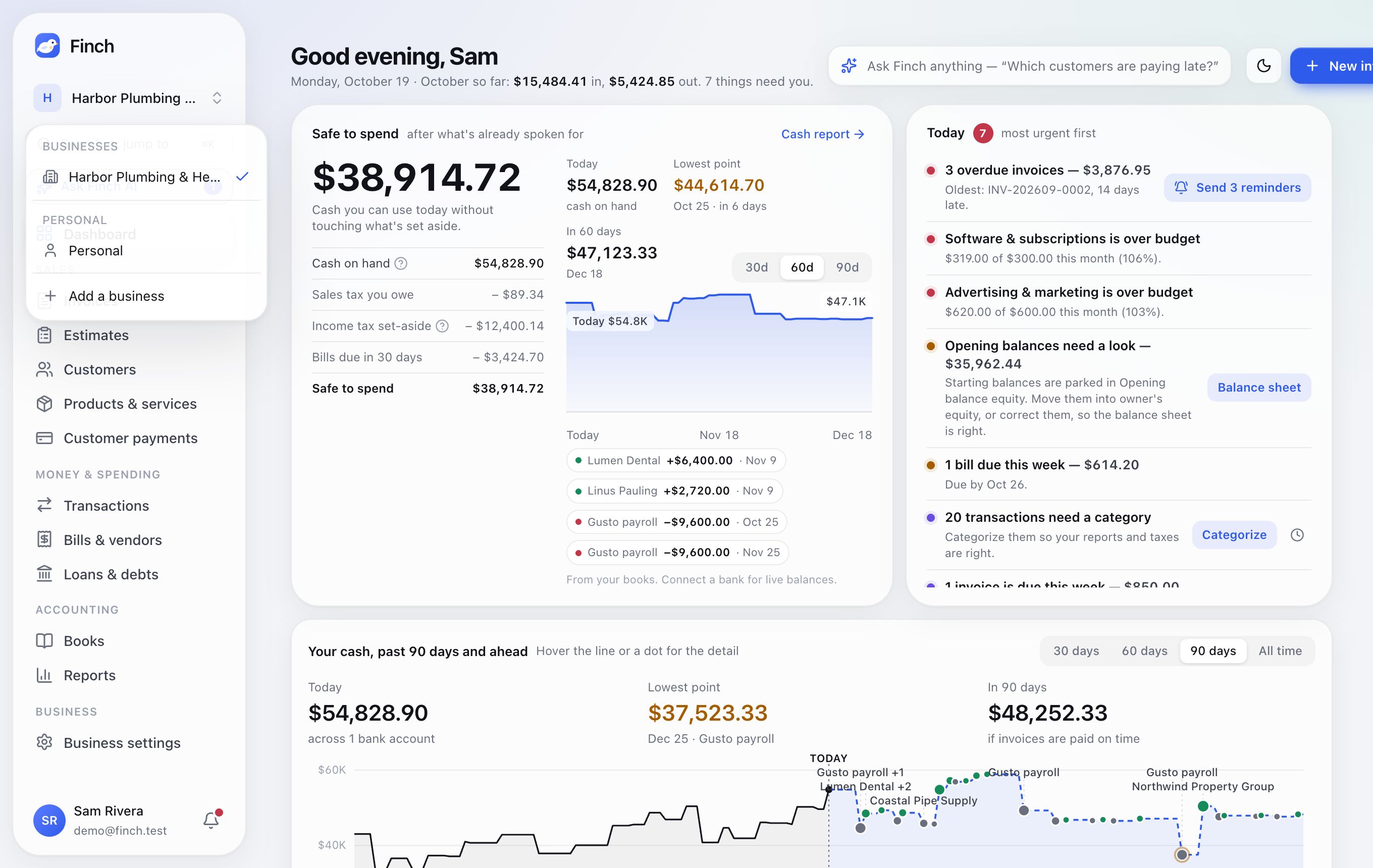
- The business switcher at the top: type to search. It lists your businesses, the Clients you work for (with your role in each), and Personal books (a client's show their name, like "Maria Lopez (Personal)"), then Add a business.
- Search or jump to (⌘K) and Ask Finch AI (⌘J). A badge on Ask Finch AI means Finch has something waiting for you.
- The menu:
- Dashboard
- Sales: Invoices, Estimates, Customers, Products & services, Customer payments
- Money & spending: Transactions, Bills & vendors, Loans & debts
- Accounting: Books, Reports
- Business: Business settings
- You, at the bottom: your account menu and the notifications bell.
Personal's menu is shorter: Dashboard, Net worth, Money & spending, Accounting and Personal settings.
Search and jump (⌘K)#
Press ⌘K (Ctrl+K on Windows) from anywhere, or click Search or jump to.
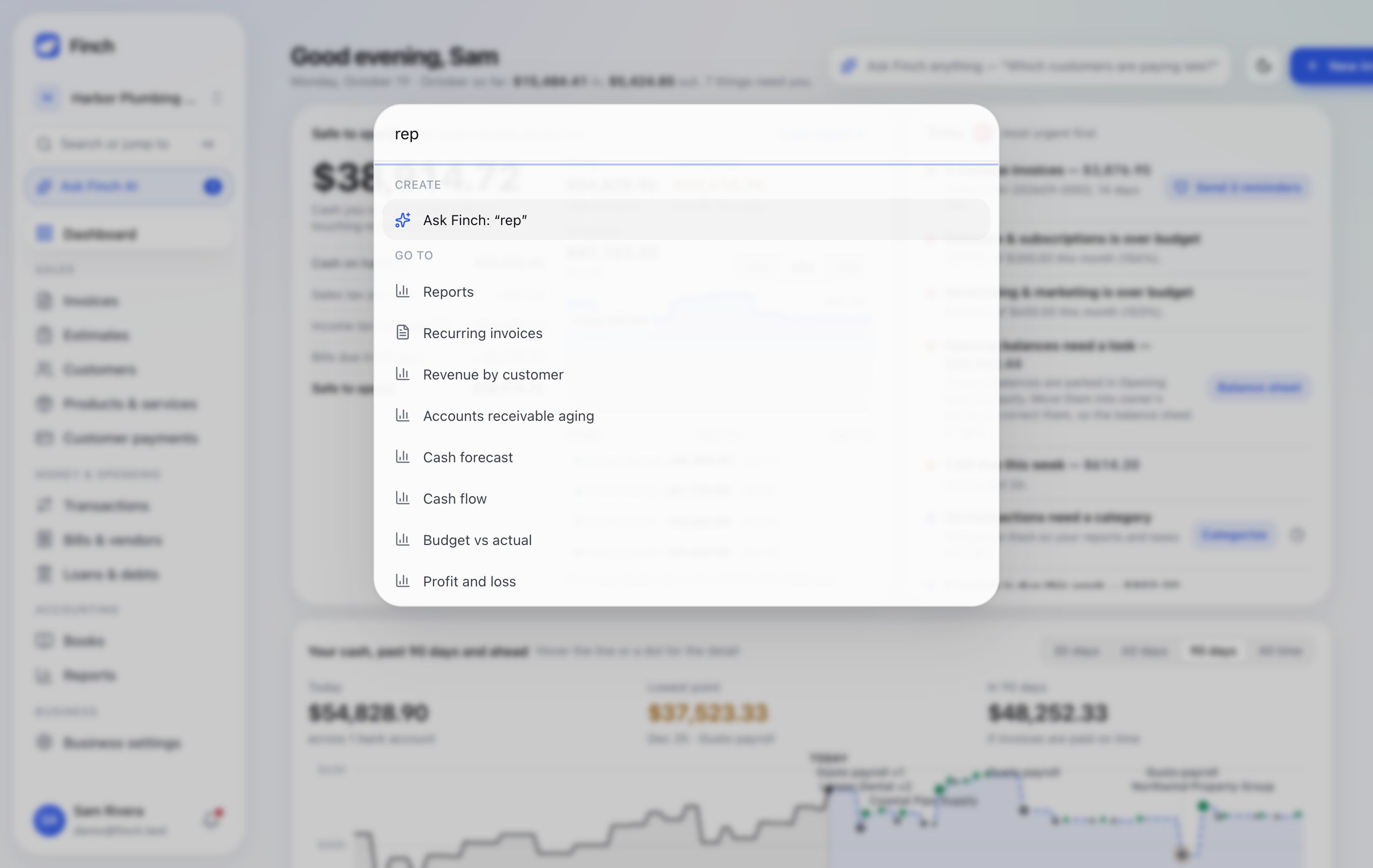
- Create: a new invoice, customer, product or transaction. Type a question and choose Ask Finch to send it to Finch AI.
- Go to: every page, setting and report. Everyday words work: "suppliers" finds Vendors, "quotes" finds Estimates, "bank feeds" finds Transactions, "templates" finds Invoice design.
- Switch to: your other businesses and Personal.
- Find: your newest 50 invoices and first 50 customers.
- Help: User manual opens this manual in a new tab. Type a question and choose Search the manual to open it already searching for your words.
Notifications#
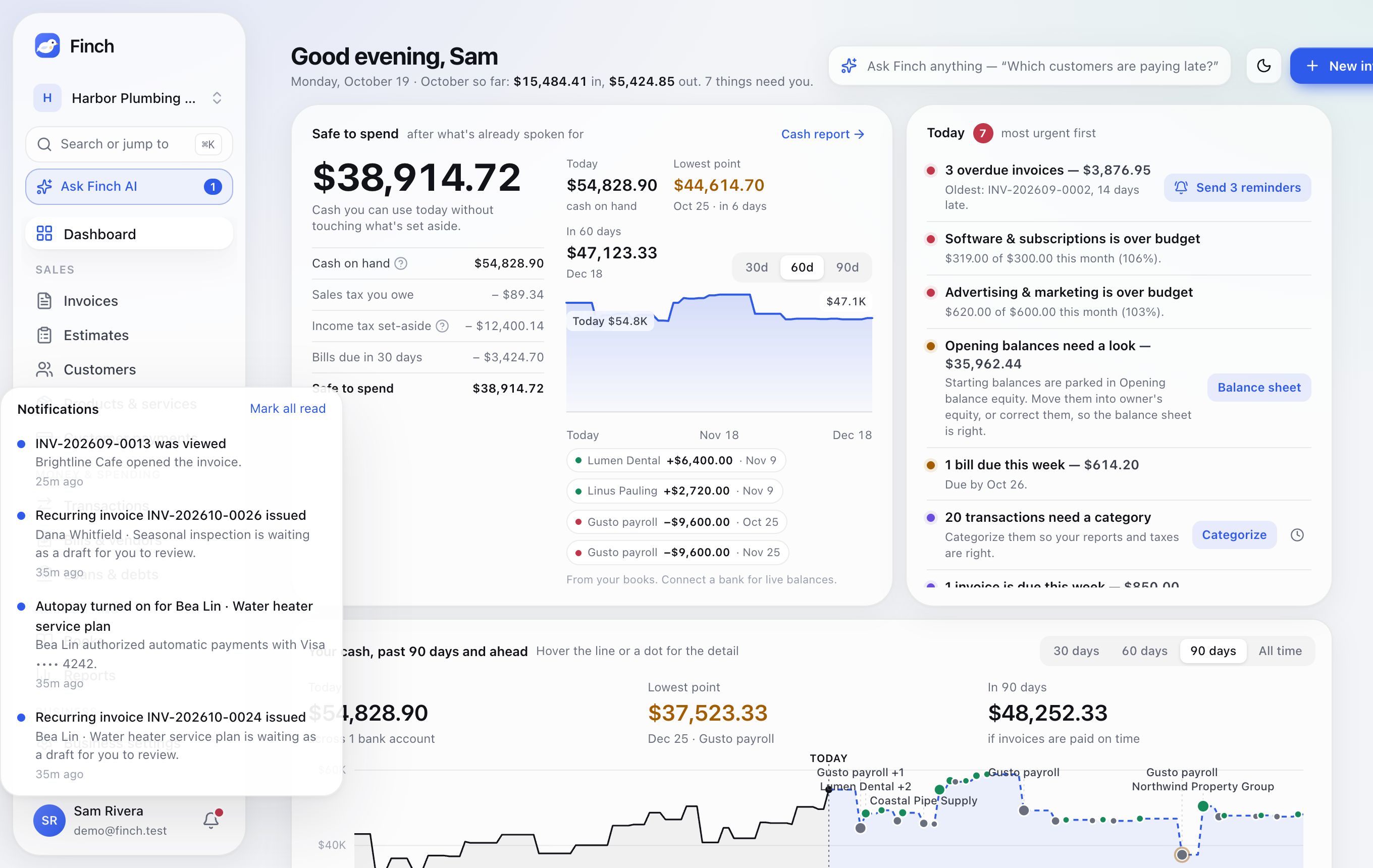
The bell shows your 30 most recent notifications across all your businesses: an invoice viewed, a payment received or failed, an estimate accepted, an email that bounced, a dispute, a customer's question, a late fee added, a message from the Finch team. Mark all read clears them. Business notifications go to members with the Staff role and above.
Your account menu#
Your settings (Profile, Sign-in & security, Your team, Bank connections), User manual (this manual, in a new tab), Appearance (Light, System or Dark) and Sign out.
On your phone#
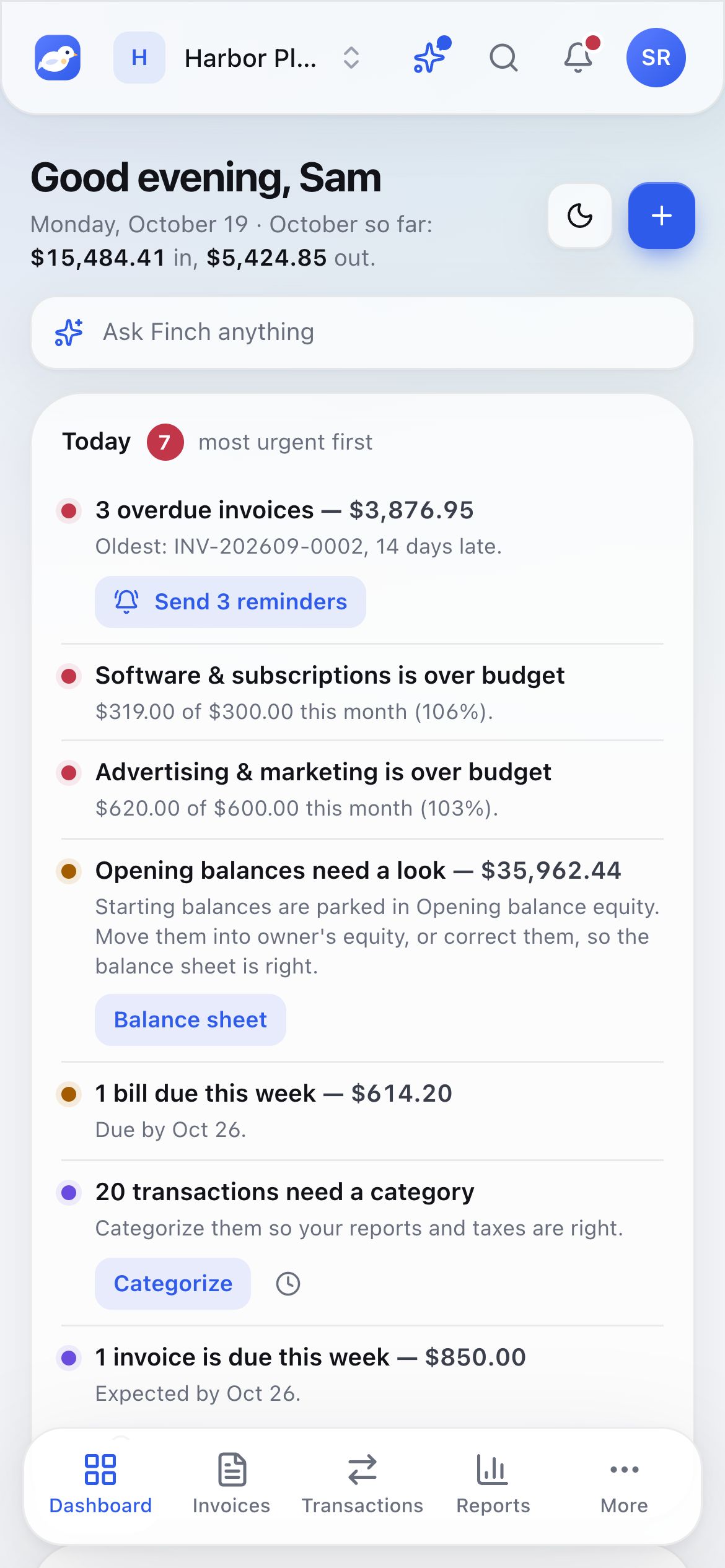
Finch works in your phone's browser. A top bar holds the switcher, Finch AI, search, notifications and your account. A bottom bar has Dashboard, Invoices (Net worth in Personal), Transactions, Reports and More. To use it like an app, add Finch to your home screen from your browser's share menu.
4. The dashboard#
Where: Dashboard.
The dashboard answers three questions: how much can I spend, what needs me today, and how's the business doing? It opens on Overview. Two more tabs go deeper: Get paid and Cash (Personal has Overview and Cash). Each tab starts with a sentence that sums it up, and links to a tab (such as …?tab=get-paid) open that tab.
The header#
- A greeting and a line such as "October so far: $15,484.41 in, $5,424.85 out. 7 things need you."
- New invoice, and a light/dark switch.
- Ask Finch anything, with the most useful question for your numbers right now. More questions sit beside it. Press ⌘J from anywhere.
- Get paid online (until online payments are set up), with Apply now or Continue.
- Since you last looked (after an hour away): payments received, invoices your customers viewed, and new bank transactions.
Safe to spend#
Safe to spend is the cash you can use today without touching what's already spoken for. It starts from Cash on hand (bank balances plus customer payments on their way) and takes off:
- Sales tax you owe
- an Income tax set-aside (25% of this year's profit unless you change it in Bookkeeping)
- Bills due in 30 days
- Card payments in 30 days
Beside it is a 30d / 60d / 90d forecast: today's cash, the Lowest point and its date, where you'll be at the end, and the biggest money in and out. Open invoices are dated by when each customer actually tends to pay, not just their due date.
Today#
Today lists what needs you, most urgent first. When nothing does, it says All clear.
| What it covers | |
|---|---|
| Urgent | a bank feed that stopped syncing, overdue invoices, cash that could run short, past-due bills, open disputes |
| Needs a look | spending at 90% or more of budget, bills due this week, suggested categories waiting, likely transfers, unusual activity (possible duplicate bills or charges, spending spikes, collections dropping), failed or likely-fraud payments, a bank account below zero, opening balances, a recurring invoice that needs attention |
| Notes | transactions needing a category, unsent drafts, unmatched payouts, invoices due this week |
Some items fix themselves right on the row: Send N reminders, Confirm N categories (and it can be undone), and It's a credit card / It's a bank account. Others link to the fix: Reconnect, See forecast, Review matches, Categorize or Review drafts. Notes can be snoozed for a week. Urgent items can't.
How's the business doing?#
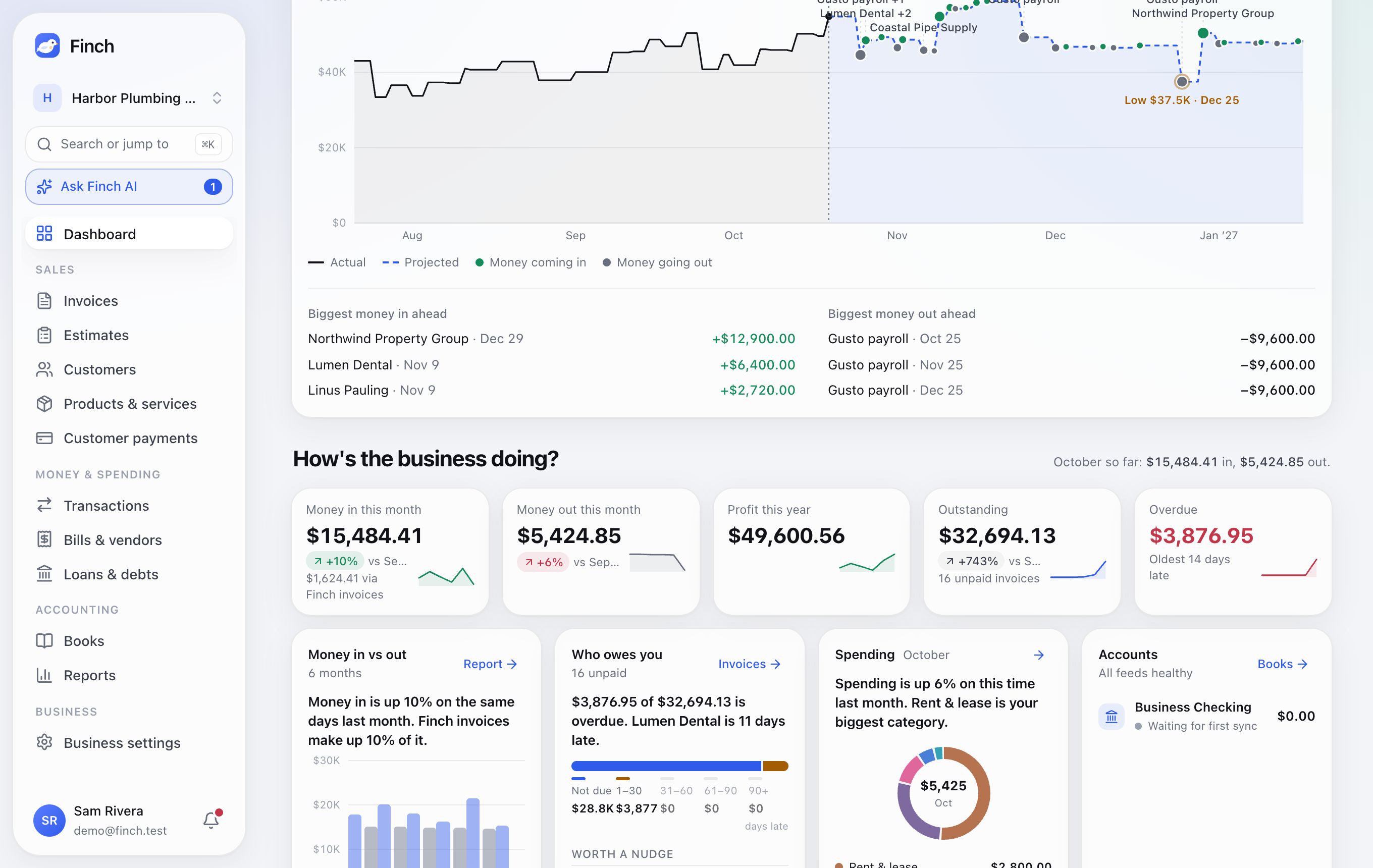
- Your cash, past and ahead: 30, 60 or 90 days back (or All time), with a dashed line 90 days ahead. Hover any day for detail.
- Tiles: Money in this month, Money out this month and Profit this year, each compared with the same stretch of last month or last year. Businesses also see Outstanding and Overdue.
- Money in vs out: six months of bars, splitting Finch invoice payments from other income.
- Who owes you: an aging bar (Not due, 1–30, 31–60, 61–90 and 90+ days late) and Worth a nudge, your top three customers by amount owed, each tagged "Pays on time", "Usually late" or "At risk".
- Spending: your top five categories. A category is flagged High when it's more than 1.5 times its three-month average.
- Accounts: each bank and card account with its balance and sync status.
- Tabs at the bottom: Coming up (estimates and the next recurring invoices), Recent invoices, Between businesses, and Debts.
Get paid#
How fast your customers pay, and what speeds it up. Choose the last 3M, 6M or 12M (months). Each figure is compared with the same stretch before it.
- Days to get paid: the average time from issuing an invoice to the day it's paid in full, and whether that's faster or slower than before.
- Paid on time: the share of invoices paid by their due date.
- Collected: money received from customers in the period, after refunds.
- Overdue now: what's late today, and how late the oldest invoice is.
- Days to get paid by month, with what was collected each month (hover a bar).
- Who owes you, the same aging bar as on Overview.
- Who paid you: your biggest payers in the period, how fast each paid, their on-time share and what they still owe.
- Likely to be late: open invoices from customers who usually pay late, with when Finch expects the money. Ask Finch who to chase drafts what to say.
- What gets you paid faster: how quickly invoices paid online were paid compared with ones recorded by hand, and what your automatic reminders did: how many went out, and how many invoices were paid within a week of their first reminder. Links take you to set up online payments or turn on reminders.
Cash#
What's in the bank and how long it lasts.
- Cash on hand, Money in a month and Money out a month (averages of the last three full months), and Runway: how long today's cash lasts at that pace when more goes out than comes in. It says Growing when more comes in.
- Money in and out of the bank, month by month for the last 3, 6 or 12 months. Money moved between your own accounts isn't counted. Hover a month for its net.
- Next 30 days: money expected in and going out (open invoices on each customer's habit, bills, card payments and regular spending), the biggest of each, and the lowest point in the next 90 days.
- Accounts: each bank and card account with its balance and sync status.
5. Getting paid#
The Sales section exists in businesses only (not in Personal).
Invoices#
Where: Sales → Invoices. The tabs are Invoices and Recurring invoices.
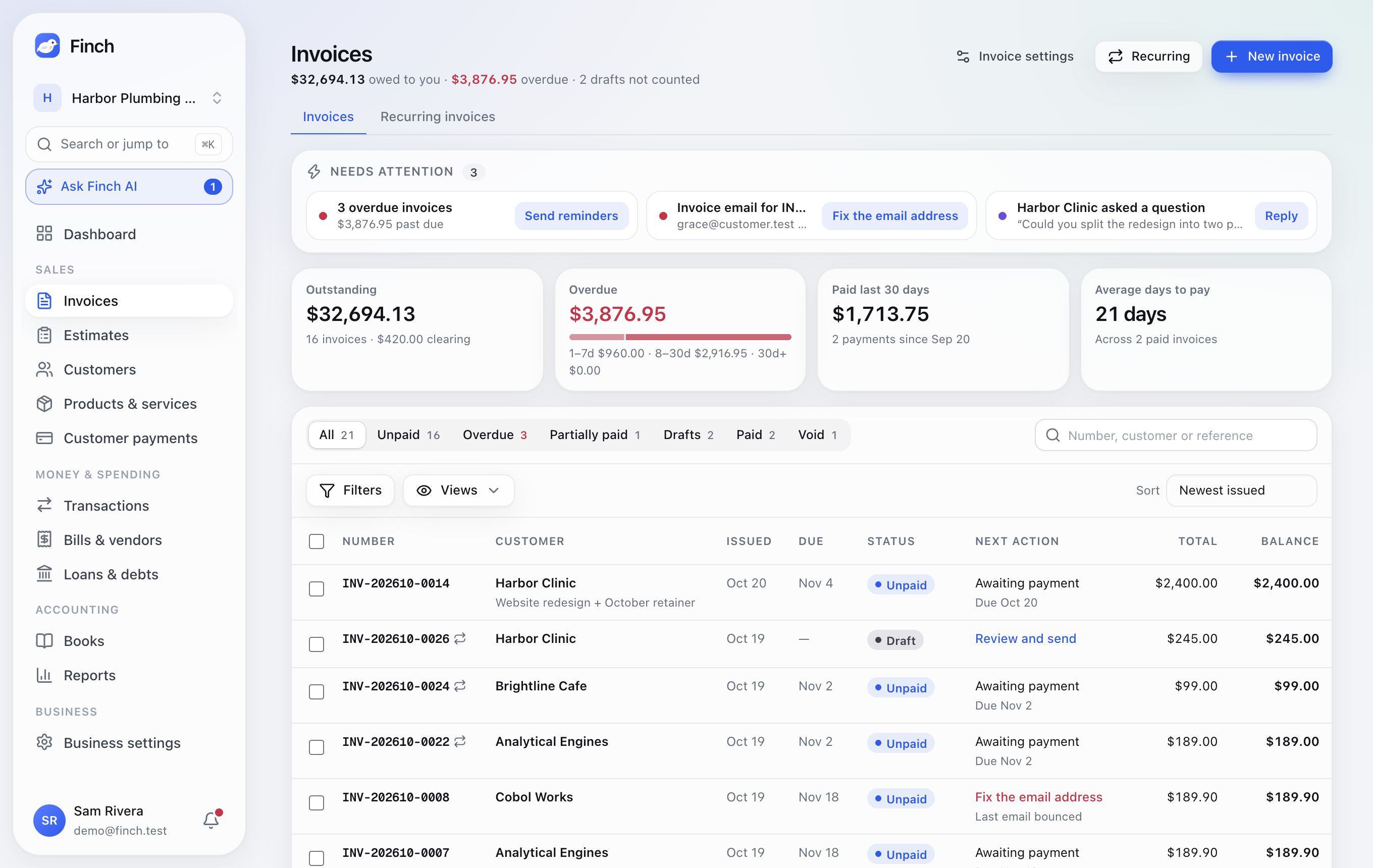
- At the top: how much you're owed and how much is overdue, then tiles for Outstanding, Overdue, Paid last 30 days and Average days to pay.
- Needs attention: one-click fixes such as Send reminders, Fix the email address (after a bounce), Reply (to a customer's question) and Try again (failed autopay).
- Tabs: All, Unpaid, Overdue, Partially paid, Drafts, Paid and Void.
- Search by number, customer, reference or PO. Filters for customer, dates, total, tag or recurring, seven ways to sort, and up to 20 saved Views.
- Each row shows a status and the next action, such as "Follow up · 12 days late" or "Review and send".
- Bulk actions (tick up to 100 rows): Send reminder, Mark sent, Export CSV and Void (admins).
Create and send an invoice#
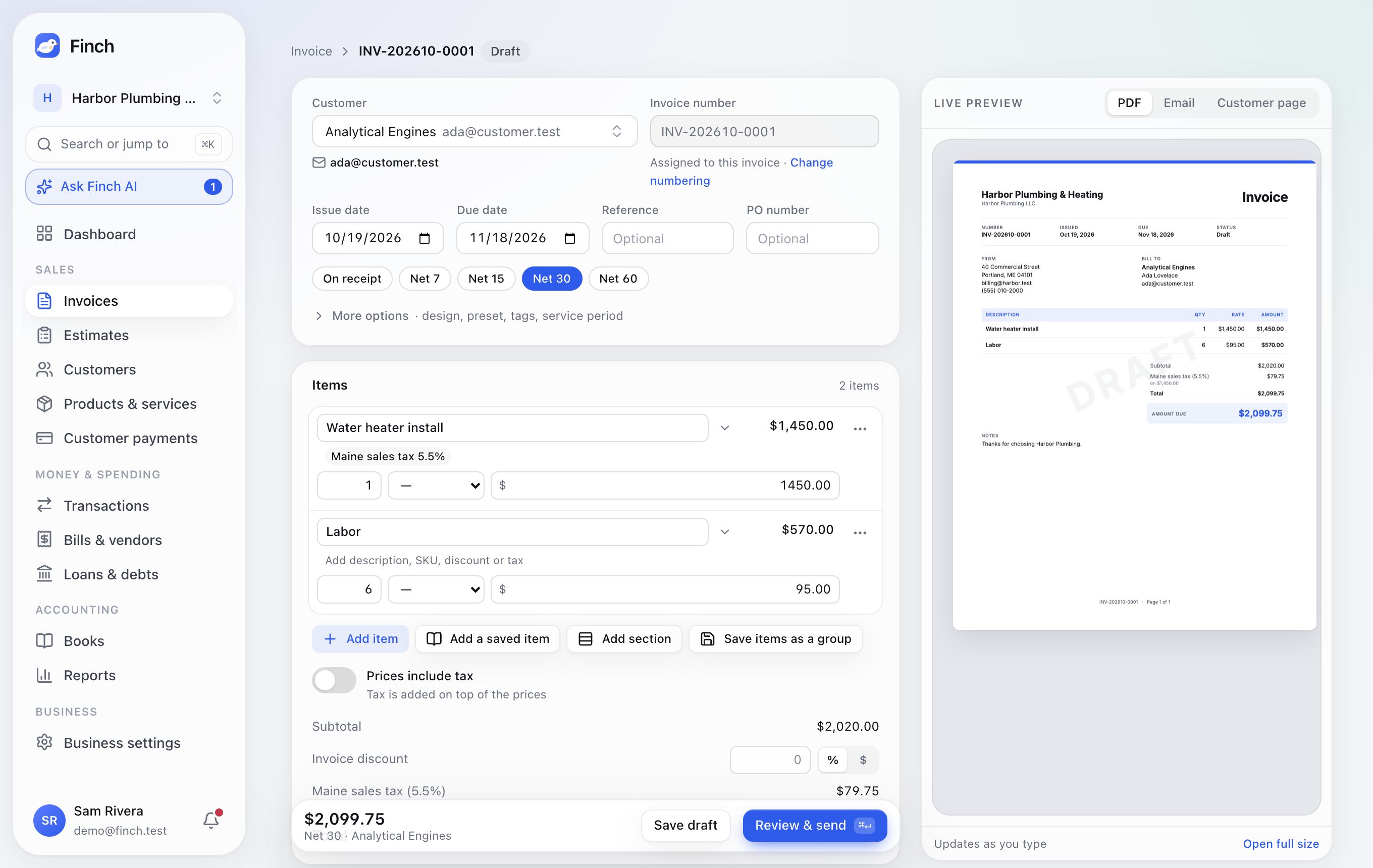
- Start. Click New invoice. You can also start one from ⌘K, the Dashboard or a customer's page.
- Customer. Pick one, or add one with New customer. Their email, payment terms and tax-exempt status come along.
- Dates and references. Set the issue and due dates, or click a terms chip: On receipt, Net 7, 15, 30 or 60. Add a Reference or PO number if your customer needs one. Finch assigns the invoice number.
- Items. Type to pick a saved product: its description, SKU, unit, price and taxes fill in. If this customer has their own price, Finch uses it.
- Each line can have its own discount and several tax rates.
- Add section groups lines under a heading, with a subtotal.
- Save items as a group saves a set of lines you use often; Insert group adds it to another invoice.
- Extras, if you need them:
- a discount on the whole invoice
- Prices include tax
- Pay in parts: a deposit plus the balance, or 2, 3, 4, 6 or 12 monthly payments
- letting the customer pay part online, with a minimum
- More options: the design template, saved presets, team-only tags and a service period.
- Notes and files: notes, terms and footer that the customer sees, a private note they don't, and attachments. Each attachment is shared with the customer or kept private.
- Review & send.
Drafts save as you type. The live preview beside the form switches between PDF, Email and Customer page. Press ⌘S to save and ⌘↵ to open Review & send.
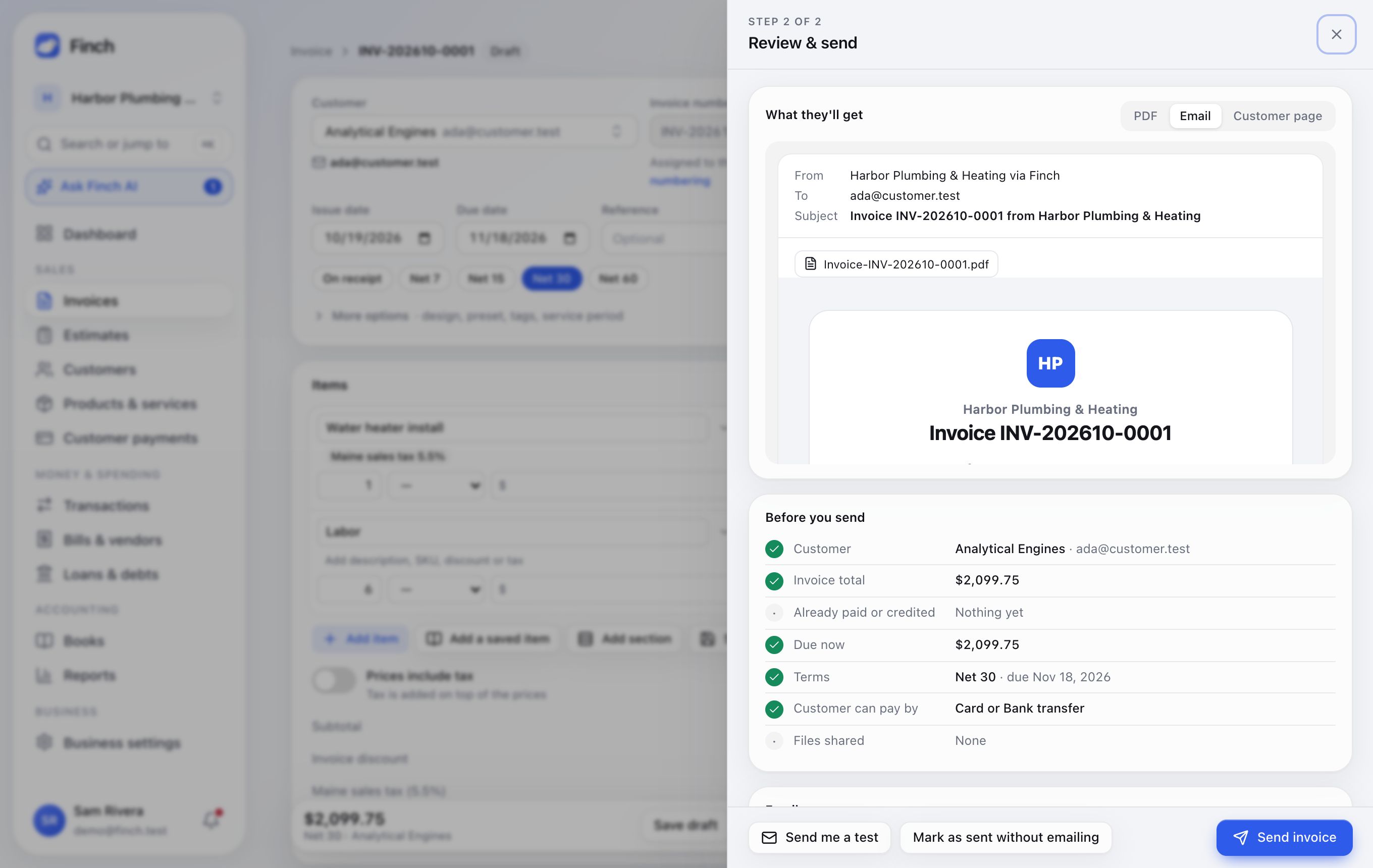
Review & send checks the essentials under Before you send: the customer, total, what's due now, how they can pay and shared files. Finch warns about likely duplicates and odd dates. Then:
- Edit To, Add Cc / Bcc, the Subject and Message. Merge tags fill in for you:
{{customer_name}},{{invoice_number}},{{amount_due}},{{due_date}}and{{business_name}}. - Attach the PDF is on unless you turn it off.
- Send invoice now, or Schedule it (tomorrow at 9:00 AM unless you pick another time). Send me a test sends a copy to you. Mark as sent without emailing is for invoices you share another way.
The email comes from "Your business via Finch", and replies go to your business email. The preview, the PDF and the attachment are drawn by the same engine, so they always match.
The invoice page#
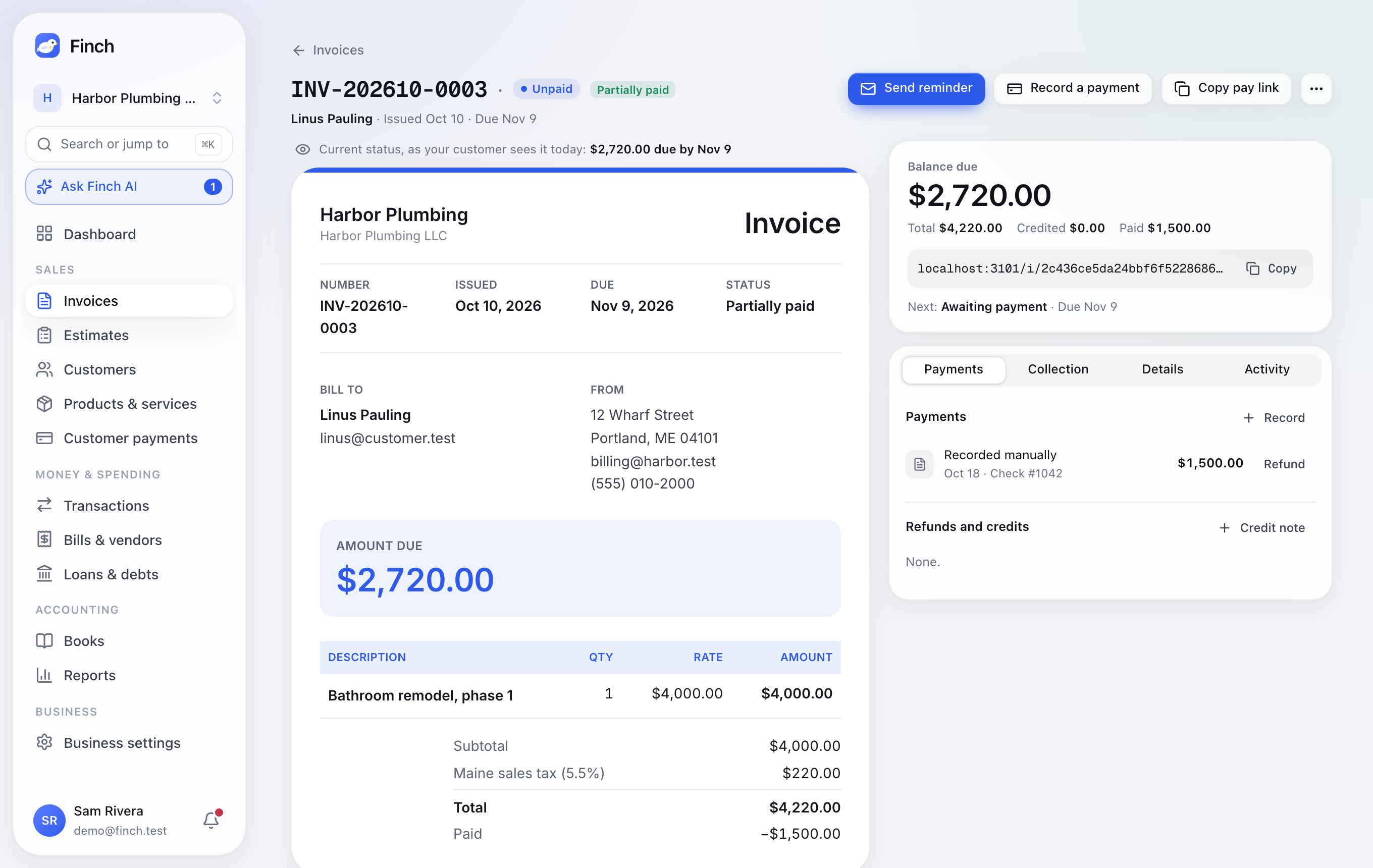
- The main button follows the invoice: Send invoice, Send reminder or Send again. Next to it: Record a payment, Edit and Copy pay link.
- The ⋯ menu: Download PDF, Issue a credit note, Write off as a bad debt, Duplicate, Make recurring, Void invoice, and Delete draft.
- Balance due card: the total, what's been credited and paid, and the customer's private pay link.
- Current status, as your customer sees it today, above the invoice.
Payments tab
- Record a payment for a check, bank transfer, cash, card in person or other. Part payments are fine.
- Refund (admins): all or part, back to the card or bank. Choose whether the customer still owes the amount or gets a credit note.
- Credit note (admins) lowers what's owed without moving money.
- Write off as a bad debt (admins) stops collecting what's left. The customer sees "Balance written off", never your reason. Void the write-off's credit note to collect again.
Collection tab
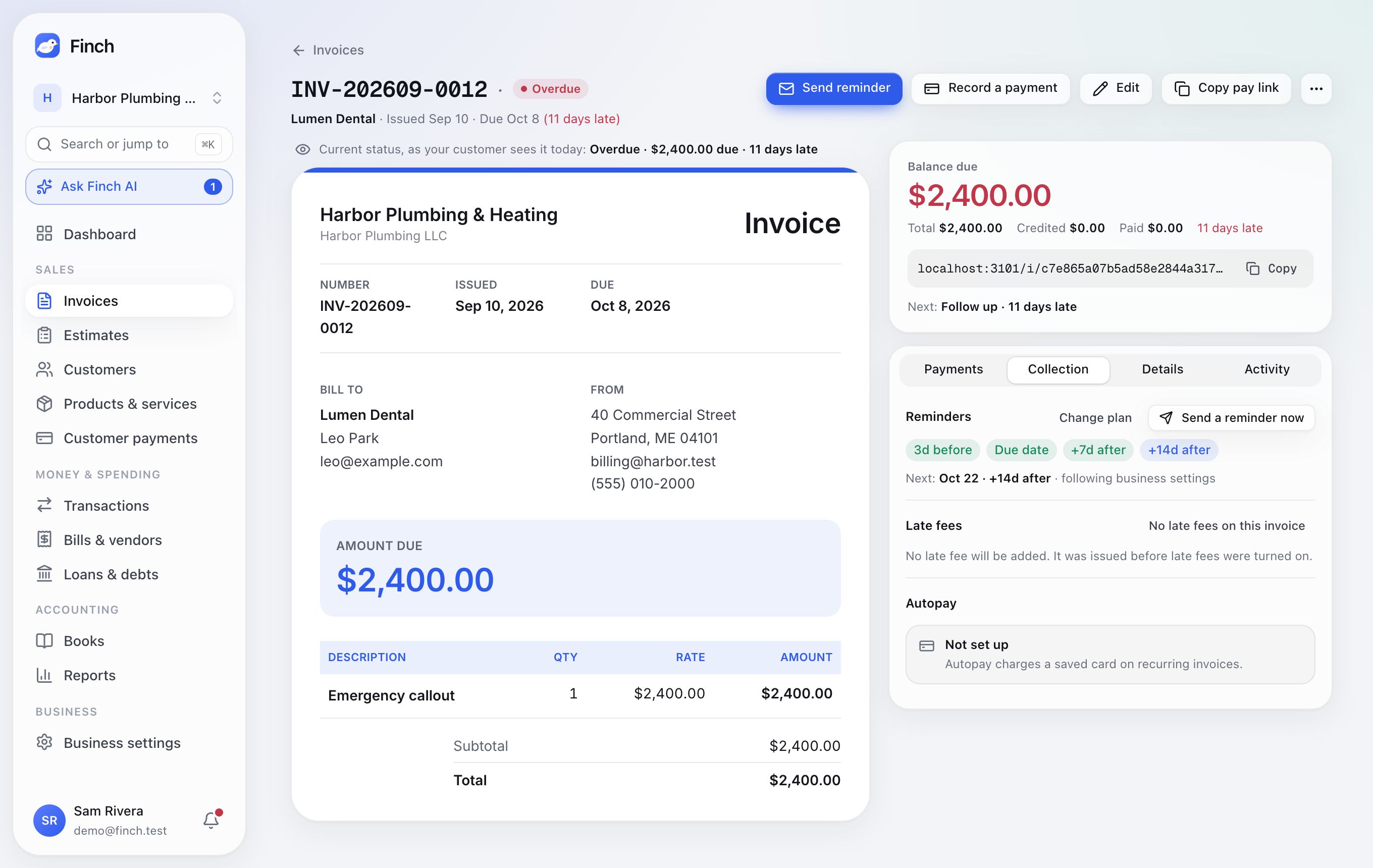
- Reminders: this invoice's reminder days. Change plan to follow the business, use its own days, turn them off, or Pause until a date. Send a reminder now sends one immediately.
- Late fees: fees already added, the next one (with its date and amount), or why none will be added. No late fees on this invoice turns them off for this invoice only.
- Autopay: whether the customer's saved card or bank pays this invoice.
Details tab: customer questions, attachments, the private note and Revisions. Activity tab: a timeline: sent, delivered, bounced, viewed, paid, refunded, reminded.
Recurring invoices#
Where: Invoices → Recurring invoices, or Make recurring on any invoice.
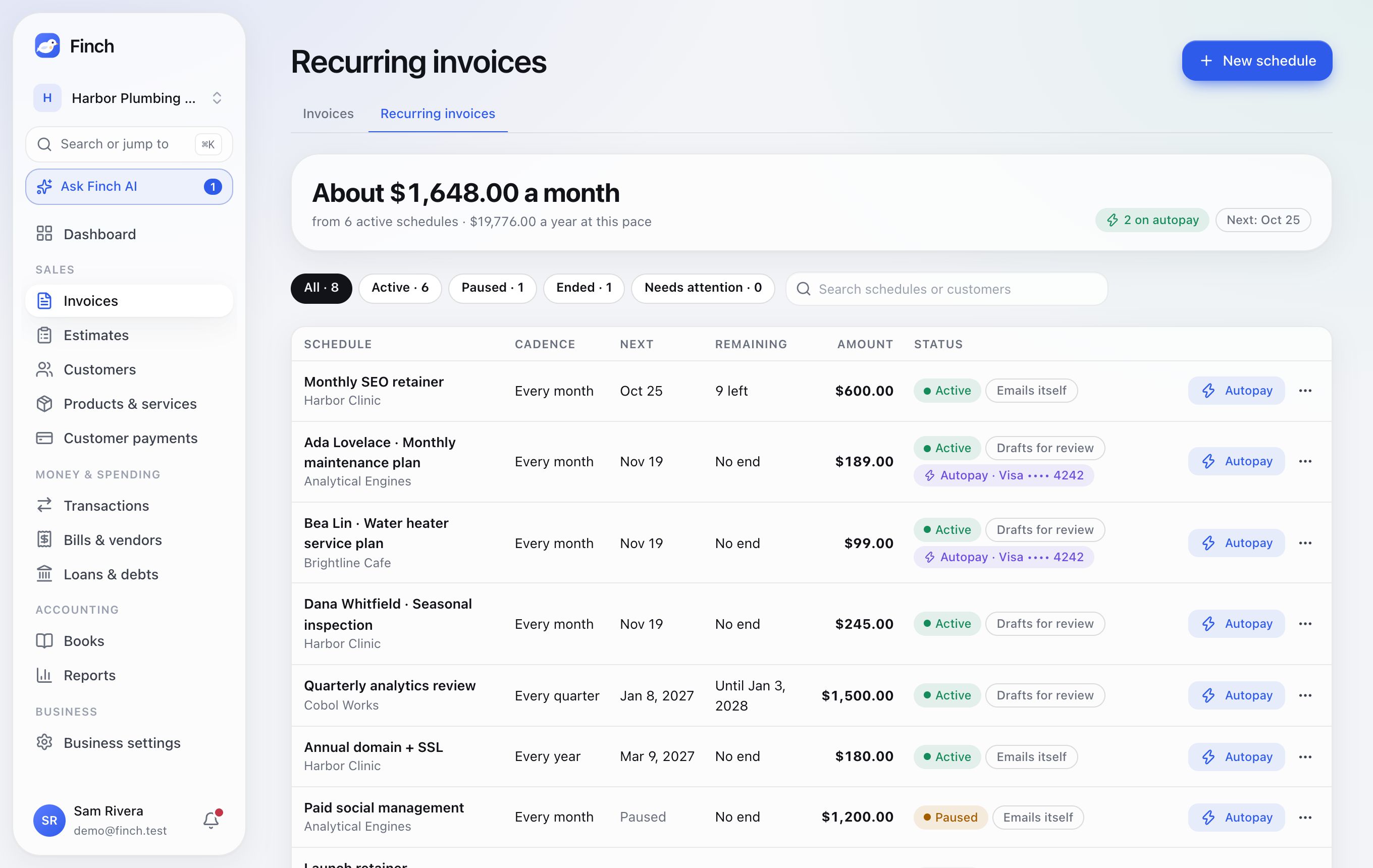
- Schedule: weekly, monthly, quarterly or yearly, every 1–12 periods. "Due in N days after it's issued". Ends never, after a number of invoices, or on a date.
- Sending: Email each invoice automatically is on unless you turn it off; otherwise each one waits as a draft for you to review.
- Managing: pause, resume (missed dates are skipped), edit, end or delete. The page totals your schedules: "About $1,648.00 a month".
- Autopay: click Autopay on a schedule to invite the customer. They choose a card or bank account and sign by typing their name. Finch emails a notice 1, 3 or 7 days before each charge, charges on the due date, and retries up to three times if it fails.
Reminders, thank-you emails and late fees#
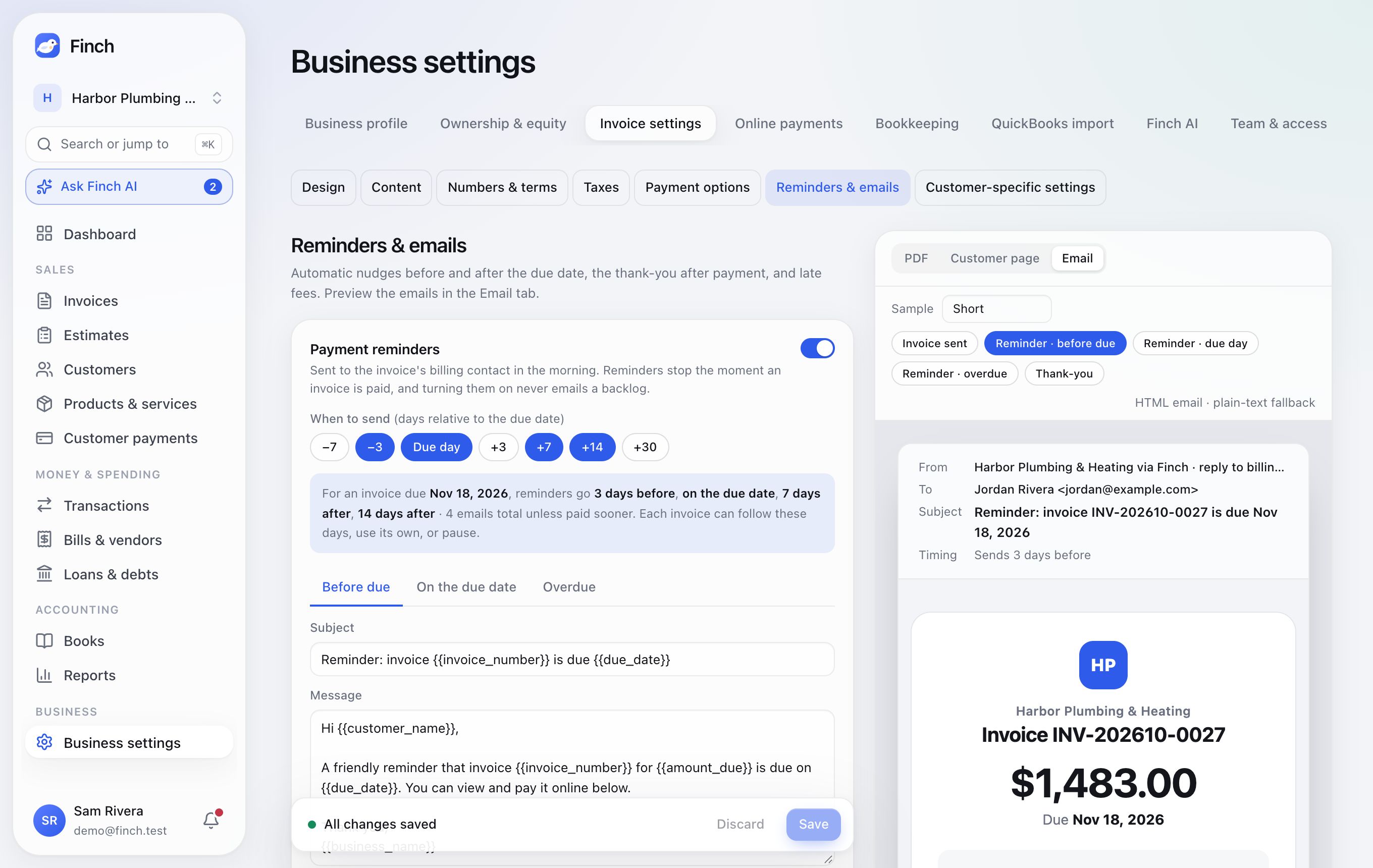
Where: Business settings → Invoice settings → Reminders & emails (owners and admins). All three are off until you turn them on.
Payment reminders
- Turn on Payment reminders.
- Pick the days: 7 or 3 days before the due date, on the due date, and 3, 7, 14 or 30 days after. A good start is 3 days before, the due date, and 7 and 14 days after.
- Edit the wording for Before due, On the due date and Overdue if you like, and use Send me a test.
- Click Save.
Reminders go out once a day, in the morning, and stop the moment an invoice is paid. Turning them on never emails a backlog of old invoices. Each customer and each invoice can opt out. Nothing is sent while a bank payment is processing or autopay is about to collect.
Thank-you emails go out each time a payment completes, with the amount, method and date added under your message.
Late fees
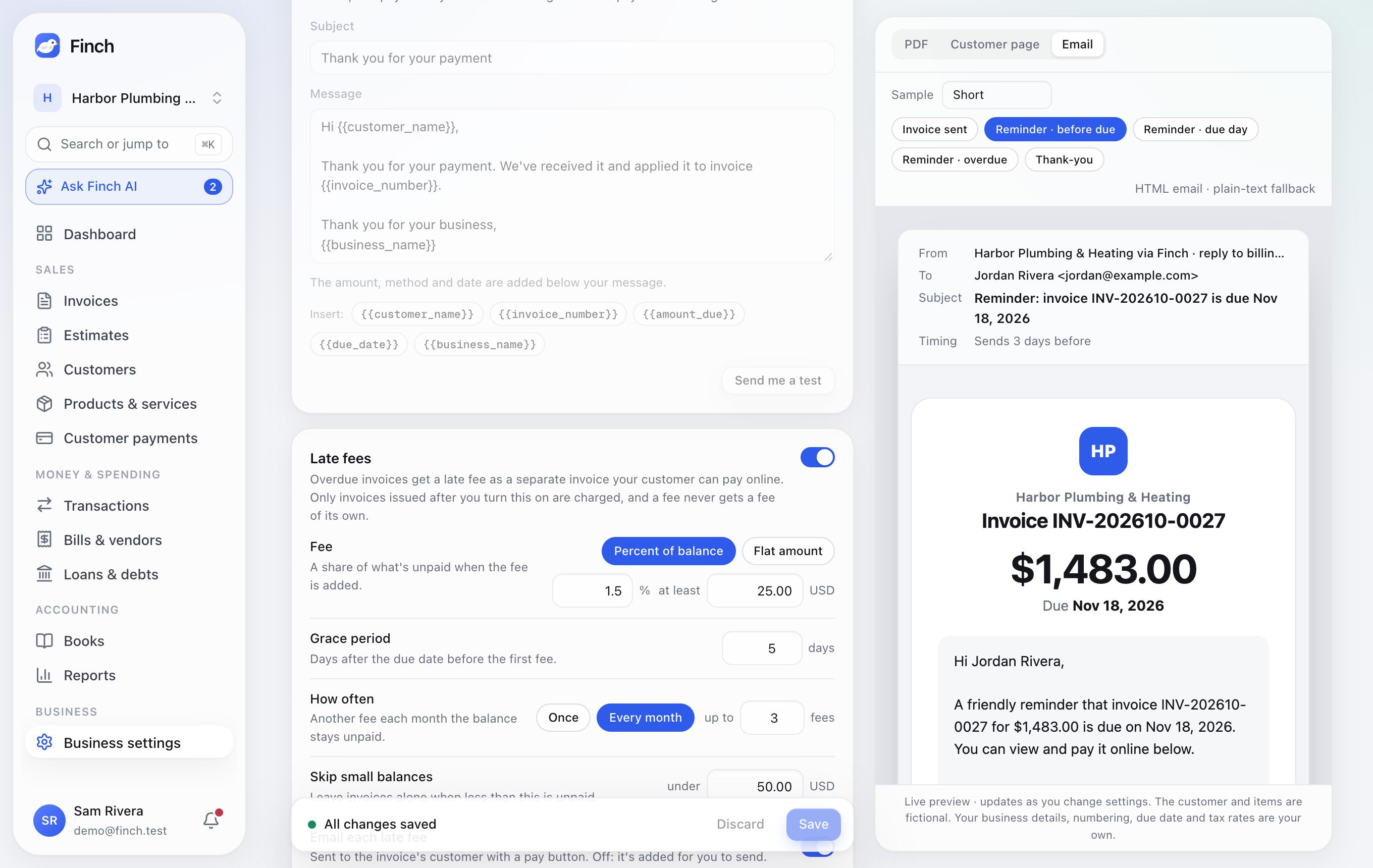
- Turn on Late fees.
- Fee: a Percent of balance (with an optional minimum, for example 1.5%, at least $25) or a Flat amount.
- Grace period: days after the due date before the first fee.
- How often: Once, or Every month while the balance stays unpaid, up to 12 fees per invoice.
- Skip small balances under an amount you choose.
- Email each late fee to the customer, or leave it off and send it yourself.
- Click Add to invoice terms so customers know about the fee before it's charged, then Save.
How late fees work:
- Each fee is its own small invoice, linked to the overdue one ("Late fee on INV-1043"), due on receipt and payable online.
- Its income goes to a Late fees account (4150) in your books, made when you first turn fees on.
- Only invoices issued after you turn late fees on can get a fee. A late fee never gets a fee of its own.
- Nothing is added while a bank payment or refund is processing or autopay is collecting.
- To waive a fee, void its invoice. To skip one invoice, use its Collection tab; to skip a customer, use the switch on their page.
Estimates#
Where: Sales → Estimates.
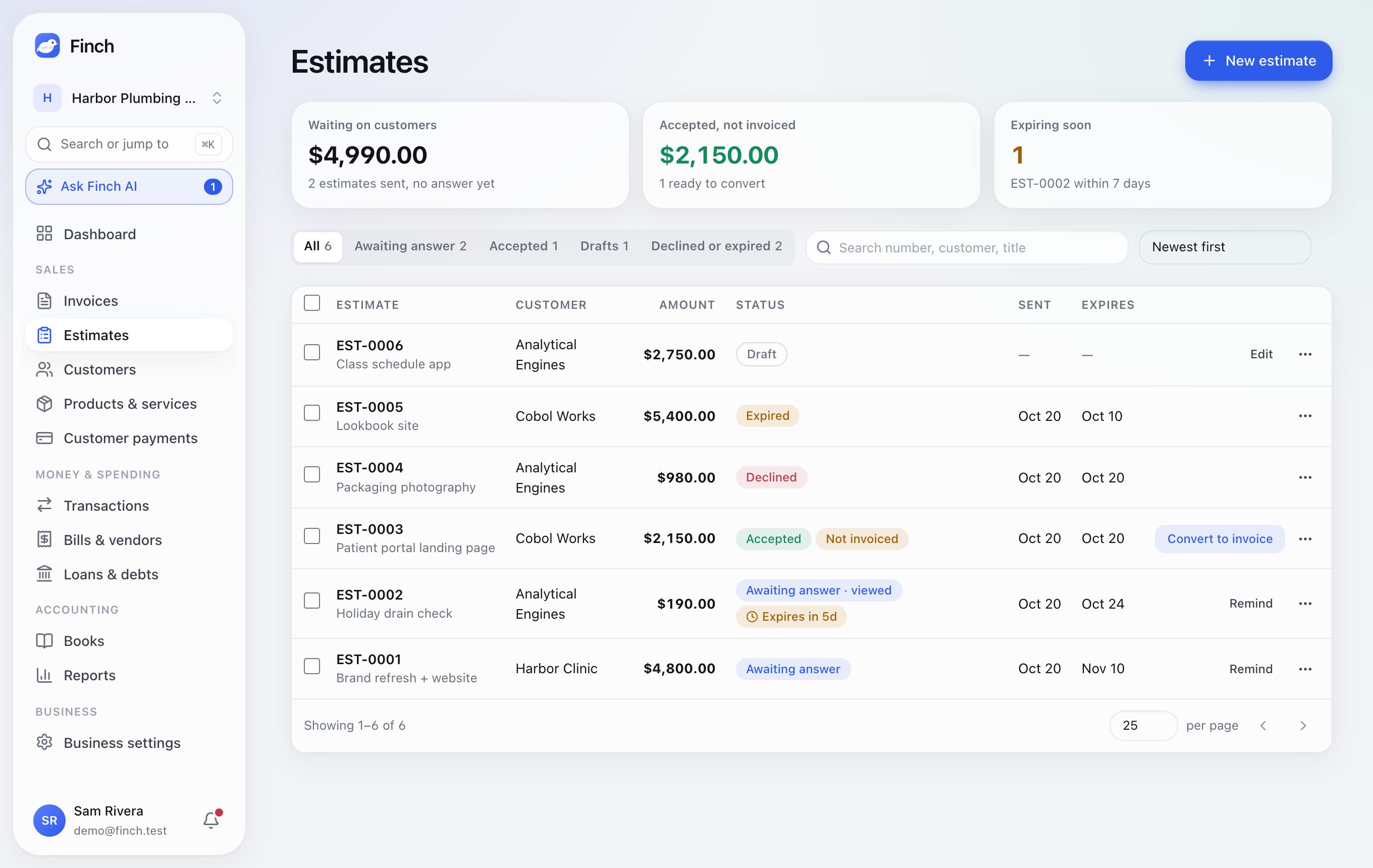
- The list: tabs for All, Awaiting answer, Accepted, Drafts, and Declined or expired. Tiles for Waiting on customers, Accepted, not invoiced and Expiring soon.
- Creating one uses the invoice editor, plus:
- Valid until: 7, 14, 30 or 60 days
- Optional lines the customer can choose to add
- an optional deposit, as a percent or a fixed amount
- Statuses: Draft, Sent, Viewed, Accepted, Declined, Expired and Void.
What your customer does. They open the estimate link, tick any optional extras (the total updates as they go), type their name to sign, and click Accept (or Accept and pay deposit). They can also Decline instead, with a note.
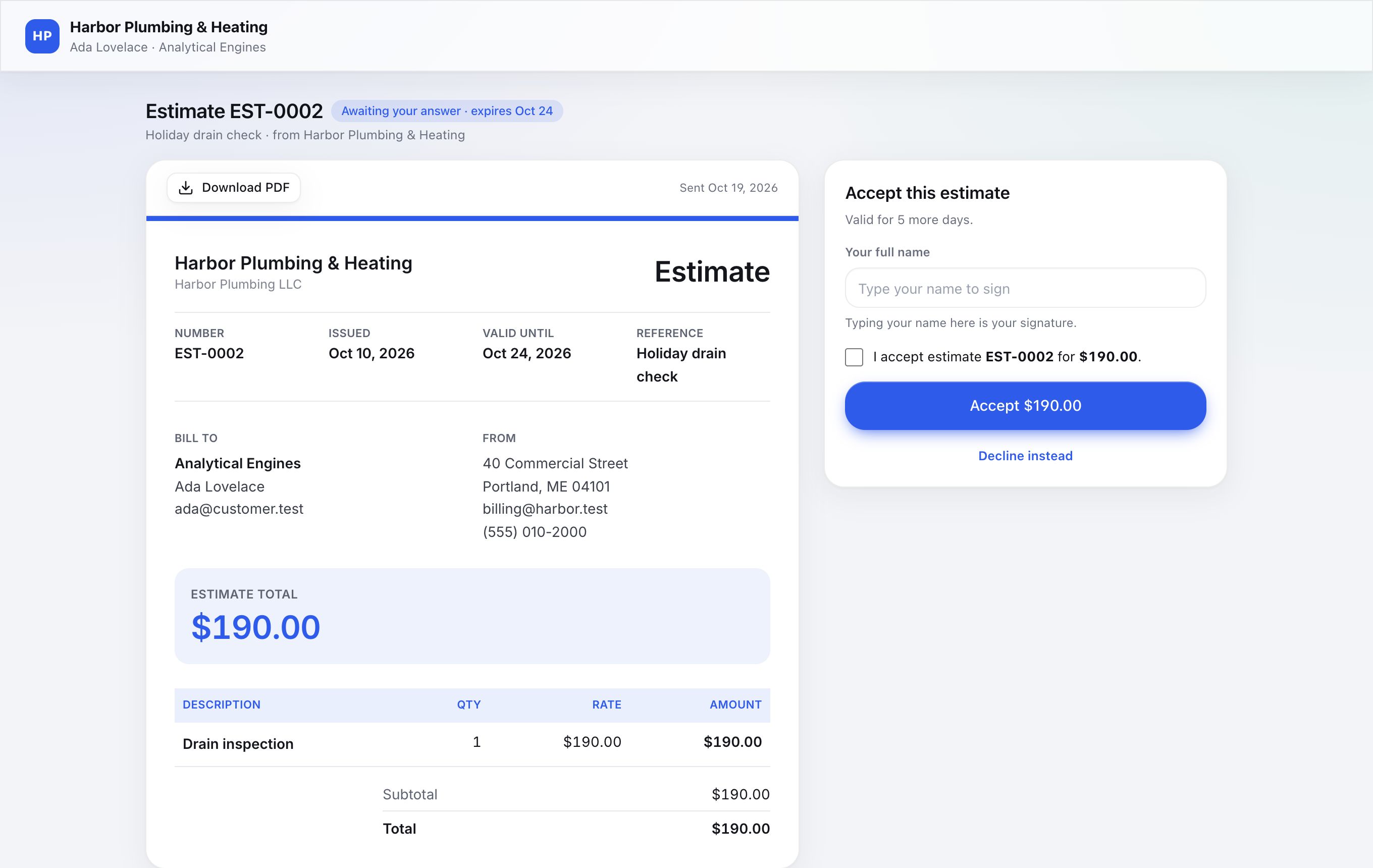
After they accept: with a deposit, Finch issues the invoice and the customer pays the deposit right there. Otherwise, click Convert to invoice.
Customers#
Where: Sales → Customers.
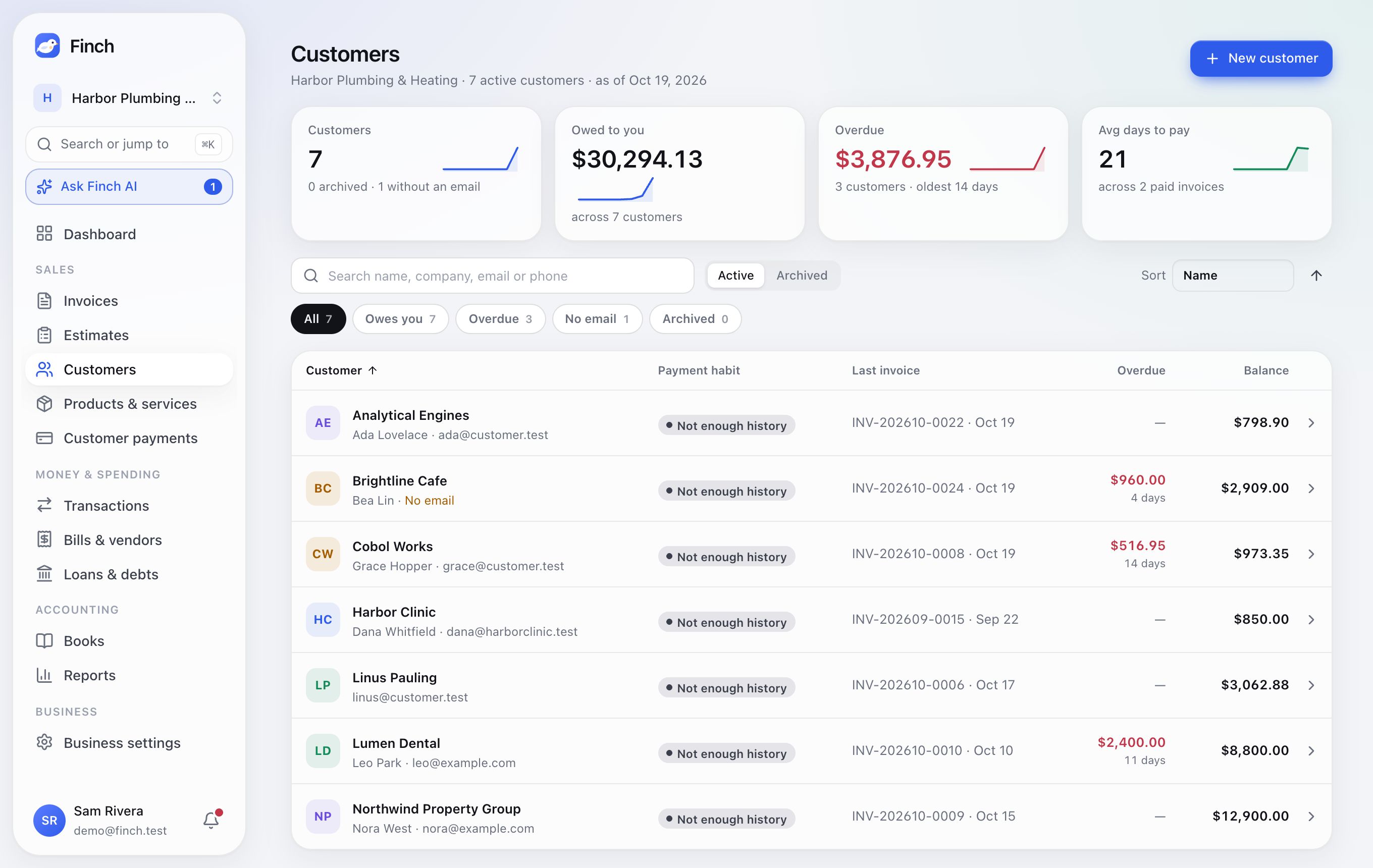
- Tiles: Customers, Owed to you, Overdue and Avg days to pay.
- Search by name, company, email or phone. Filter by Owes you, Overdue, No email or Archived, and sort four ways.
- Payment habit: each customer is rated Reliable payer, Usually pays late, At risk or Not enough history, from how they've actually paid.
A customer's page
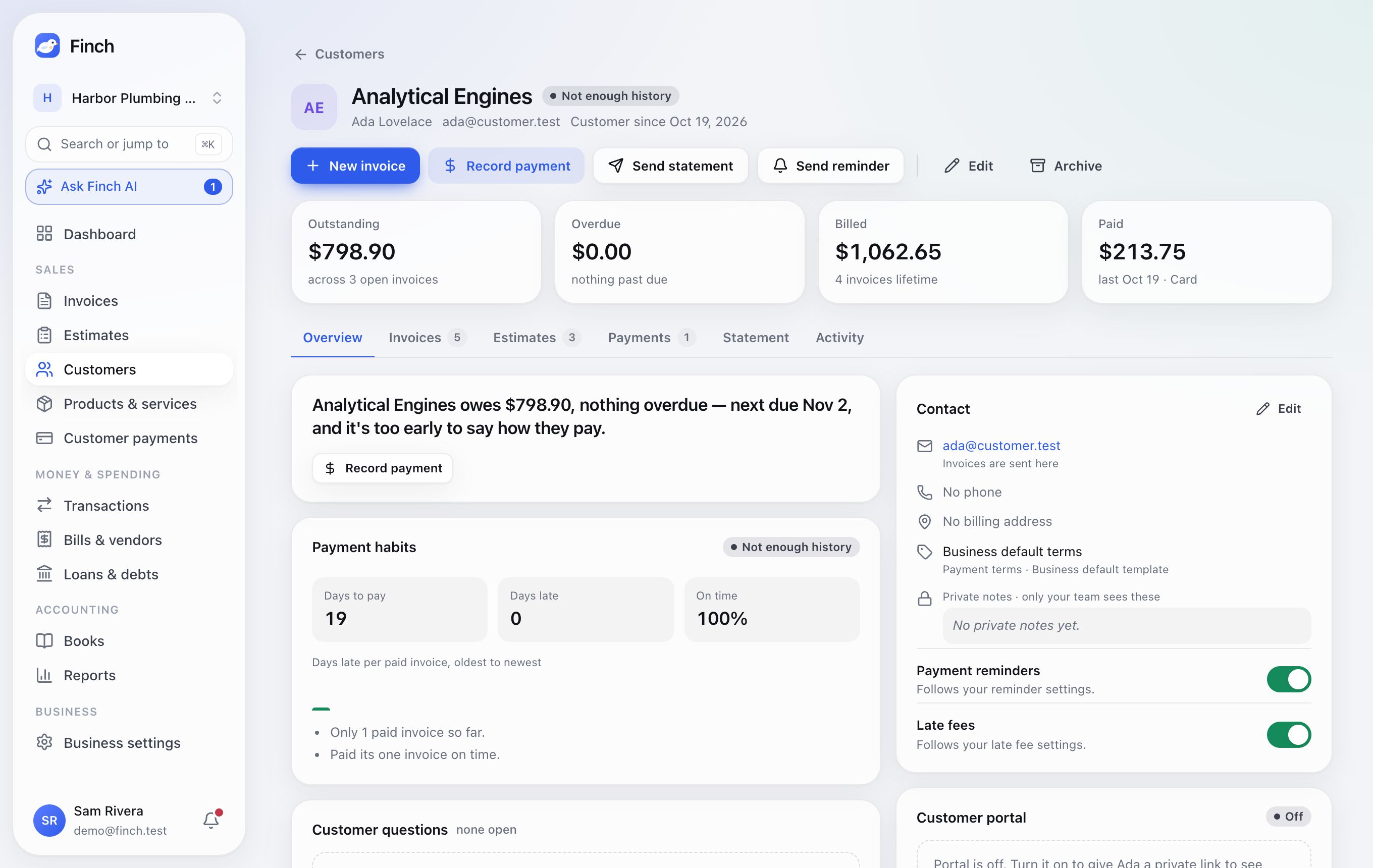
- Actions: New invoice, Record payment, Send statement, Send reminder, Edit and Archive.
- Tabs: Overview, Invoices, Estimates, Payments, Statement and Activity.
- Overview: what they owe, their payment habits (days to pay, days late, on-time rate), questions from the portal, Customer prices, switches for Payment reminders and Late fees, the Customer portal link, and saved payment methods.
- Statement: pick a period, then Download PDF or Email statement.
You can store a contact name, company, email, phone, address, payment terms, default template, up to 5 CC addresses, Tax exempt, standard notes and private notes. Archiving hides a customer without deleting anything.
Products & services#
Where: Sales → Products & services.
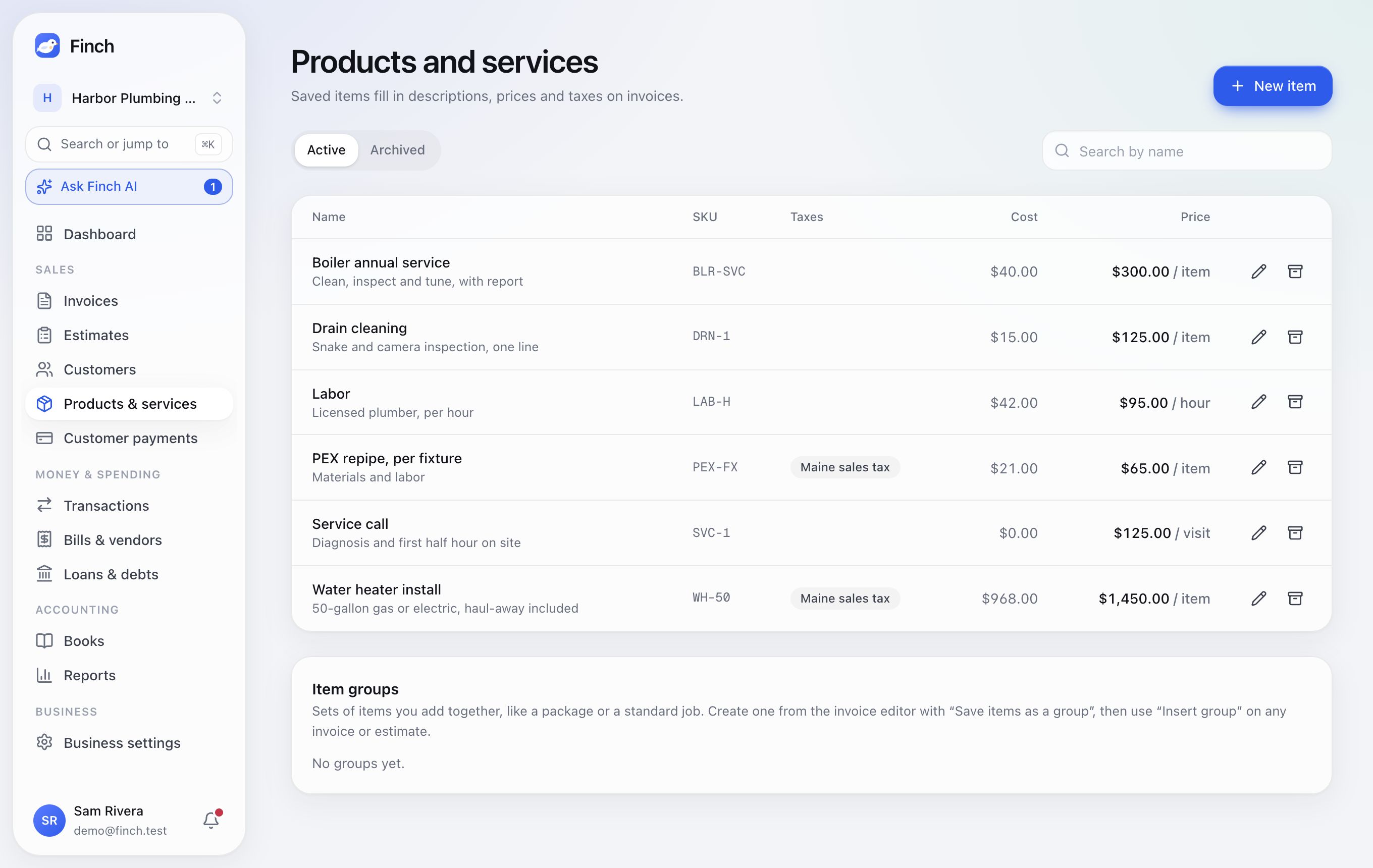
- New item: name, description, price, unit (hour, item, visit…), Your cost (private, used for margins), SKU and taxes.
- Cost of goods sold: when it's on (see Bookkeeping), When it sells chooses the account its cost posts to, or Don't post its cost.
- Item groups are saved from the invoice editor with Save items as a group.
- Archive and restore items. Finch doesn't count stock; the Item sales report shows quantity, revenue and margin.
Customer payments#
Where: Sales → Customer payments. Payment setup links to your online payments settings.
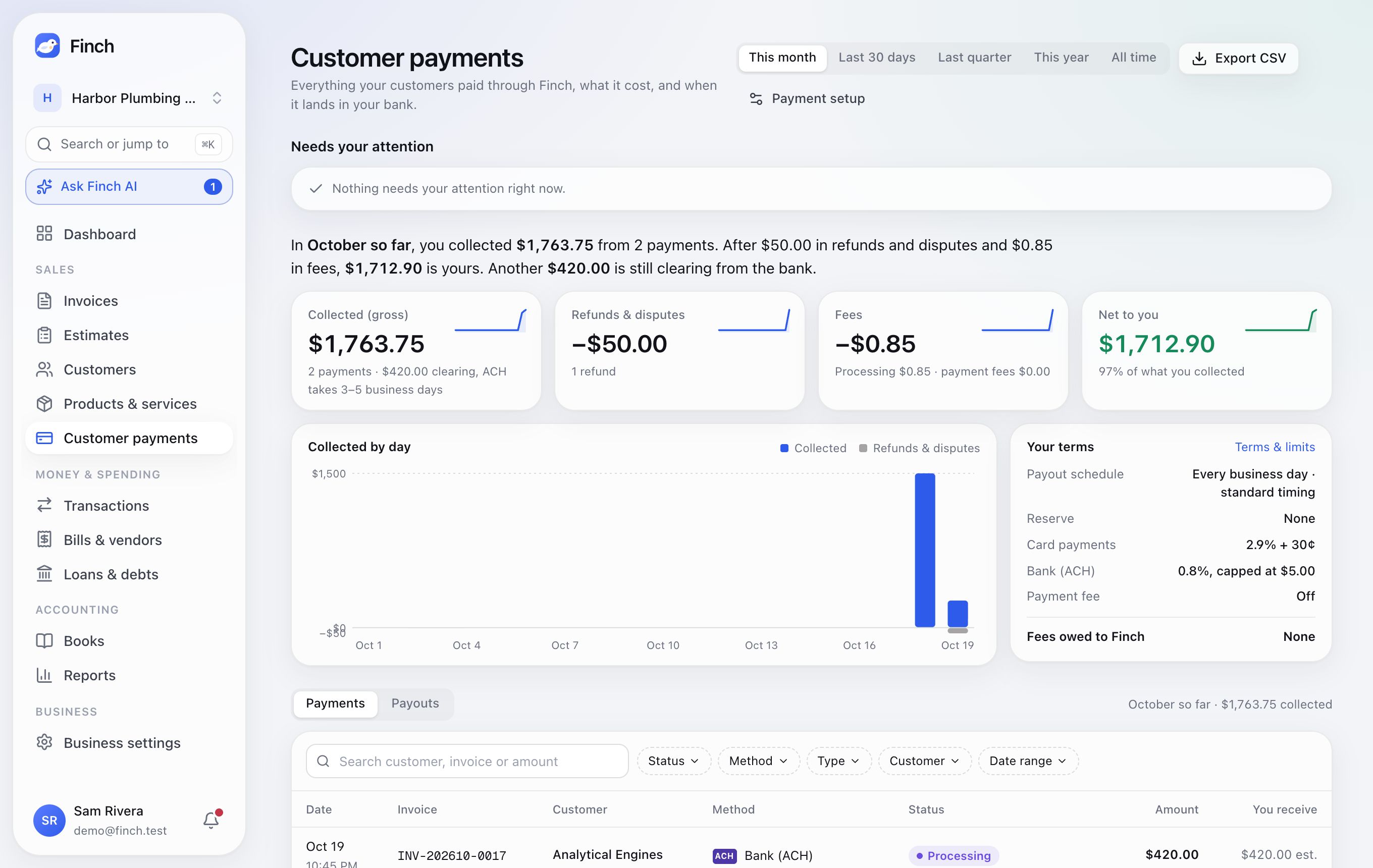
- Needs your attention: likely-fraud payments (It's legitimate, keep it), disputes (Respond, with a countdown), refunds waiting on bank details, and returned payouts.
- A summary in words: what you collected, what came off in refunds, disputes and fees, and what's yours. Tiles for Collected, Refunds & disputes, Fees and Net to you, with a chart by day.
- Your terms: payout schedule, reserve and rates.
- Payments and Payouts: search, filter and Export CSV. Each payout shows when it lands and whether it's Matched to the bank deposit, so money is never counted twice.
- A payment's panel: a timeline from checkout to bank deposit, "What you receive", Refund, Send a payment link (after a failure), Download receipt and Send receipt.
- Disputes: Respond to the dispute walks you through the evidence for the dispute's reason, fills in what it can from the invoice and attaches the invoice PDF.
What your customer sees#
The pay page. Every sent invoice has a private pay link; it's also the button in the email.
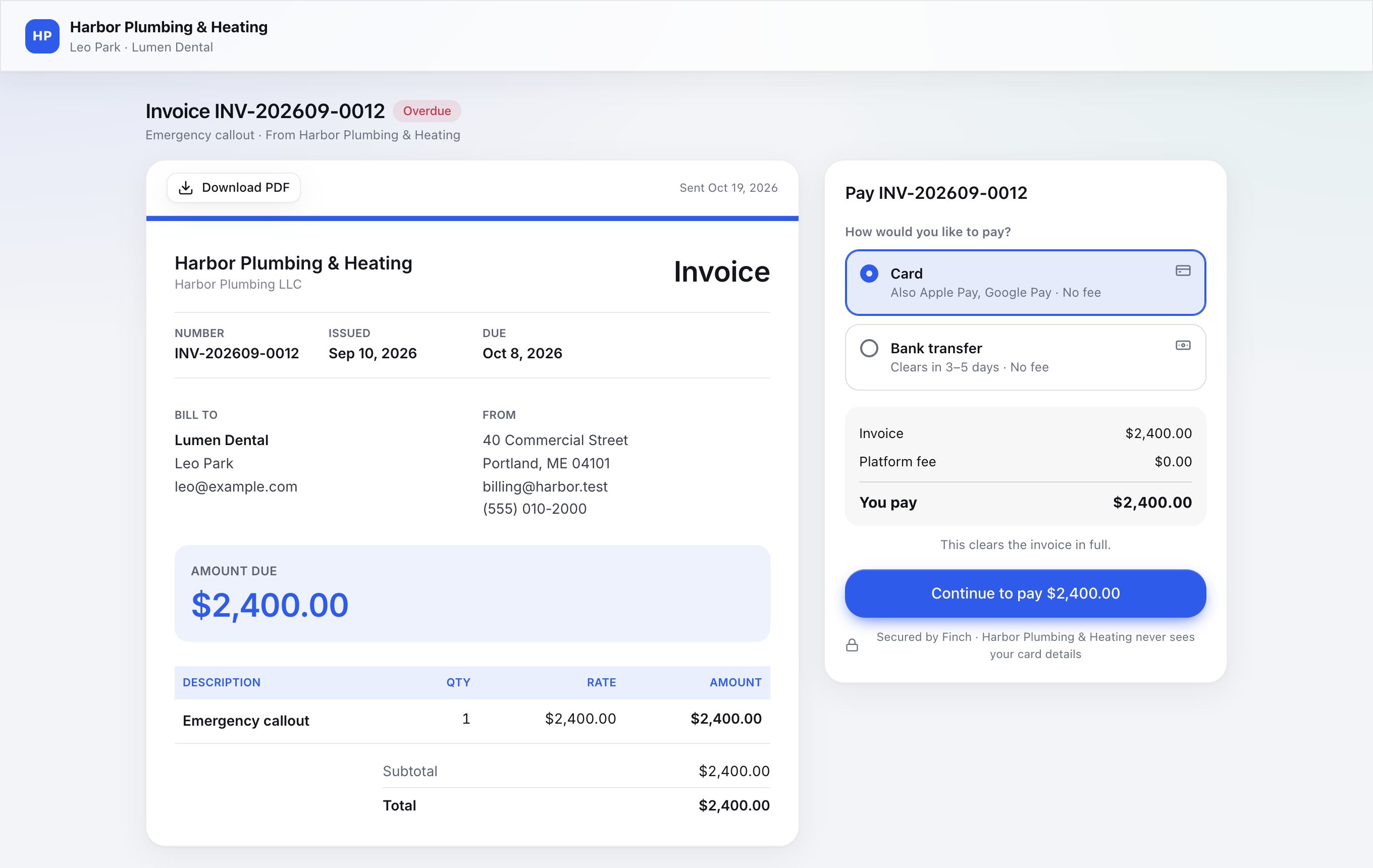
- Your logo and colors, the invoice, Download PDF and any shared files.
- Card (also Apple Pay and Google Pay) and Bank transfer ("Clears in 3–5 days"). You can switch either off.
- The amount due, the next installment or the full balance, or Another amount if you allow part payments.
- After paying: a confirmation and what's left. Paid invoices offer Download receipt.
The customer portal. One page with everything a customer has with you.
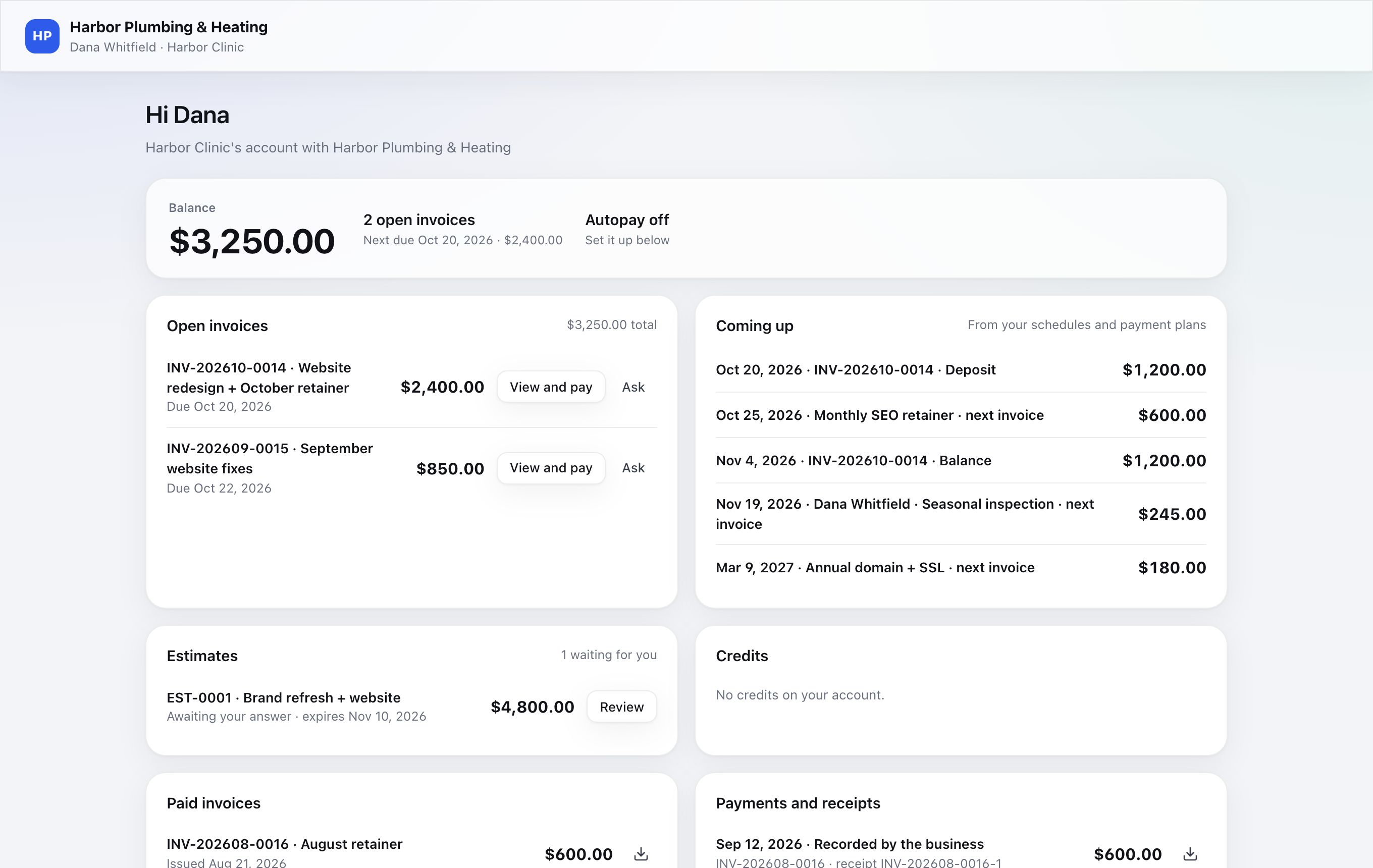
- Getting in: Email me a link (from an invoice or the portal page) emails a sign-in link that works for 7 days. Or share a permanent link: on the customer's page, Customer portal → Turn on. Copy, Open, New link and Turn off manage it.
- What's there: their balance, open invoices with View and pay, what's coming up, estimates and credits, paid invoices and receipts, a statement for any period, autopay, and Ask a question. Your replies reach them in the portal and by email.
6. Money & spending#
Connect a bank#
Where: your account menu → Bank connections, or Connect a bank on Transactions.
Finch connects to banks and cards through SimpleFIN Bridge, a read-only service you pay for directly ($1.50 a month or $15 a year). Finch can see balances and transactions; it can't move money.
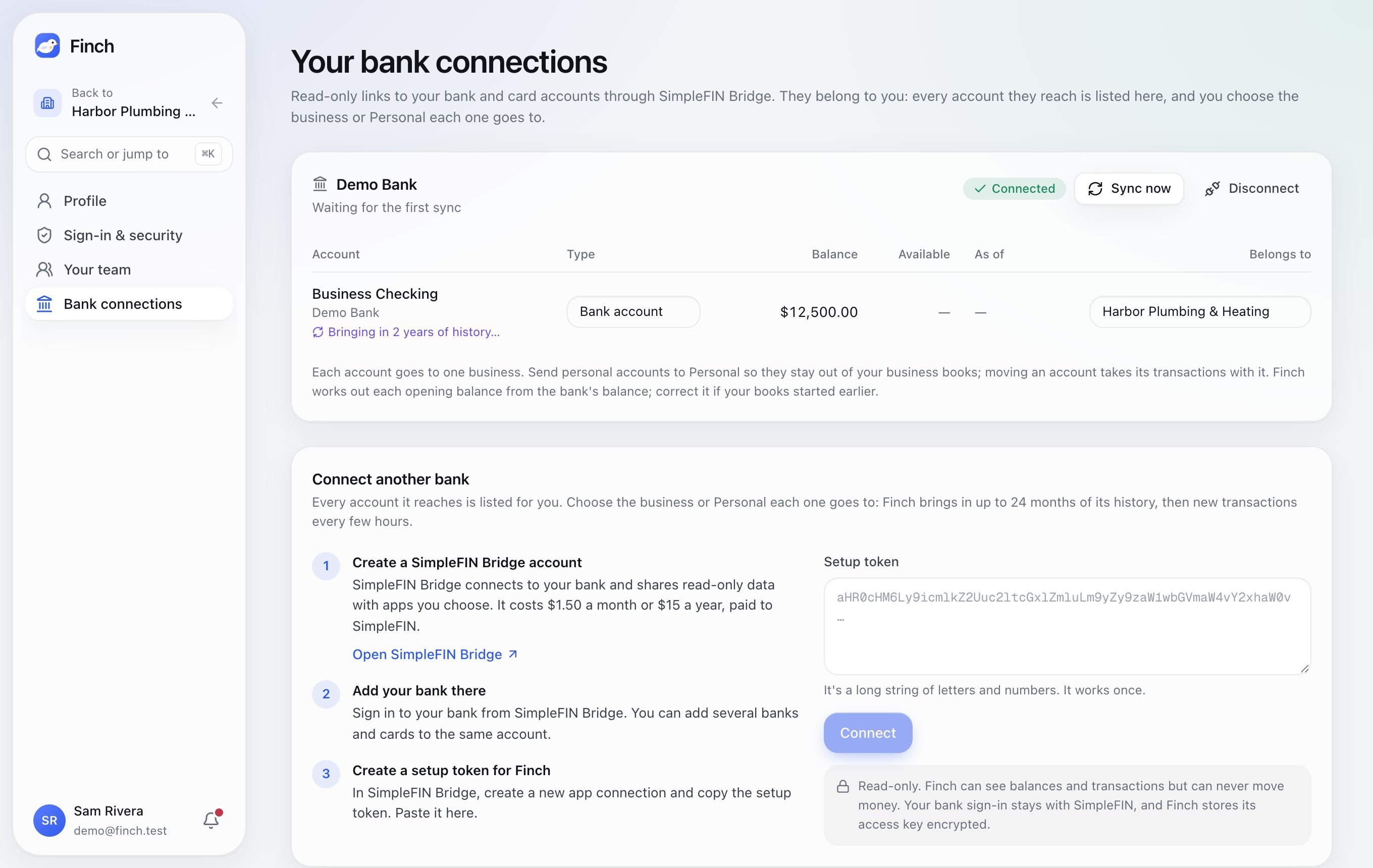
- Create a SimpleFIN Bridge account (Open SimpleFIN Bridge).
- Add your banks there. You can add several banks and cards to one account.
- Create a setup token for Finch in Bridge, paste it into Setup token, and click Connect.
After you connect:
- Choose where each account belongs. A connection belongs to you, not to a business, so one connection can feed all your businesses. Use Belongs to to send each account to a business or Personal. (If you have just one place, it's done for you.)
- History: Finch brings in up to 24 months for each account, as far back as the bank keeps.
- Syncing: every 6 hours, or click Sync now (at most every 5 minutes).
- Moving an account to another business moves its history too. You need to be an owner or admin of both. Accounts that are reconciled, have paid bills, or sit in a closed period can't move.
- Account settings (admins): type (Bank account, Credit card or Loan) and opening balance.
- Disconnect stops syncing and keeps past transactions. A broken connection shows a badge, a banner and a Today item with Reconnect.
Review and categorize transactions#
Where: Money & spending → Transactions. Tabs: Transactions, Bank accounts & cards, Categories & rules.
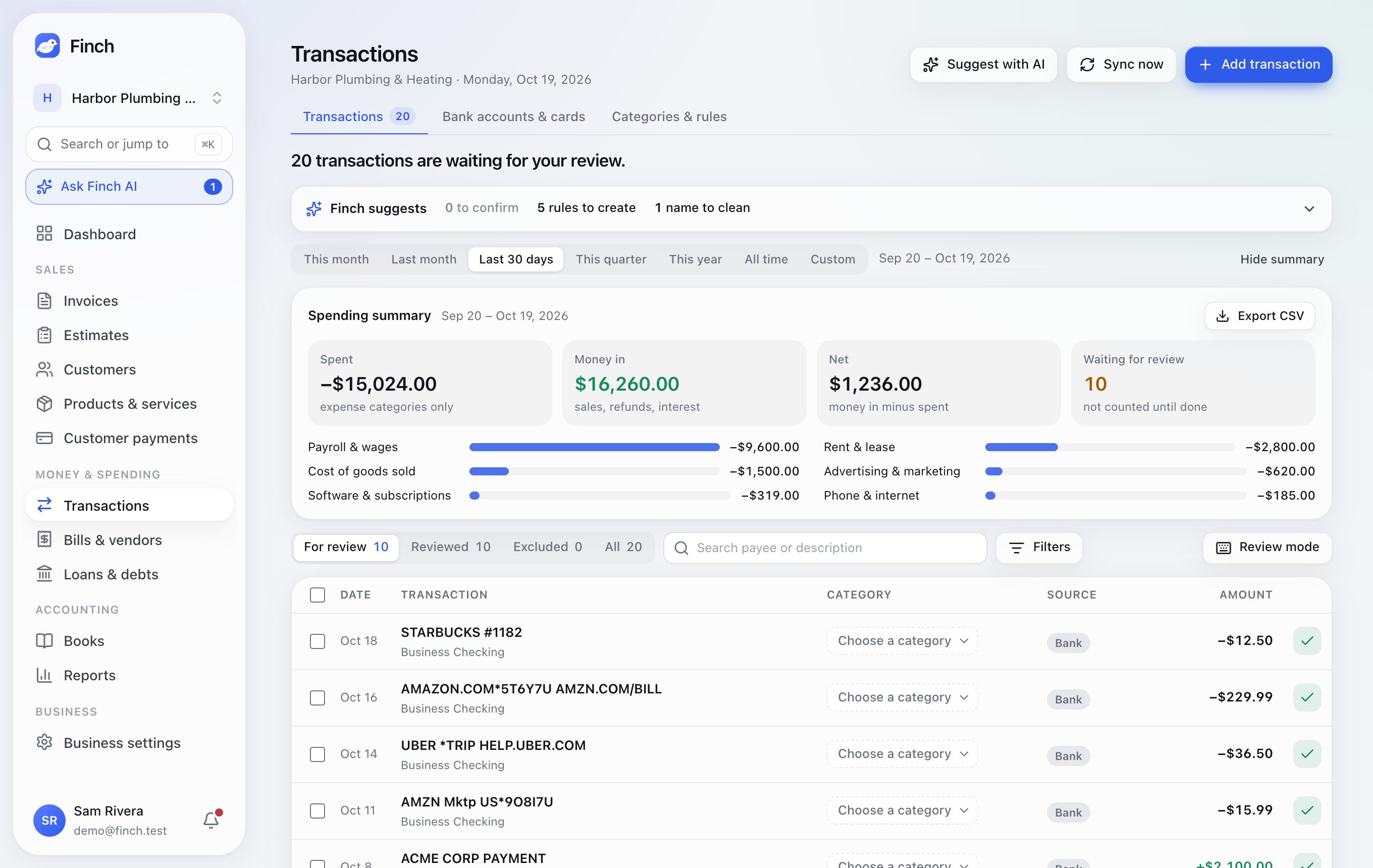
Every new bank transaction waits For review until you file it. Nothing reaches your books until you confirm it, a rule files it, or it's a repeat merchant (below).
Finding things
- Views: For review, Reviewed, Excluded and All.
- Periods: This month, Last month, Last 30 days, This quarter, This year, All time, or Custom.
- Search by payee or description, Filters (account, category, amount, money in or out, bank or by hand, transfers, notes), and 25, 50 or 100 per page.
- The Spending summary shows what was spent, what came in, the net, and what's still waiting, by category. Export CSV is here.
Filing a transaction
- Click Choose a category on the row, or click the row to open its panel.
- Pick a category. A "Looks like…" guess comes first (for example a card payment or an owner's draw), then Recent, Expenses, Cost of goods sold, Money in, Owners, Credit card payments, Transfers, Between your businesses, and Loans & debts.
- Click the round ✓ (or Done) to mark it reviewed.
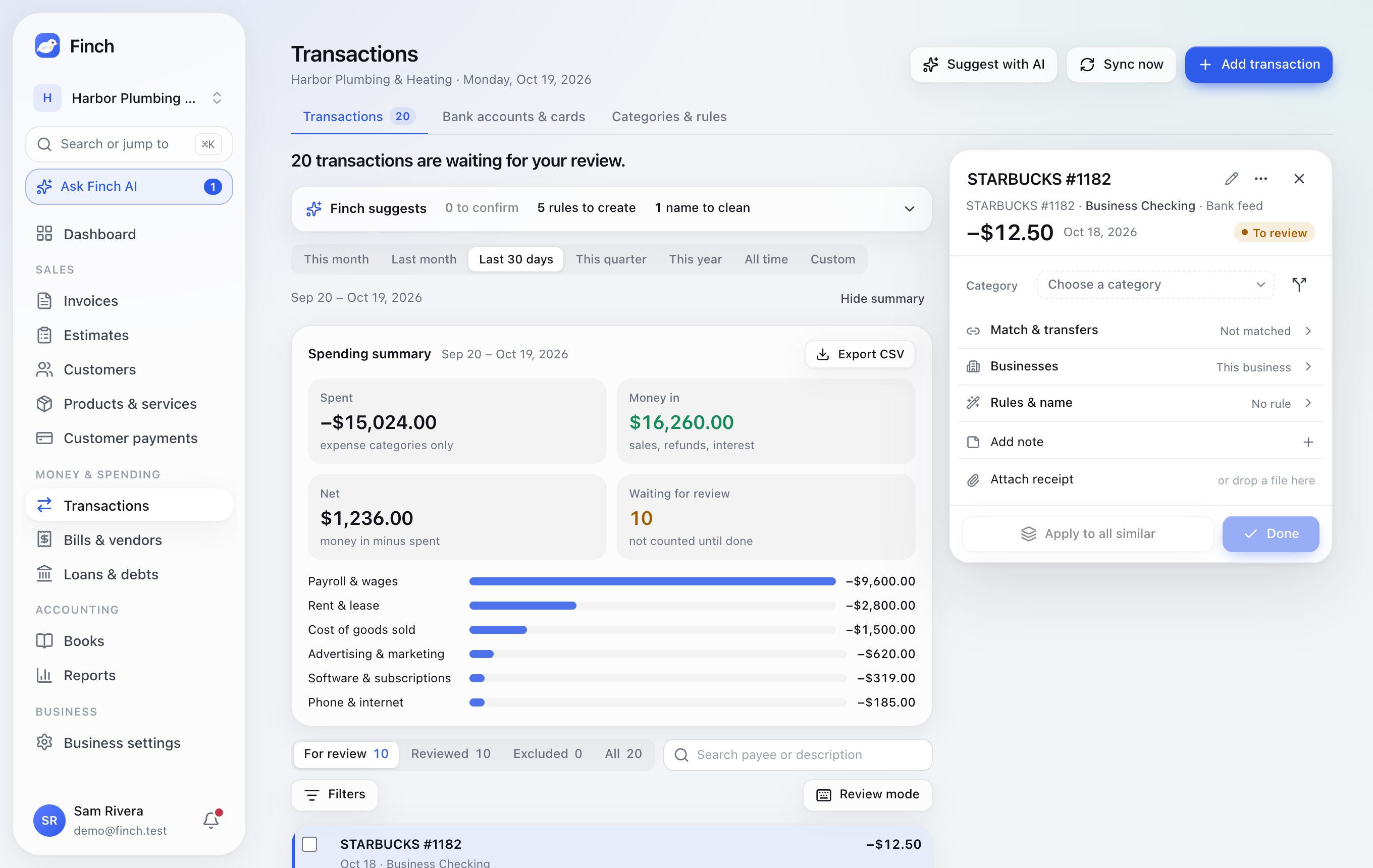
From the panel you can also:
- Split it across 2–20 categories.
- Add note or Attach receipt.
- Rename the payee (pencil icon): Just this one, or All N · make a name rule.
- Apply to all similar: files every matching transaction, past and present, saves a rule, and shows what will change first.
- Exclude it, with a reason: Duplicate; Personal, not business; Refunded or reversed; or Something else.
Let Finch do the typing
Finch suggests categories from merchant codes and, with AI suggestions, from how you've filed before. The Finch suggests strip shows N to confirm (Confirm all N), N rules to create and N names to clean.
Repeat merchants file themselves. Once you've filed a merchant under the same category at least twice and never anywhere else (not split, excluded, a transfer or a bill payment), its new transactions are filed there as they arrive and show Repeat merchant in the Source column. Open one and click Back to review to undo it; filing it somewhere else stops the next one. Rules, transfers, bills and closed months come first, and Finch AI doesn't learn from these filings. An admin can turn it off in Business settings → Books.
Bulk actions: tick rows, then Categorize as…, Mark done, Paid for another business…, Exclude/Include or Ask Finch. Each can be undone.
Review mode works through the list from the keyboard:
Key Action J or ↓ Next transaction K or ↑ Previous transaction C Mark done E Choose a category N Add a note X Exclude Esc Leave review mode
Add transaction records cash, checks or anything the bank missed.
Rules and categories#
Where: Transactions → Categories & rules.
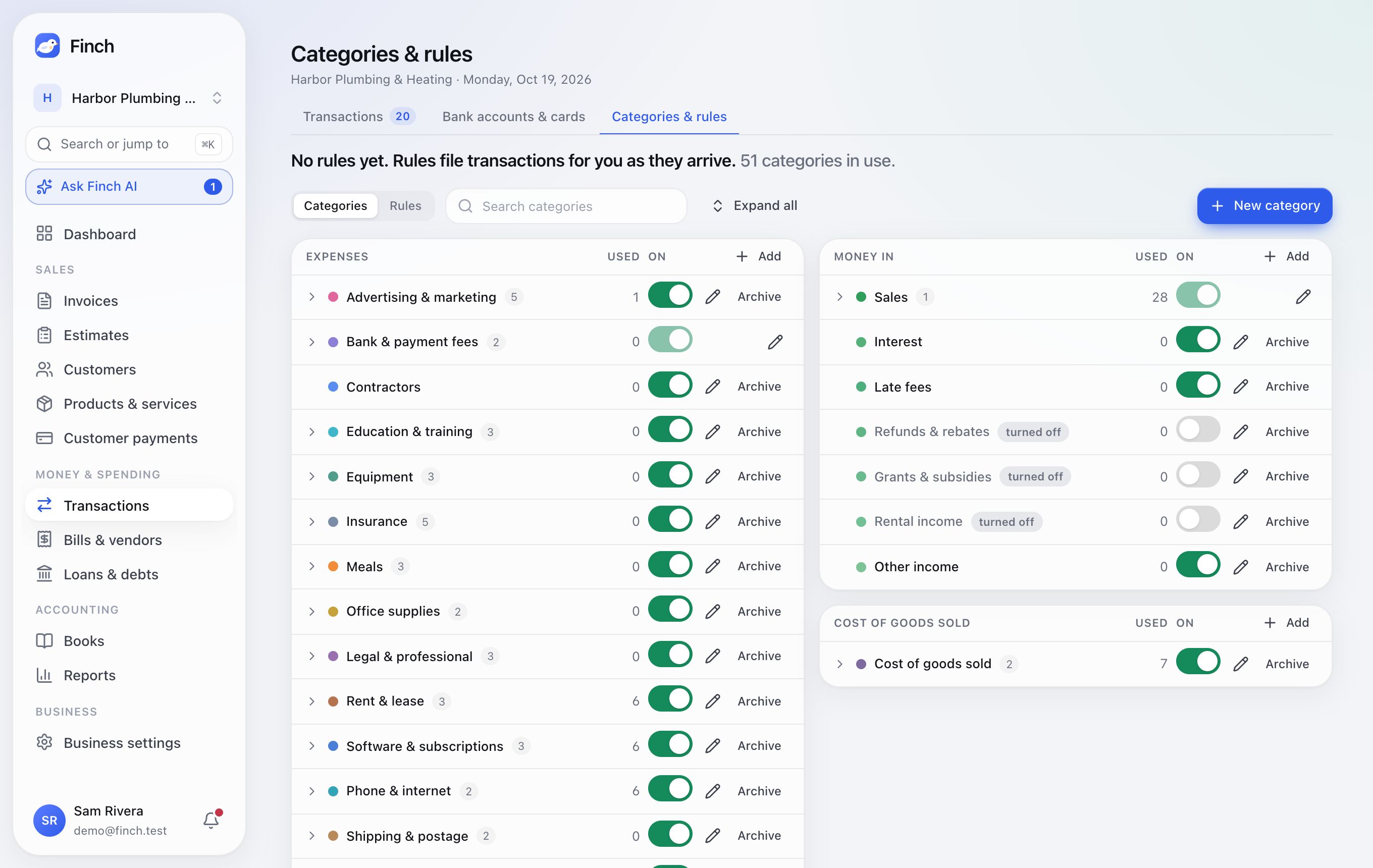
Rules file transactions for you as they arrive. A rule reads: "When it mentions [text], and the money is going out, coming in or either way, file it under [category]". It can also file matching transactions already waiting. When several rules match, the longest phrase wins.
Make a rule from:
- the Remember this for next time? prompt after you file a bank transaction (Always file it this way)
- the Finch suggests strip
- a transaction's Make a rule from this…
- Rules → New rule
Each rule has an on/off switch and a count of what it matched. A business can have up to 300.
Teach Finch (Transactions → Teach Finch, from the strip above the list or Business settings → Finch AI) is the quickest way through a big pile. It groups everything waiting by payee, biggest first, and shows what Finch suggests for each. Click Yes (or pick another category and Save): Finch makes it a rule, files that payee's waiting transactions, and files new ones as they arrive. Skip leaves a payee for later, and Undo in the Answered list puts its transactions back. Answering the top few payees usually covers most of what's waiting.
Categories are the accounts your spending and income go to. Every business starts with categories modeled on the IRS Schedule C, with the less common ones turned off. Add, rename, nest one level deep, turn on or off, and archive them. Each shows how often it's used.
Receipts, transfers and matching#
- Receipts: click a row's paperclip, drag a file onto the row, or use Attach receipt in the panel. Hover the receipt mark to preview it. Finch AI can also match receipts for you (Receipts).
- Transfers between your accounts are paired automatically when money leaves one account and arrives in another within 4 days (14 days for card and loan payments). A plain-words card explains each pair, for example "Credit card payment: pays down the card, so you owe less on it."
- Matching by hand: a row may suggest "Looks like it went to [account]" (Match). You can also use Find the other side…, Count as a transfer… or This paid a bill….
- Payouts from online payments match their bank deposits automatically.
Bank accounts & cards#
Where: Transactions → Bank accounts & cards.
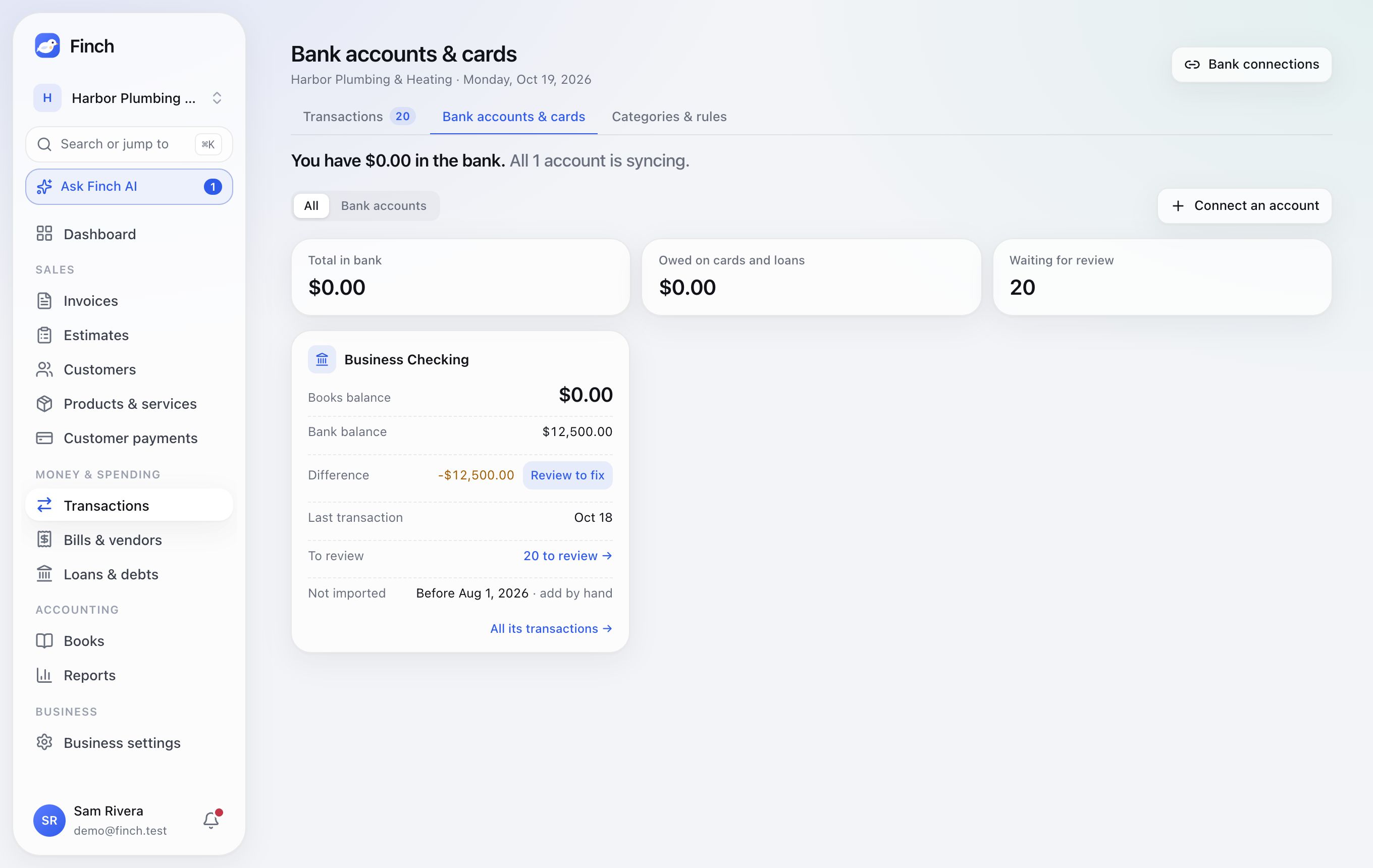
Each account shows its balance in your books next to the bank's balance. A Difference usually means transactions are still waiting for review; Review to fix takes you there. You'll also see the last sync, how many transactions are waiting, and how far its statements go. Click an account's name, or Statements & proof, to open its statements.
Bank statements#
Where: Transactions → Bank accounts & cards → click an account.
Bank feeds miss things and only reach back a few months. Your statements are the bank's own record, so Finch uses them to prove your books. Add them to each account:
- Upload statements takes PDFs or the bank's CSV export, as many at once as you like. You can also drop files anywhere on the account's page.
- Enter balances records a statement's first and last day and its two balances when you only have the paper.
Finch reads every line of a PDF, then checks the arithmetic: beginning balance + every line = ending balance, to the cent. If the reading is off, Finch is told by how much and reads the statement again. A statement that still doesn't add up says Off by $… and suggests what would fix it ("If this line went the other way, it would add up"). You can Fix this line, Add a line, mark one Not on the statement, or correct the Period and balances. A CSV has no balances, so Finch asks for them, then checks the lines against them. If the CSV has money in and out the wrong way round, use Flip money in and out.
The account's page shows:
- The proof summary: months with a statement, lines the bank feed never sent, and how far the account is reconciled. It turns green only when every statement adds up and every line is in your books.
- Every month, on paper: one tile per month. Green is reconciled, blue adds up, amber needs a look, and a dashed red tile has no statement yet. Click a tile to open that statement, or a missing one to upload it.
- Where your history starts: your earliest statement's beginning balance next to Finch's balance that day. If they differ, the bank feed is missing that much activity since then. When Finch has nothing older than the statement, an admin can Start the books from it so the account's opening balance comes from the statement instead of being worked out from today's bank balance.
Open a statement to see each line beside the Finch transaction it matched: Matched, Not in Finch (the feed never sent it), Different amount, Only in Finch (in your books but not on the statement, often a duplicate), or Left out. Its checks also say whether it begins where the previous statement ended and whether the bank feed moved as much as the statement over the period.
- Add N to Finch adds the lines the feed never sent as ordinary bank transactions, filed by your rules and Finch AI like any other. It only works on a statement that adds up, so nothing misread gets in. If the bank feed sends the same transaction later, Finch recognizes it instead of adding it twice.
- Reconcile starts a reconciliation from the statement, with its beginning and ending balances and every matched transaction already ticked. When nothing waits for review and the difference is zero, it reconciles in one click.
When a month's statement should be out (about a month after the last one ended), Finch reminds you once.
If the bank changes a transaction after you've reconciled it, Finch keeps the reconciled figures and shows The bank changed a reconciled transaction on the account's page. Choose Keep reconciled, or (admins, once that reconciliation is undone) Use the bank's.
The year-end packet for your accountant. Download 2026 packet on the account's page (or Year-end packet when the account has statements from several years) builds one ZIP for that account and year:
statements/: every statement file for the year, as you uploaded it.reconciliations/: a PDF per month with the statement's beginning and ending balances, whether its lines add up, every cleared transaction, and who finished the reconciliation and when.Statement lines 2026.csv: every statement line with what it matched in Finch (Matched, Not in Finch, Different amount, Added from the statement or Ignored), ready for a spreadsheet.manifest.json: the account, each month's state, the months with no statement, which statements add up and which are reconciled, the totals, the sign-off, and a checksum for every file.
The download link works for an hour; the packet is built fresh each time you ask.
Bills & vendors#
Where: Money & spending → Bills & vendors.
Add a bill
- Click New bill.
- Pick the vendor (or add one). Their usual payment terms and category fill in.
- Add the bill number, dates, and lines with their accounts. Attach a copy (PDF or photo) and notes if you like.
- Save.
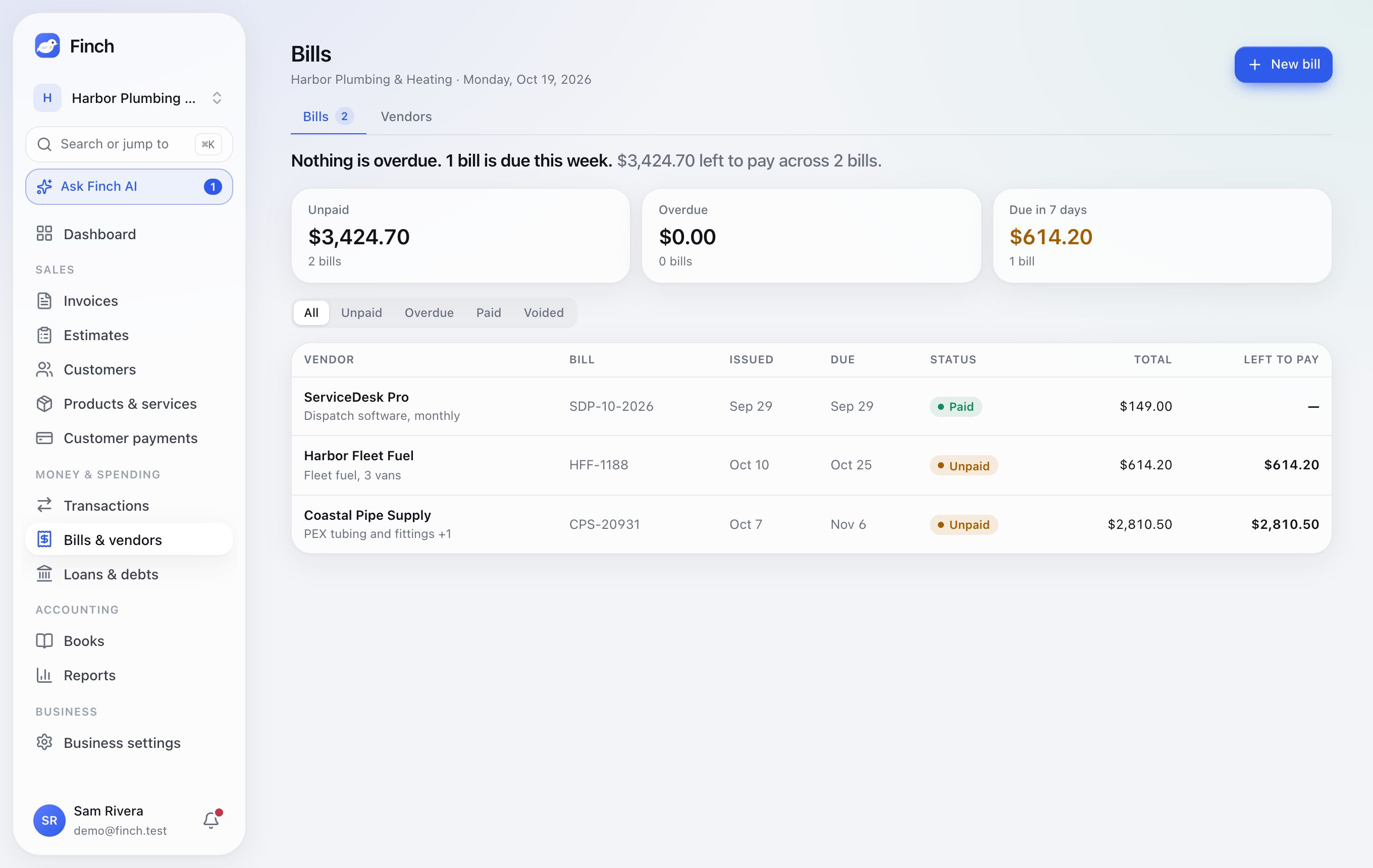
The list says how much is left to pay and when, with tiles for Unpaid, Overdue and Due in 7 days, and views for All, Unpaid, Overdue, Paid and Voided.
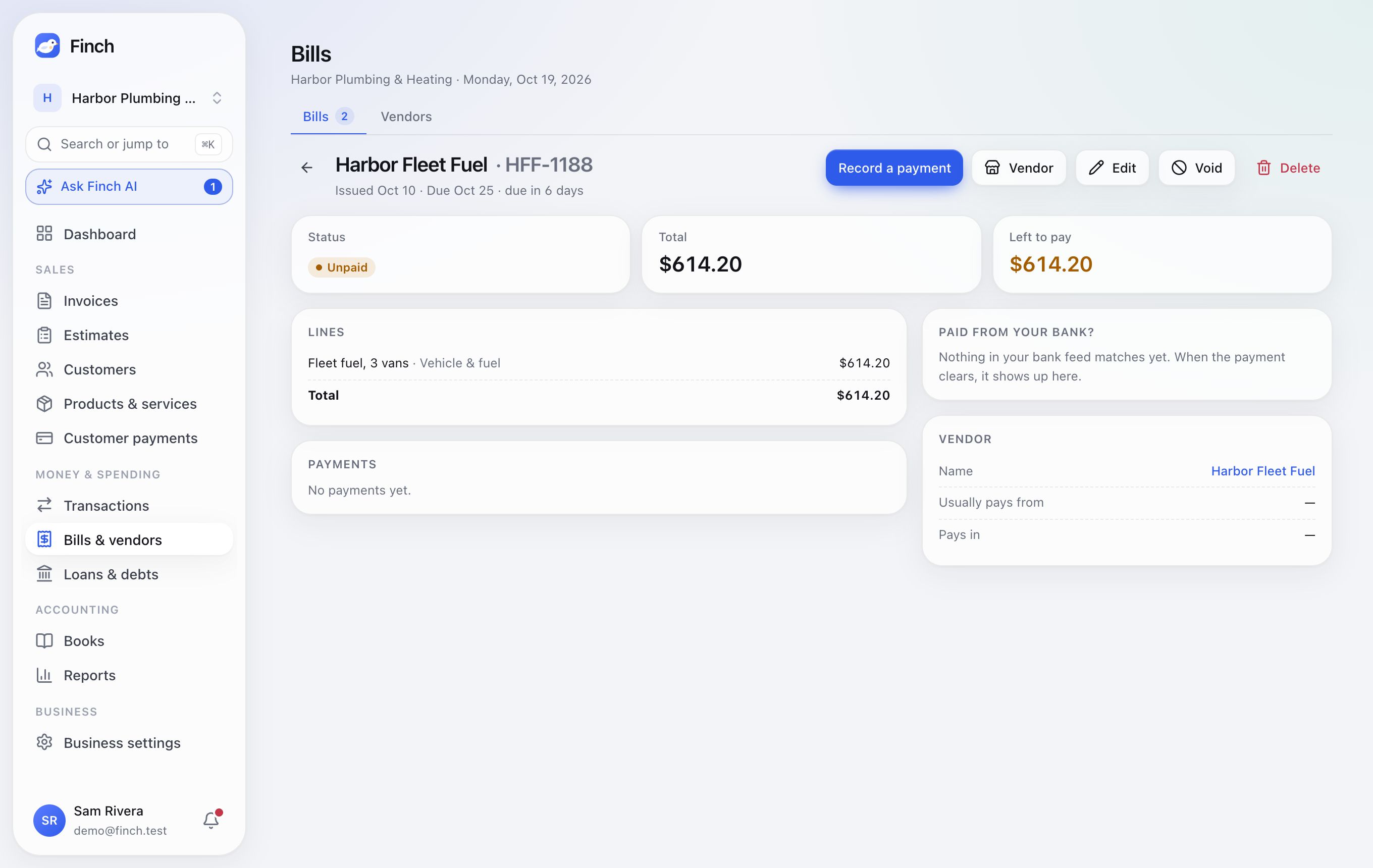
Paying a bill. Finch keeps track of bills and their payments; it doesn't send money. Record a payment in any of three ways:
- Record a payment on the bill (part payments are fine).
- Paid from your bank? on the bill, when Finch spots the payment: click That's it.
- This paid a bill… from a bank transaction.
Finch also suggests "Looks like the Vendor bill" when a charge matches what's left and names the vendor.
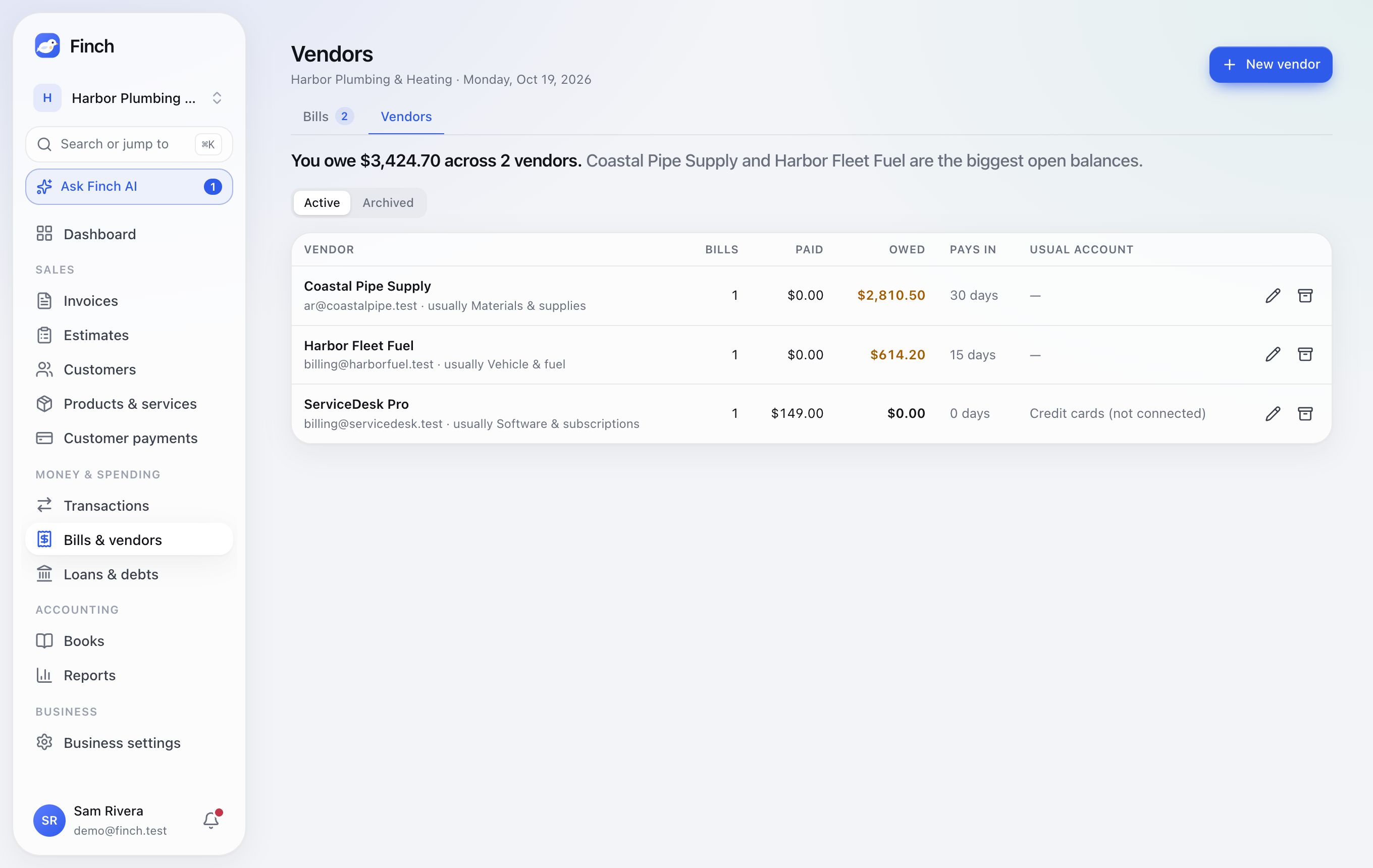
Vendors keep a name, email, phone, Pays in (days), Usual category and notes. A vendor's page shows their bills, what you've paid and owe, and six months of spending.
Bills feed Today, Safe to spend, the cash forecast, Accounts payable aging and duplicate-bill alerts.
Loans & debts#
Where: Money & spending → Loans & debts.
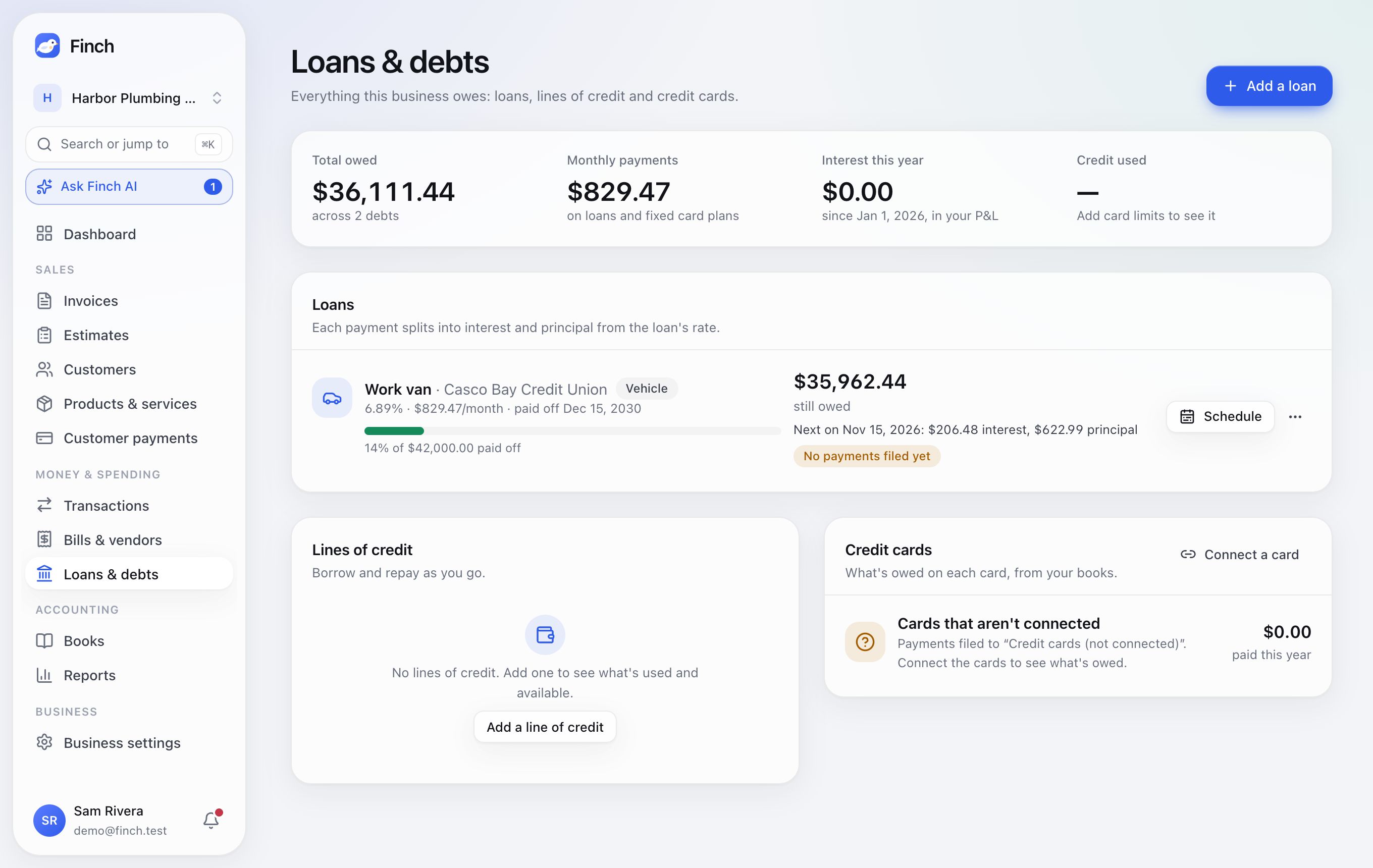
- At the top: Total owed, Monthly payments, Interest this year and Credit used.
- Add a loan: pick its kind (businesses: Business loan, SBA loan, Line of credit, Vehicle, Equipment, Mortgage, From an owner, Other; Personal: Mortgage, Car loan, Student loan, Line of credit, Other). Enter the rate, term and current balance. Finch shows the monthly payment, payoff date, total interest and a payment Schedule.
- Payments are split into interest, principal and escrow automatically. Payments show up in your bank as files them as they arrive. Filing to the catch-all "Loans" account asks Which loan is this payment for?, with loans of the same payment amount first.
- Credit cards come from your bank connections. Add each card's limit and APR, and a Payment plan (paid in full each month, or a fixed amount, and the payment day) so Safe to spend and the forecast know what's coming.
7. Books and reports#
Finch keeps real double-entry books. Reviewed transactions, invoices and their payments, refunds, fees, bills and bill payments, loan payments and opening balances all post on their own; you rarely need a journal entry.
Cash or accrual#
Finch keeps both at once. Each business picks the one it reads by default in Books → Close the books → Accounting basis (admins). New businesses start on cash.
| Cash basis | Accrual basis | |
|---|---|---|
| Income | when a customer pays | when the invoice is issued |
| Expenses on a bill | when you pay the bill | on the bill date |
| Credit notes | nothing posts | take the revenue (and its tax) back |
| Cost of goods sold | as the invoice is paid | when the invoice is issued |
| Accounts receivable and payable | not on the balance sheet | Accounts receivable (1100) and Accounts payable (2000) |
Every statement has a Basis picker to see the other one. Bank balances, transfers and journal entries are the same on both. Switching rewrites nothing: closed months keep their figures.
Books#
Where: Accounting → Books. Tabs: Overview, Chart of accounts, Account register, Journal, Reconcile, Close the books, Opening balances.
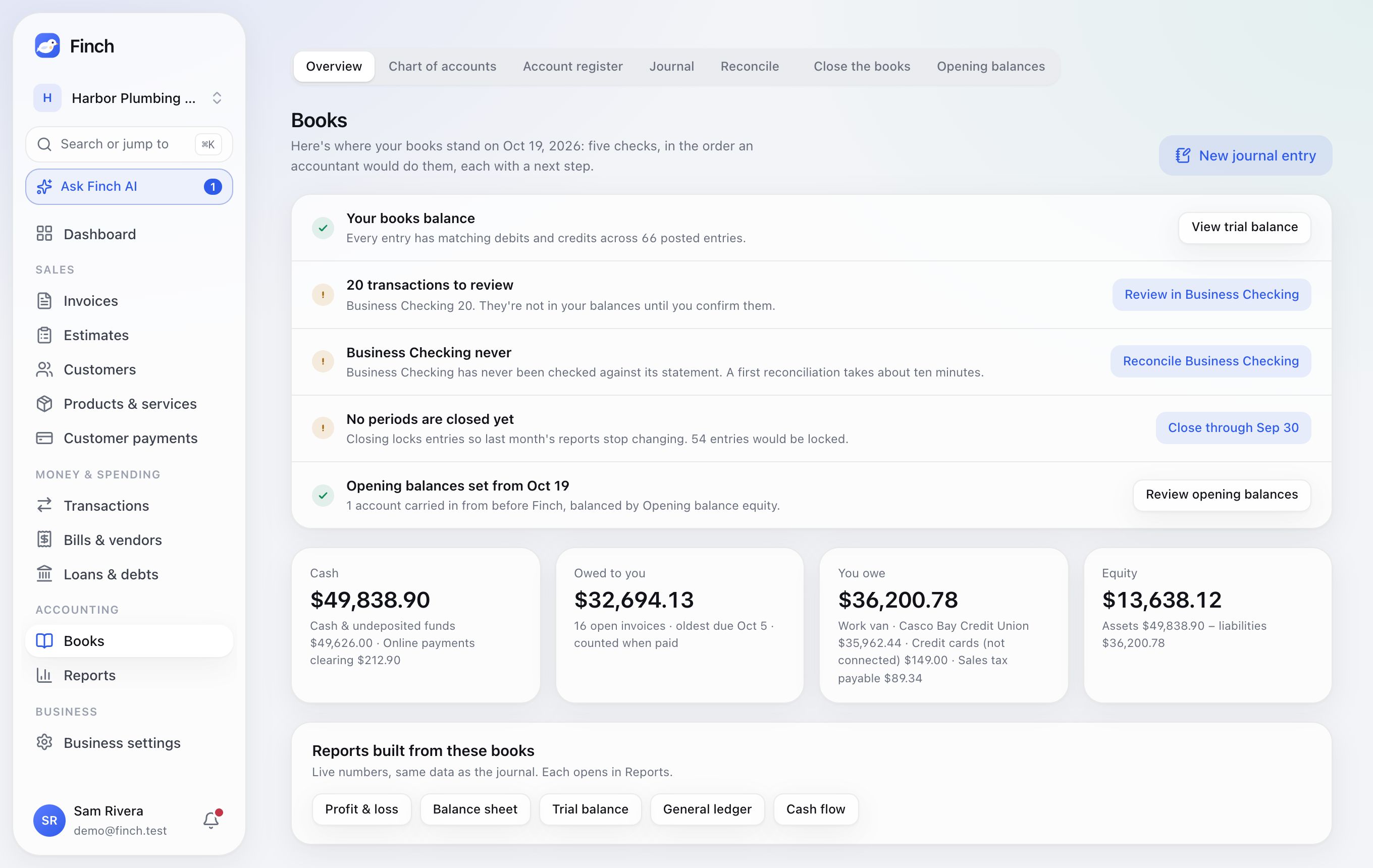
Overview shows where your books stand, as five checks in the order an accountant would do them, each with its next step: Balance (debits equal credits), Review (transactions waiting), Reconcile, Close and Opening balances. Below them: Cash, Owed to you, You owe and Equity.
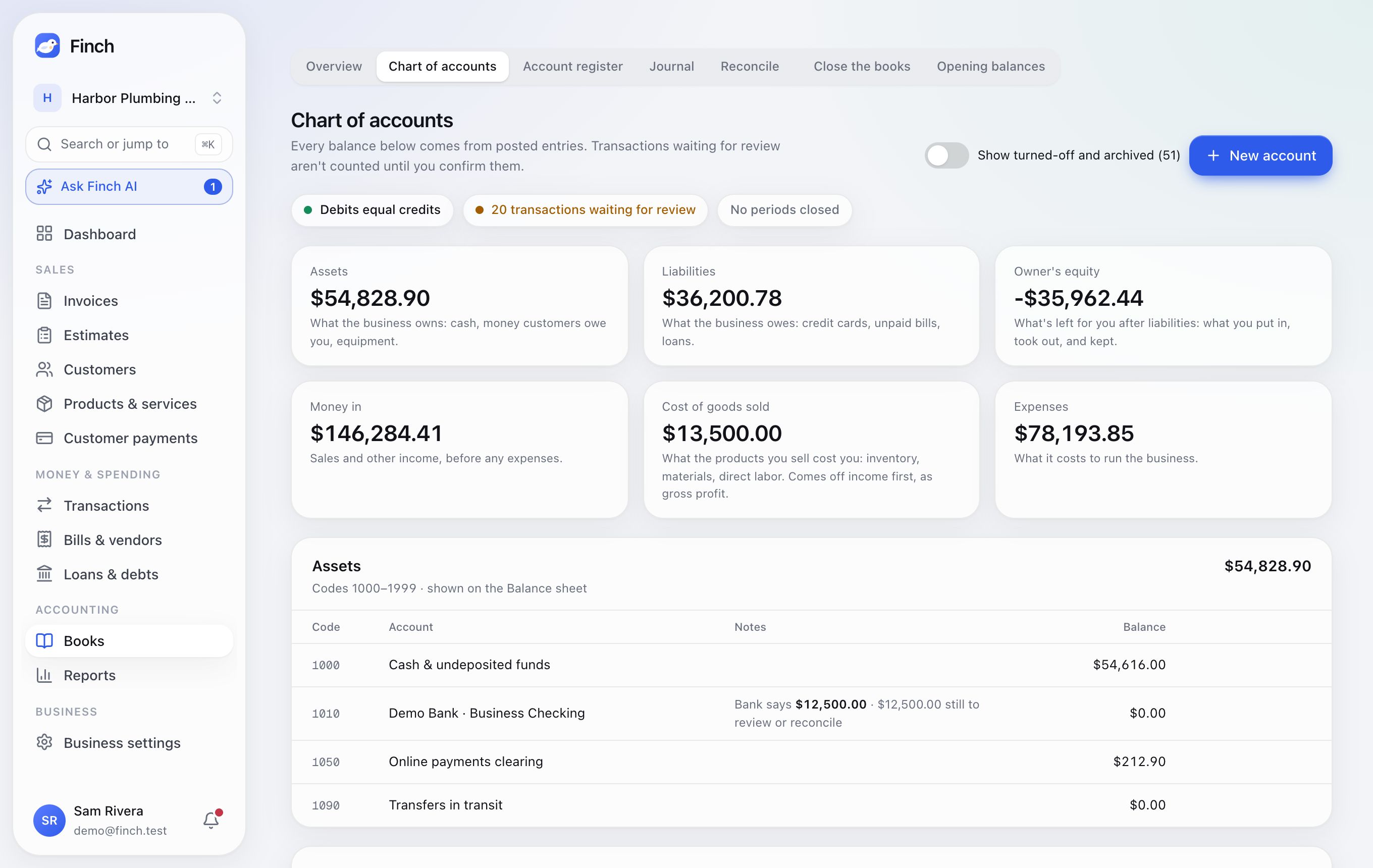
Chart of accounts lists every account by type, with its code and balance, and notes such as "Bank says $12,500.00 · $12,500.00 still to review or reconcile". New account suggests the next free code. Edit, turn off, archive and restore accounts.
Journal lists every posted entry, newest first, with links back to what created it.
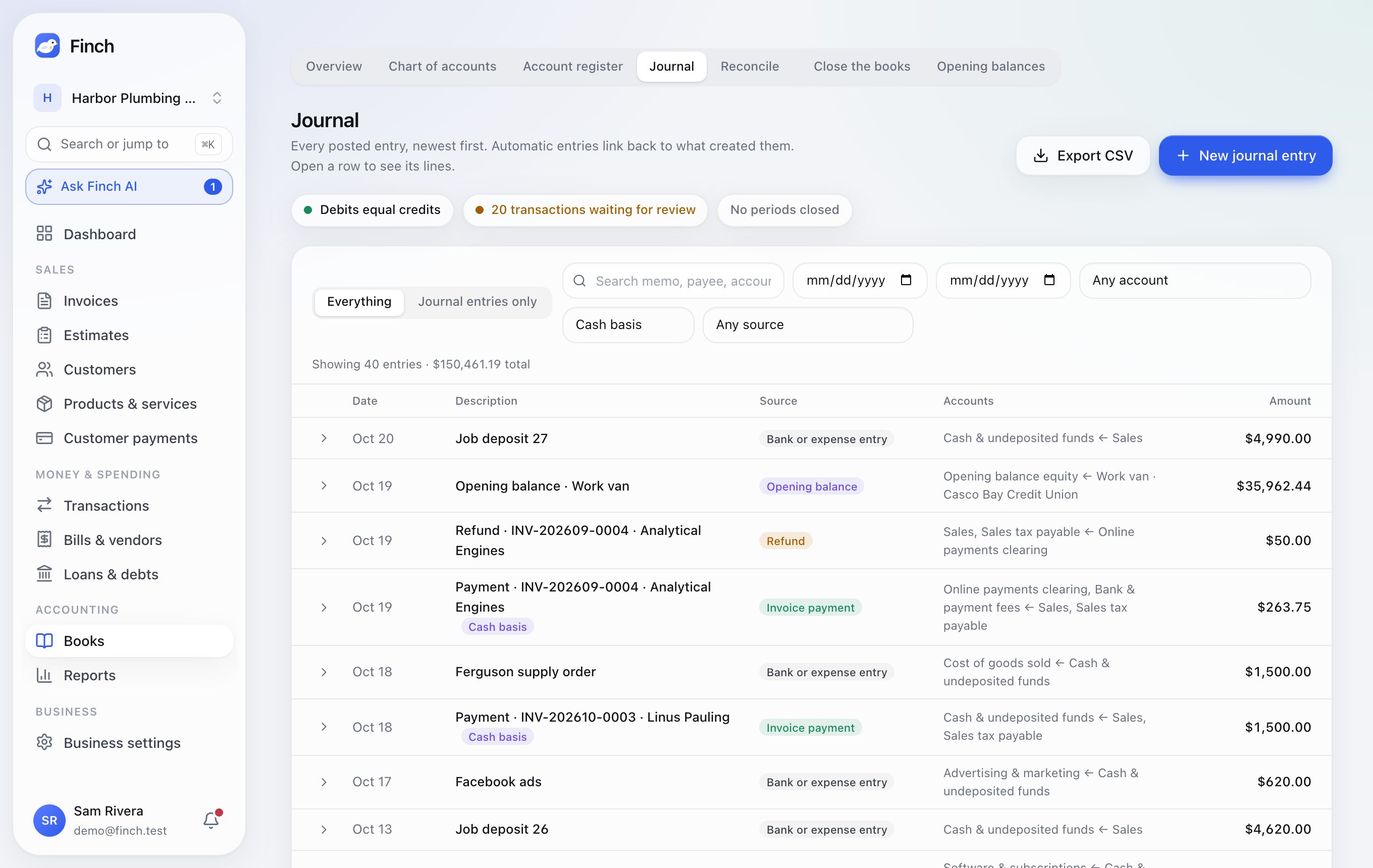
- Filter by text, dates, account, basis and source (bank, invoice payment, refund, fee, cost of goods sold, bill payment, opening balance, journal entry, closed-period adjustment, and on accrual, invoices, credit notes and bills).
- Entries that count on one basis only are marked Cash basis or Accrual basis.
- New journal entry (Accountant and above) takes 2–50 lines and shows "Balanced" or "Off by $X" as you type.
- Export CSV.
Account register shows any account with a running balance. For connected accounts you can confirm waiting transactions right there.
Reconcile#
Reconciling proves your books match the bank statement for a period.
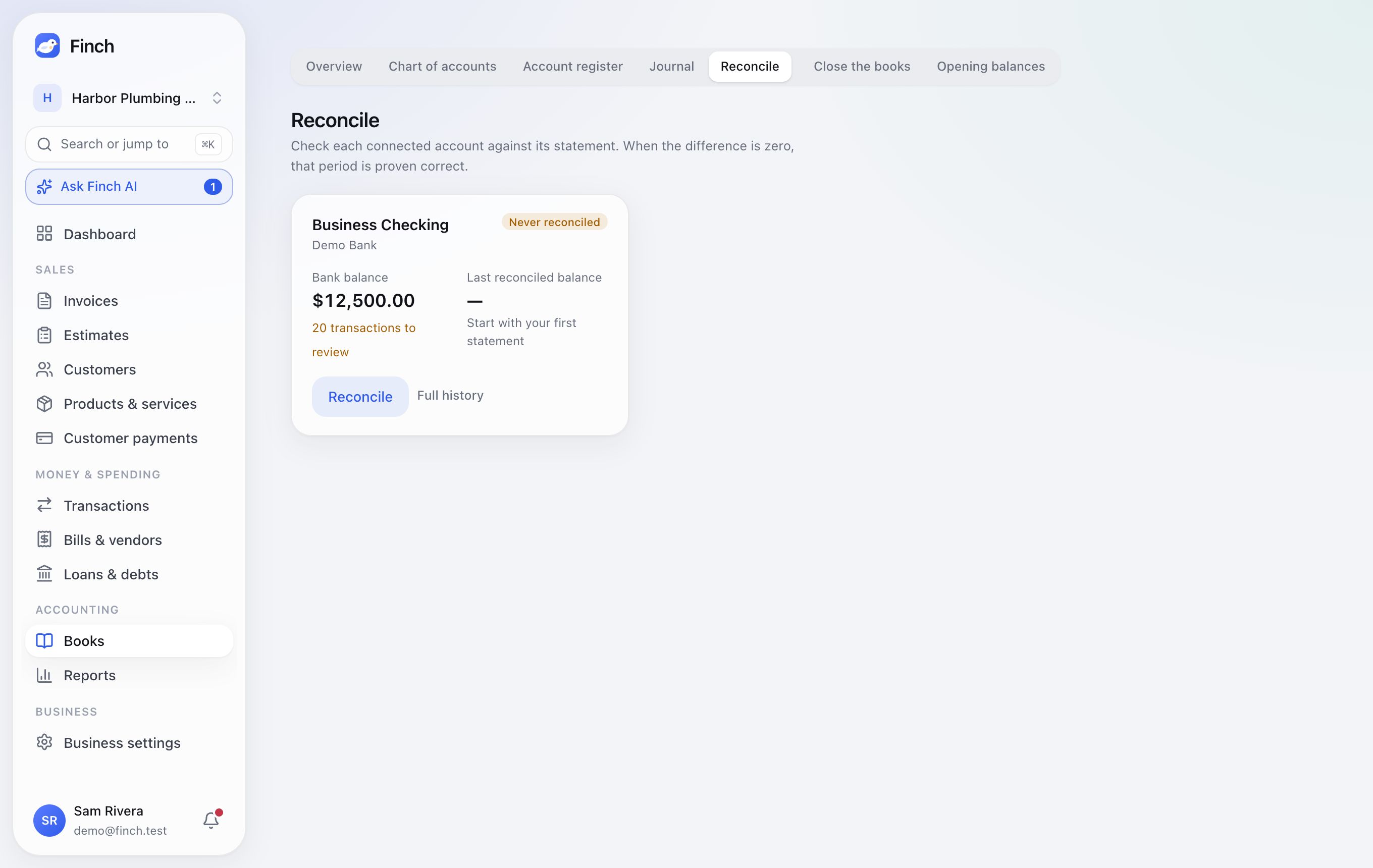
- Click Reconcile on a connected account. If its statement is uploaded and adds up, Reconcile from statement does steps 2 and 3 for you.
- Enter the statement's first day and beginning balance, then its ending date and ending balance. Finch records both balances and warns when the beginning one isn't where the last reconciliation ended.
- Tick the transactions on the statement until the Difference is zero. When some unticked entries add up to the difference exactly, Finch names them and offers to tick them.
- Click Finish.
Reconciled transactions lock. An admin can Undo the latest reconciliation, and Full history lists past ones.
Close the books#
Closing a period locks it, so reports for those months stop changing.
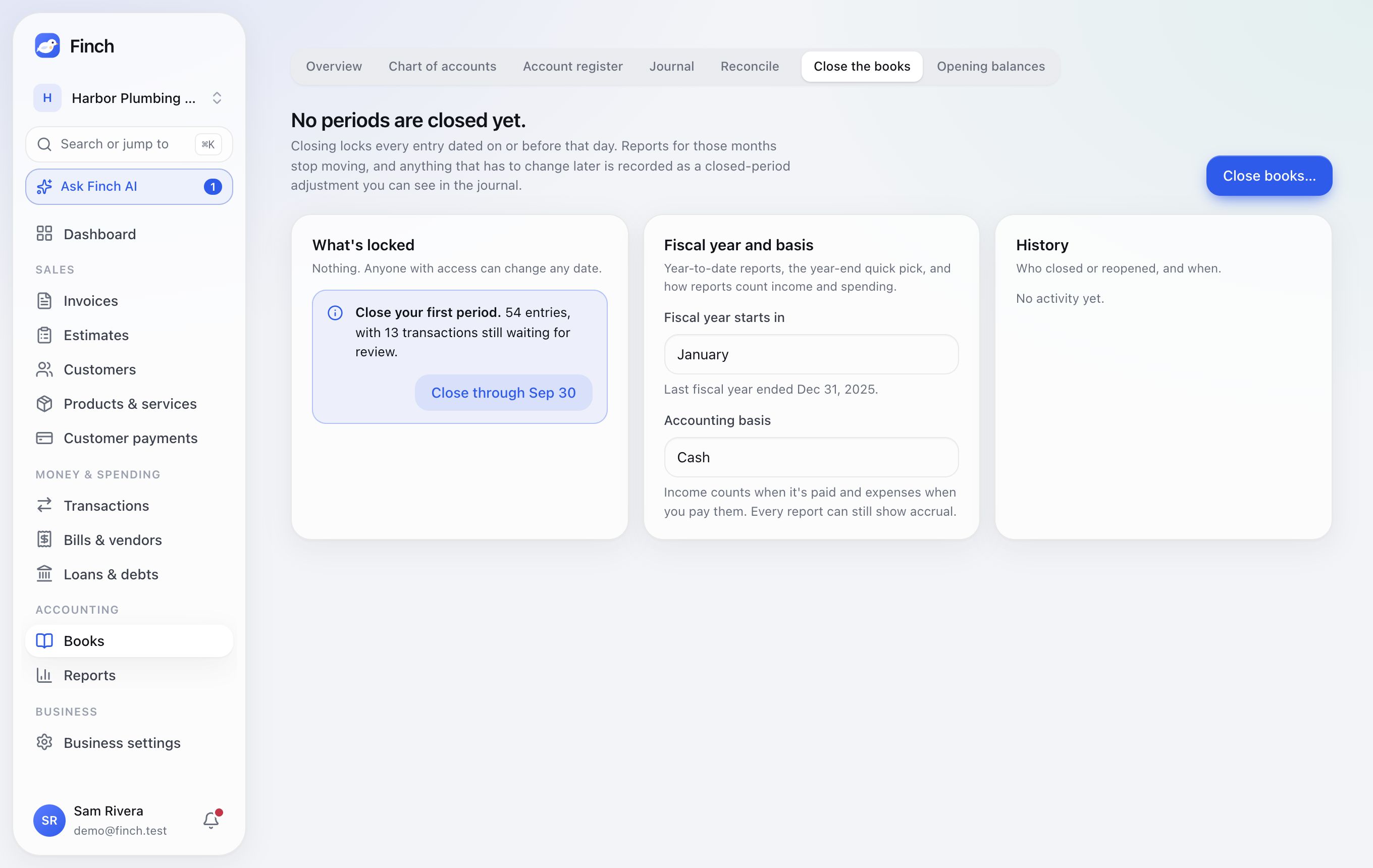
- Click Close books….
- Pick Close through, End of last month or End of last fiscal year.
- Finch warns about waiting transactions and unreconciled accounts. Confirm.
After that, edits dated in the closed period are blocked. Anything Finch must change there later (a refund on an old invoice, say) posts as a dated "closed-period adjustment" instead of rewriting history. Reopen all periods is admin-only. This page also sets Fiscal year starts in and Accounting basis, and keeps a history.
Accountant sign-off. Once a period is closed, your accountant can sign it off on this page.
- Invite them from Team & access with the Accountant role. Only that role can sign off: not owners, not admins.
- They click Sign off through…, pick the day (up to the close date), and add a note if they like. The dialog says which accounts aren't reconciled that far; they can sign off anyway.
- Reports and the account pages then say Reconciled and signed off through… (or Signed off through… while an account isn't reconciled that far), with who signed and when.
Each sign-off covers the days after the one before it. Anything changed afterwards in those days is listed under it as N changes since sign-off, from the audit log and the ledger:
- reopening the books;
- journal entries added to or changed in that period;
- transactions filed again, notes, reconciliations finished or undone;
- opening balances changed;
- adjustments Finch posted to a closed period.
Each change shows the date of the record, who made it and when. The accountant can Withdraw the latest sign-off and sign off again once the changes are explained.
Opening balances. Connected accounts start from the bank's balance before the first import, loans from their starting balance, and other accounts from what you enter. "Opening balance equity" balances the rest; move it into owner's equity once you've checked it.
Reports#
Where: Accounting → Reports.
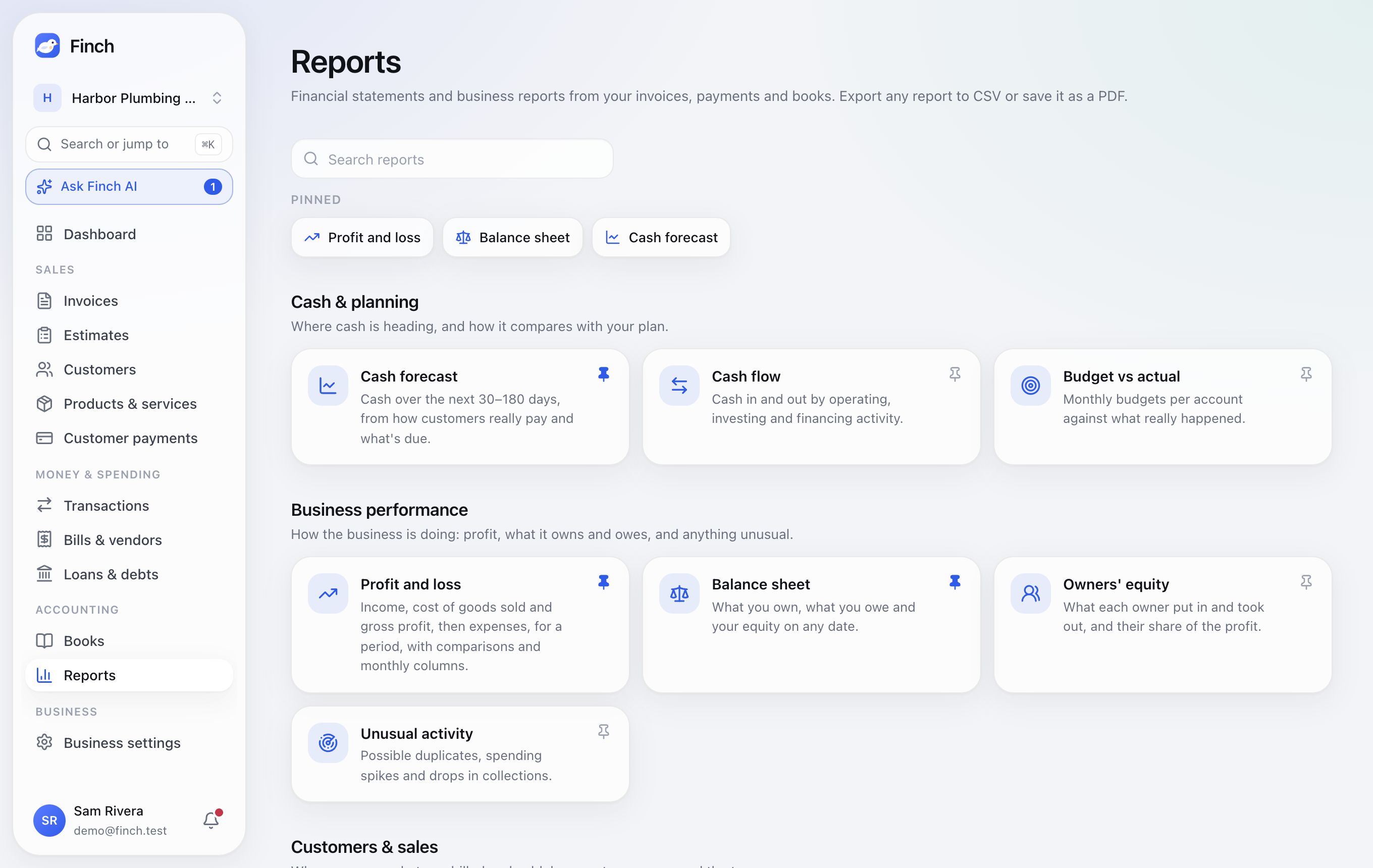
A business has 21 reports; Personal has 11 (no customer, sales or owners' equity reports).
| Group | Reports |
|---|---|
| Cash & planning | Cash forecast, Cash flow, Budget vs actual |
| Business performance | Profit and loss, Balance sheet, Owners' equity, Unusual activity |
| Customers & sales | Accounts receivable aging, Customer statement, Invoice details, Revenue by customer, Customer payment habits, Payments collected, Payouts, Item sales, Sales tax summary |
| Spending & bills | Expenses, Accounts payable aging |
| Between businesses | Who owes whom |
| For your accountant | Trial balance, General ledger |
Running a report
- Search reports and Pin up to 8. Pins follow you to every business.
- Switch report keeps your period and basis.
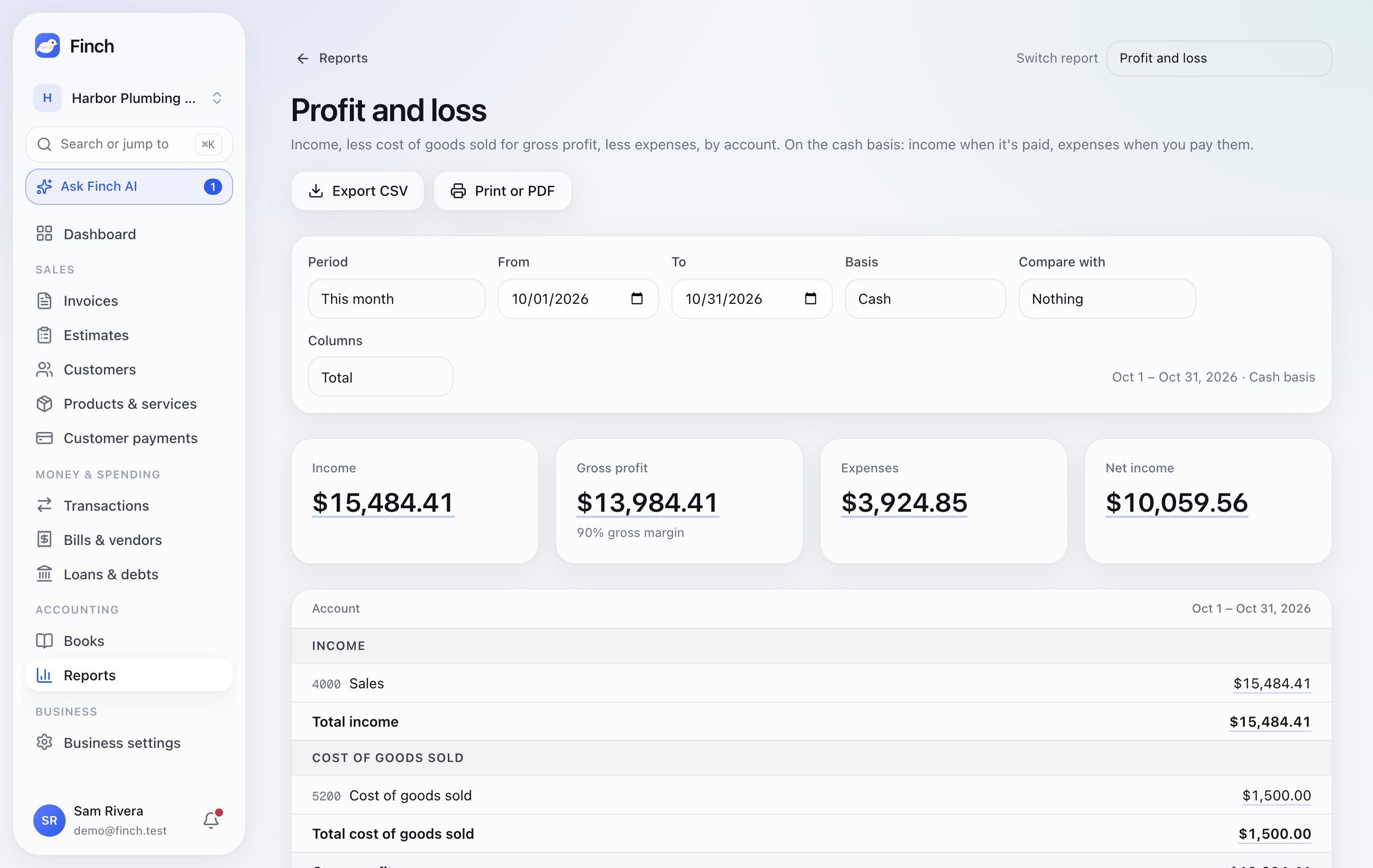
- Periods: This or Last month, quarter or fiscal year, Year to date, Last 12 months, or Custom. Balance reports use As of a date.
- Basis: cash or accrual on Profit and loss, Balance sheet, Cash flow, Trial balance, General ledger, Expenses, Owners' equity and Budget vs actual.
- Export CSV works on every report except Unusual activity. Print or PDF uses your browser.
Profit and loss. Income, cost of goods sold and gross profit, then expenses and net income. Compare with the previous period or last year, or show By month (up to 24 months). Click any amount to open the General ledger lines behind it.
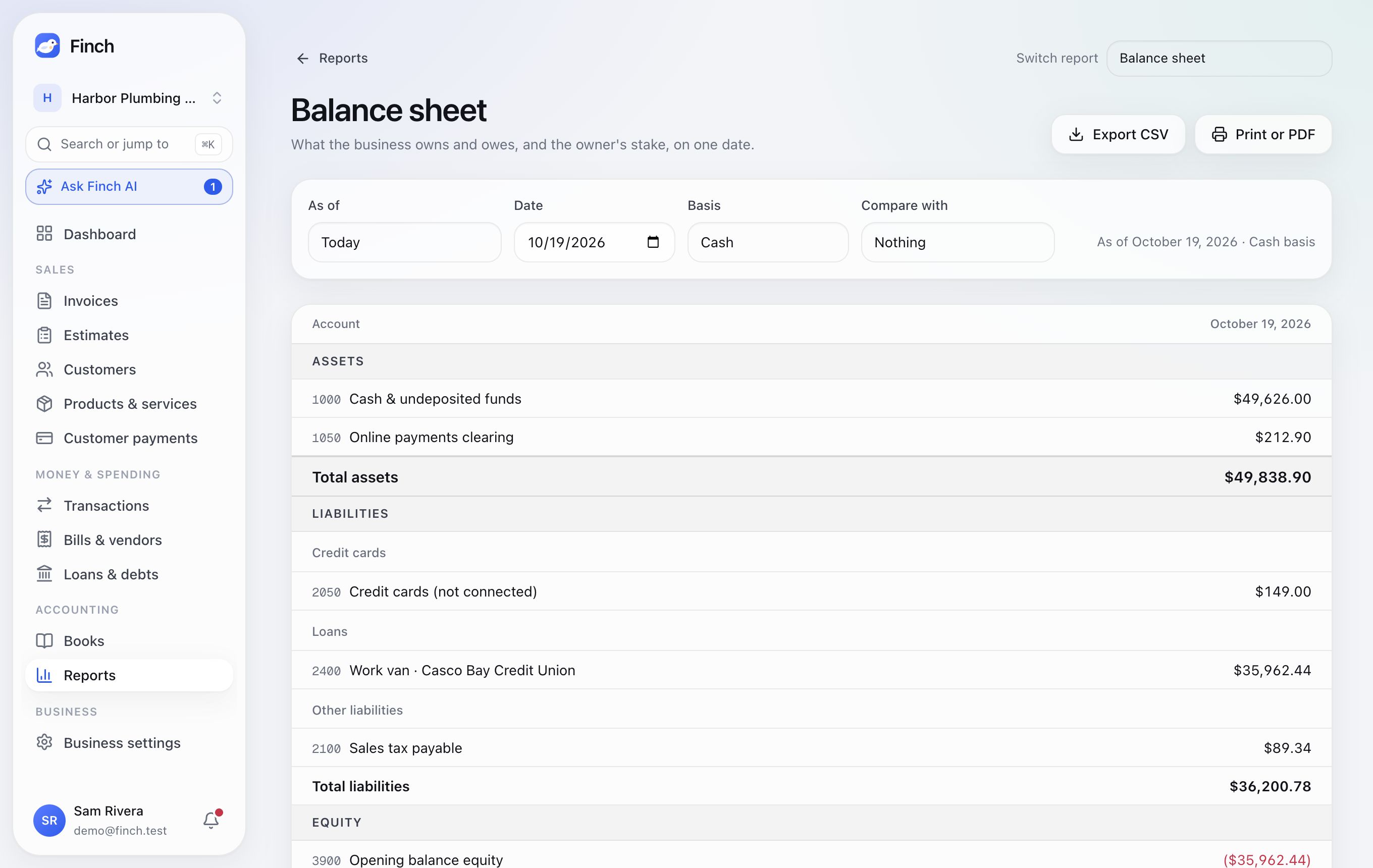
Balance sheet. What the business owns and owes, and the owners' stake, on any date. Compare with the month before or a year earlier. Debts are grouped into cards, loans, lines of credit and other businesses; equity is split by owner.
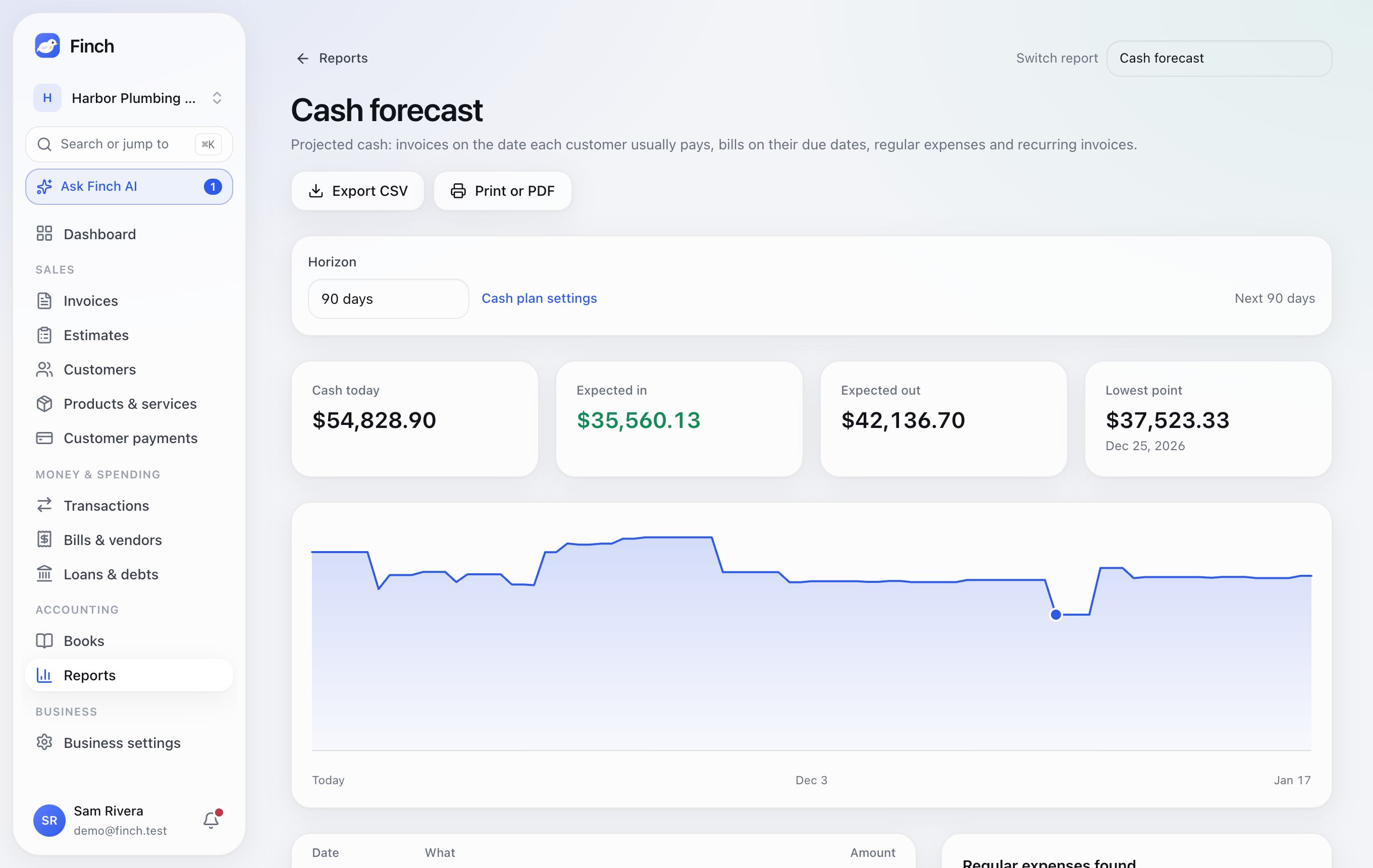
Cash forecast. 30, 60, 90 or 180 days ahead: the lowest point, a warning if cash could go below zero, and the expected payments behind it (dated by how each customer pays), recurring invoices, bills, regular expenses and card payments.
Also worth knowing:
- Budget vs actual: click Set budget on any account to enter a monthly amount; see budget, actual, used and variance.
- Sales tax summary: taxable and exempt sales, and tax billed and collected, by rate. Finch doesn't file tax returns.
- General ledger: select up to 100 lines and Move to category to reclassify them; the transactions behind them update.
- Unusual activity: possible duplicate bills, double charges, spending spikes, and a drop in collections over 90 days.
Documents#
Where: Documents in the sidebar, under Accounting. Owners, admins, staff and accountants see it; so does your accounting practice when you let it work with documents.
Everything your accountant needs, in one place: what they've asked for, and a vault of every document you've shared.
- Requests: your accountant asks for documents with a checklist and a due date ("September 2026 statements", "2025 year-end checklist"). They show at the top of your dashboard and here. Open one, tick items off, Upload files, write a message if something's missing, then Hand in. Your accountant accepts or asks for changes; you're told either way.
- Vault: every document by kind (bank and card statements, tax returns, W-9s and 1099s, agreements, payroll, loan papers, payment records, receipts, ID documents) and year, with search. Upload adds files without a request. Each file shows who uploaded it, when, and which request it answered. Upload a new version keeps the earlier one, File under… moves it, Archive puts it out of the way.
- Into the books: a bank or card statement goes to its account's statements when its file name has the account's last four digits ("Chase 4417 September.pdf"), or pick the account; Finch reads it and checks it to the cent (Bank statements). Receipts go to the receipt matcher. Anything that couldn't go in yet shows Add to the books.
- Opening a file uses a link that works for five minutes, and every open is in Activity. Tax returns and ID documents ask for a fresh code from your authenticator app if you use two-step sign-in.
- Files handed in on a request stay as the record: archive or replace them instead of deleting.
- Reminders: Finch reminds you three days before a request is due, on the day, and weekly once it's late (in the app, and by email once email is set up for your Finch). Requests without a due date get a nudge after one week and after two. Every Monday, owners and admins get one note listing everything still waiting.
8. Finch AI#
Finch AI is a bookkeeper that reads your books. Ask it anything about your numbers, or tell it what to change. It never changes your books on its own: every change is a proposal you confirm, and confirmed changes can be undone.
Open it with Ask Finch AI in the sidebar or ⌘J, from the Dashboard bar, from ⌘K (type a question, then Ask Finch), or with Ask Finch in the Transactions bulk bar, which sends the rows you ticked. The panel has four tabs: Chat, Inbox, Review and Receipts.
Ask about what's in front of you. Ask Finch buttons sit where questions come up, each with a specific question already written: invoice, bill, customer and vendor pages, a transaction's detail panel (Ask Finch about this), the Dashboard's Today items and a negative safe-to-spend, the cash forecast warning, Unusual activity cards and Budget vs actual rows. Finch knows which record you mean. On the Dashboard, click the example question in the bar, or one of the chips under it, to ask it.
Ask a question#
Type and press Enter. Small chips show Finch's steps ("Searched transactions", "Read the business summary"). Answers can include tables, links to invoices, and buttons like See these transactions. Totals come straight from your books, not from the AI doing arithmetic.
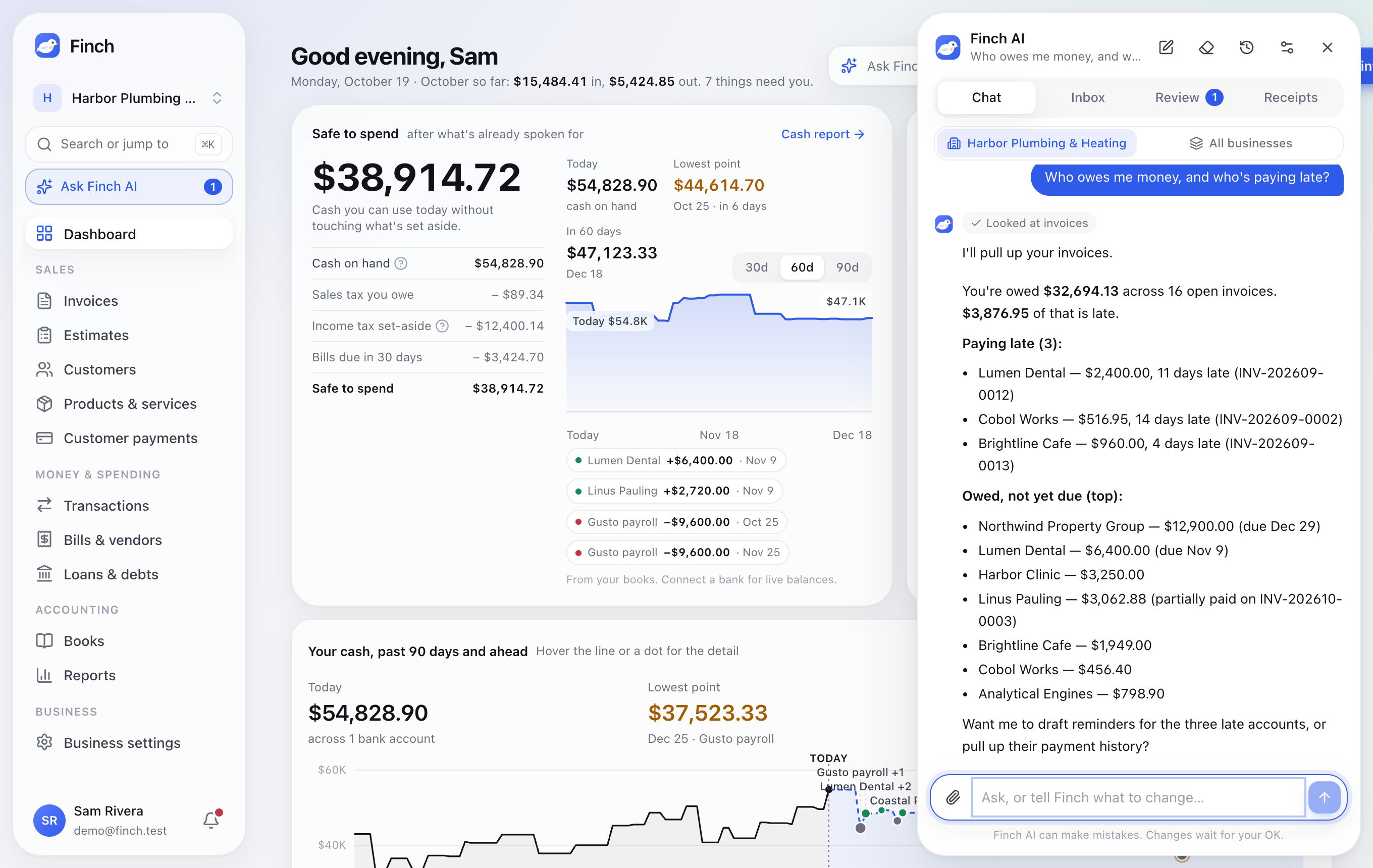
Things to ask:
- "What did we spend on fuel this quarter?"
- "Who owes me money, and who's paying late?"
- "Can I afford a $5,000 purchase next month?"
- "Are the books reconciled and closed for September?"
- "What's unusual this month?"
An empty chat suggests questions for the page you're on, and after each answer two follow-up questions appear; click one to ask it. Harbor Plumbing & Heating | All businesses at the top switches between this business and all of yours.
Proposals: preview, confirm, undo#
Ask Finch to change something ("File every Uber trip under Travel") and it prepares a card showing exactly what will happen and a sample of the rows it touches.
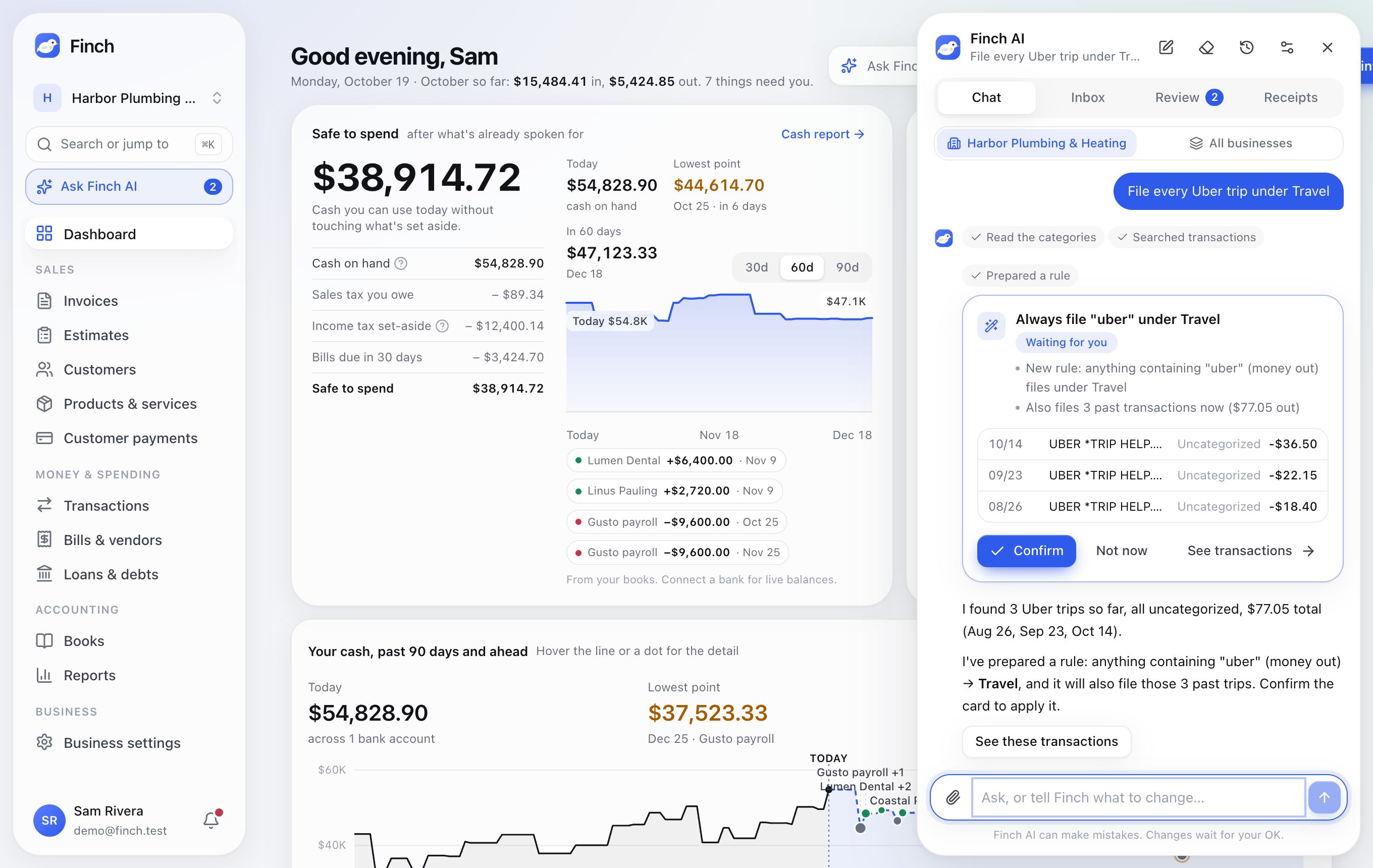
- Confirm applies it, Not now sets it aside, and Confirm all N applies a batch (in chat and in Review). In Review, tab to a card and press Y to confirm, N for not now (then 1, 2 or 3 to say why, or N again to skip) or U to undo.
- Each card shows how sure Finch is and why, in a few words. After Not now you can tap why (Wrong category, Not a business expense or Already handled); Finch uses the first two to suggest better next time.
- Undo puts each row back, unless it's changed since. Reconciled and closed-month rows are left alone.
- Proposals can file, confirm suggestions, exclude, split, make rules (optionally applied to the past), clean up names, add journal entries, bills, receipts and categories, add an owner, record a memory, reconcile, close the books, and turn autopilot on or off.
- Waiting proposals expire after 14 days. Review lists everything waiting for the team, plus Recently done by Finch.
- Accountants and above confirm most changes. Closing the books, autopilot and new owners need an Admin. View-only members can ask but not confirm.
Month-end, reconciling and setting up#
- "Help me close last month" shows a Ready to close through…? checklist: waiting transactions, reconciliations, unmatched receipts and pending suggestions. Finch helps clear each one, then proposes the close.
- Reconcile in chat: Finch first looks at the account's uploaded statements (and which months are missing). Without one, it asks for the statement balance and date. It points to likely causes of a difference, including entries that add up to it exactly and statement lines the bank feed never sent, and proposes the reconciliation only when it matches to the cent.
- Set up a new business: Finch interviews you and proposes categories, owners, rules and memories.
- Teach it: "All Venmo payments to John are contractors" becomes a rule or a memory (up to 100 per business).
- When Finch needs a fact, it asks with a card: choices, yes/no, an amount, a date, or a category or account picker.
Receipts#
Drop photos or PDFs on the Receipts tab (up to 20 at a time, JPG, PNG, WEBP, GIF, HEIC or PDF, up to 10 MB each), use the paperclip in chat, or attach them to a transaction. On a phone, Take a photo of a receipt (or the camera button in chat) opens the camera. iPhone HEIC photos are turned into JPEG as they upload; if your browser can't open HEIC, Finch tells you how to send a JPEG instead.
Finch reads the vendor, date, total, tax and currency, suggests a category, and spots unpaid bills. Then:
- If one bank charge matches the total, from 3 days before to 7 days after the receipt date, Finch proposes attaching the receipt and filing the charge.
- If it's an unpaid bill with no matching charge, Finch proposes a bill with the file attached.
- Otherwise it waits and checks again daily for 60 days.
Autopilot, the Inbox and limits#
Where: Business settings → Finch AI.
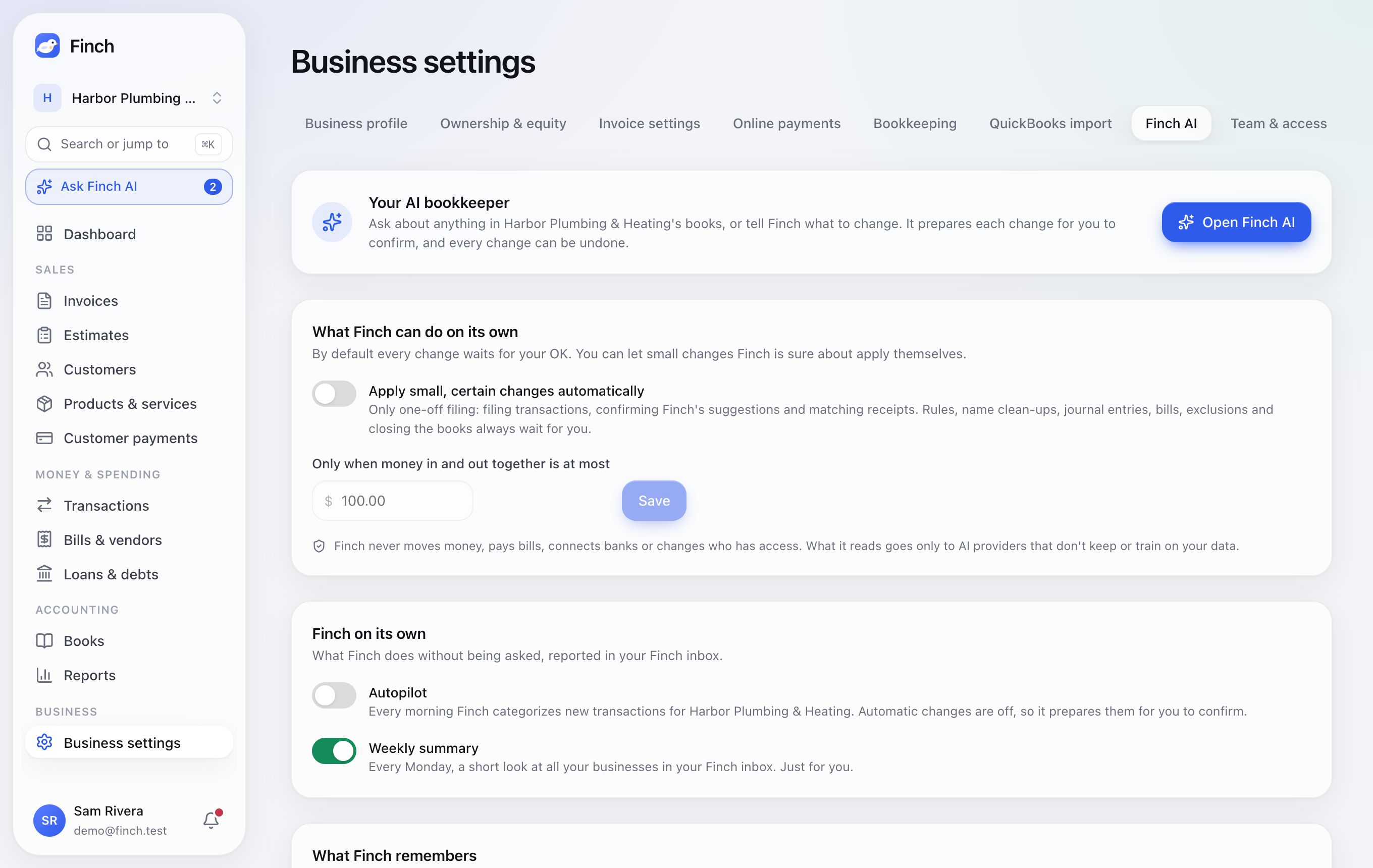
- Apply small, certain changes automatically (off unless an admin turns it on, with a dollar limit): high-confidence filing, confirmations and receipt matches within the limit apply on their own, labeled "Done automatically", and can be undone. A chat change applies on its own only when Finch can back it up: you named the category for those transactions, a rule or your past filings agree, or a receipt matches exactly. The card says which. Rules, renames, journal entries, bills, exclusions and closing the books always wait for you.
- Autopilot (off unless an admin turns it on): once a day Finch categorizes new transactions, files the certain ones within your limit, prepares the rest, and reports in the Inbox of everyone who keeps the books (Accountants, Admins and the Owner).
- Weekly summary (on unless you turn it off): each Monday every member's Inbox gets the last 7 days for each business: money in and out, what's waiting, overdue invoices, bills due and anything unusual, with buttons to review transactions, overdue invoices and bills.
- About your business: the answers from setup (line of work, what you sell, how customers pay, payroll). Admins can change them; new answers turn on any categories they call for and update what Finch remembers.
- Sorting your transactions: after each bank sync, Finch suggests a category for everything waiting, 100 at a time, until it has looked at all of them. The first sync goes through everything you brought in, with progress above the Transactions list. Sort everything waiting starts a fresh pass. Sorting uses at most half of the business's daily AI allowance and carries on the next day if it runs out.
- What Finch remembers and Recently done by Finch (the last 20 changes, who confirmed them, and Undo).
- How often Finch is right: for suggestions from Finch AI, Filed like before (how you filed that merchant last time), the merchant type and your rules, how often each stood over the last 8 weeks and how many you corrected, plus Finch AI week by week. When you file a suggestion somewhere else, Finch learns from it and the transaction notes what it had suggested.
Limits and privacy: each business has a daily AI allowance (the panel says how much is left once it's under a fifth) and each person can send 300 messages a day. While Finch AI isn't switched on, its buttons are hidden. Finch AI uses only providers that don't keep or train on your data, and works only for members of the business. It can't move money, pay bills, connect banks, invite people, change payment settings or create invoices. Clear this chat deletes a conversation; changes already made stay.
9. More than one business, and Personal#
- Switching: the switcher lists Businesses, Personal (or Set up Personal) and Add a business. There's no limit on businesses, and Finch reopens the one you used last.
- Personal is one set of books for your own money: no Sales section or online payments, a 0% tax set-aside, and 11 reports.
- Bank accounts: one bank connection can feed all your businesses; each account belongs to exactly one business or Personal (Connect a bank).
- Paid for another business: when one business (or Personal) pays something that belongs to another, choose Paid for another business… on the transaction. Finch books the expense where it belongs, and both sides track it as money to be paid back or money put in. Every time handles future charges from the same payee. You need Accountant or above in both.
- Money moved between businesses: Finch spots transfers between your businesses and asks how each counts (pays back what's owed, a loan, an owner's draw or an owner's contribution), then File both sides.
- Who owes whom (Reports → Between businesses): balances with each of your businesses and Personal, a statement for each pair, and Settle up.
Your practice (for accountants and bookkeepers)#
Where: the switcher → your practice's name, or go to /practice.
A practice is your firm on Finch. It's free, and every client you work with lives in it.
- Start one: accept a client's invite and name your practice, or open /practice and click Set up practice.
- Two-step sign-in is required to open any client's books. Turn it on in Your settings → Sign-in & security.
- Work to do: one list across every client you're on: last month not reconciled, transactions to review, statements missing, and last year not closed. Open a line to see each client with their count; click one to go straight to the screen that does it. You're only asked for work the client gave you: a view-only practice is never asked to reconcile.
- Clients: each client shows what they let you do, since when, who on your team works on it, what needs doing (click a chip to jump there), and how far the books are closed and signed off. Needs attention first puts clients with unreconciled months at the top; switch to By name any time. Open books takes you straight to their transactions. A dark bar across the top reminds you whose books you're in; everything you do is recorded in the client's Activity under your practice's name.
- Invite a client: enter their email and suggest a starting access level. They choose the business and the final access when they connect.
- Switcher: your clients appear under Clients with your practice's name beside them. A client that paused your access shows Paused.
- Documents: in a client's books, Documents → Request documents asks for a checklist, from scratch or ready-made (last month's statements for each account, the year-end checklist, getting started). Handed-in requests show in Work to do; open one to Accept or Ask for changes.
- Automatic requests: Automatic on a client row lets Finch ask by itself, from your practice: on the 10th, last month's statement for each account that doesn't have one; every January, the year-end checklist (due February 15). Off until you turn it on, for each client. Every Monday you get a note with requests handed in to review and requests overdue at your clients.
- Team: invite people with a role. Owners and admins see every client and manage the team; accountants and bookkeepers see the clients they're put on (Team on a client row). A practice bookkeeper never posts journals, closes the books or signs off, whatever the client allowed. Removing someone takes them off every client at once.
You only see what each client shared: pages they kept private are left out of your menus, and the dashboard leaves out who owes them what.
Net worth (Personal)#
Where: Personal → Net worth.
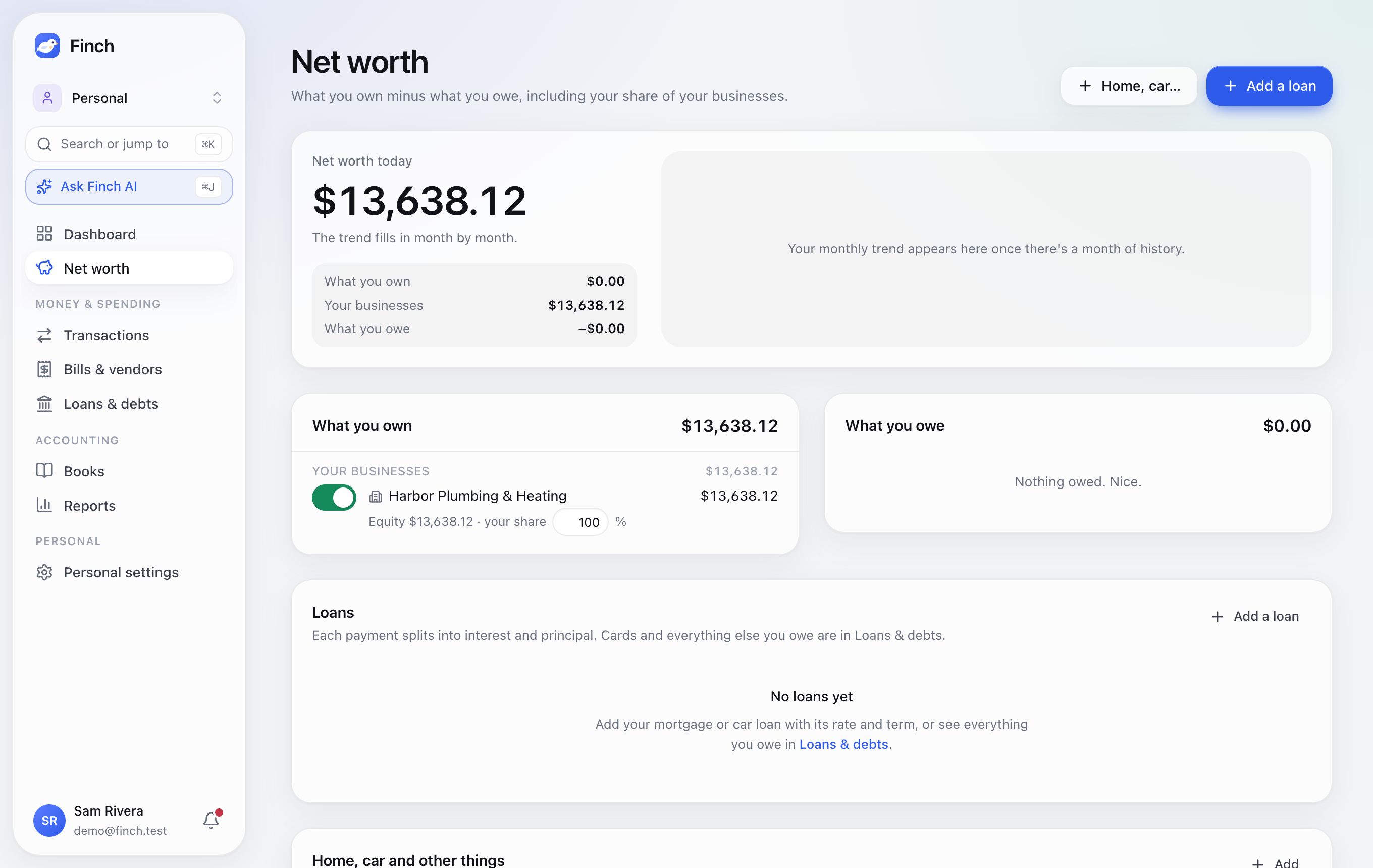
- Net worth today: what you own, minus what you owe, plus your share of your businesses, with the change since last month and a monthly trend.
- What you own: bank accounts, a home, a car and other things (valued by you), and money your businesses owe you.
- What you owe: loans, cards, and money you owe your businesses.
- Your businesses: each business you own, at its equity times your share (from its owners list, editable here). A switch includes or leaves out each one.
- Home, car and other things: add an item with its price and value, update the value over time, and link its loan to see your equity.
10. Settings#
Where: Business settings. Sections: Business profile, Ownership & equity, Invoice settings, Online payments, Bookkeeping, QuickBooks import, Finch AI, and Team & access. Personal has Personal profile, Bookkeeping, Finch AI and Team & access. Most settings need an Admin.
Business profile#
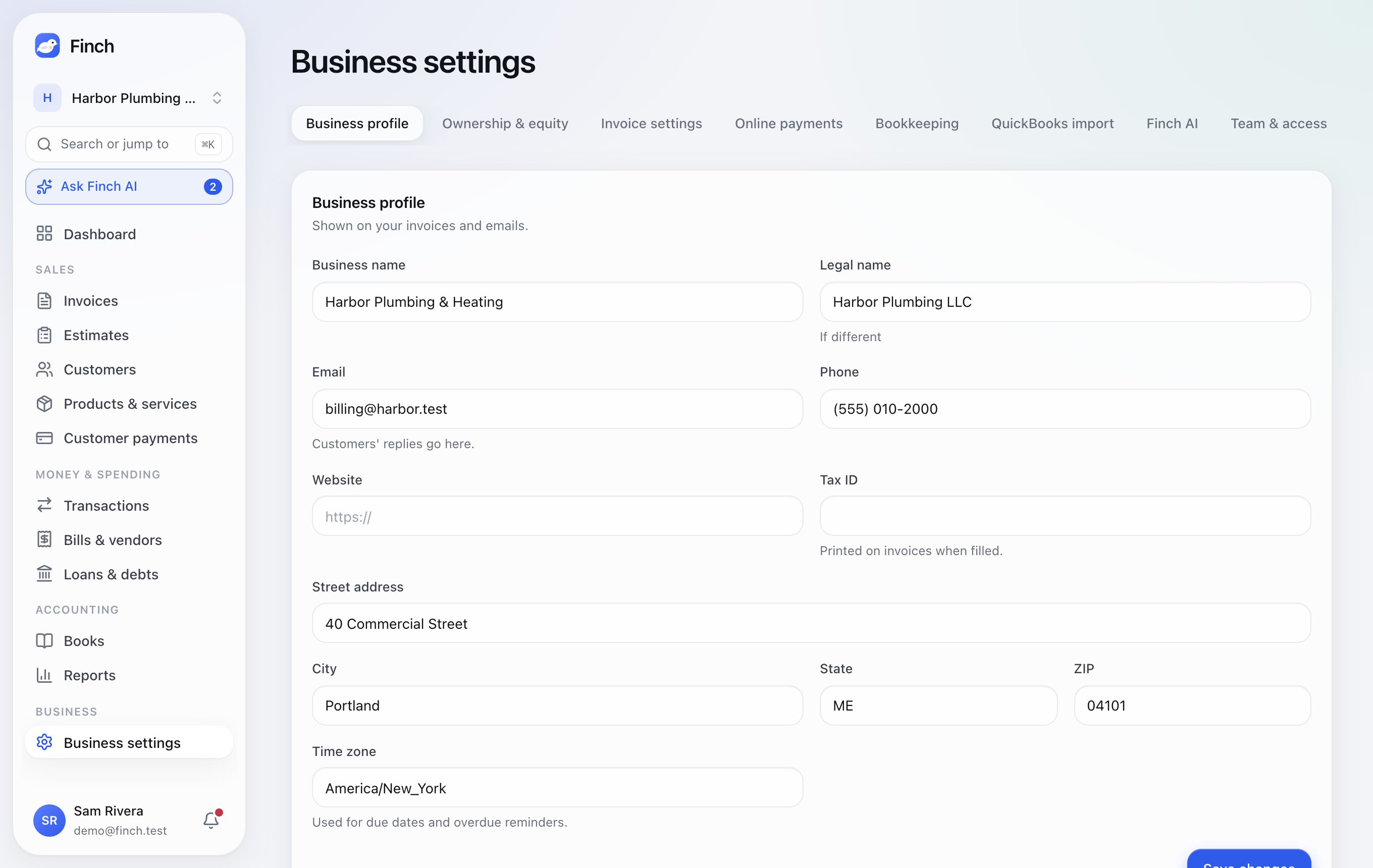
Your business name, legal name, email (customers' replies go here), phone, website, tax ID, address and time zone. They appear on your invoices and emails. Businesses use US dollars.
Ownership & equity#
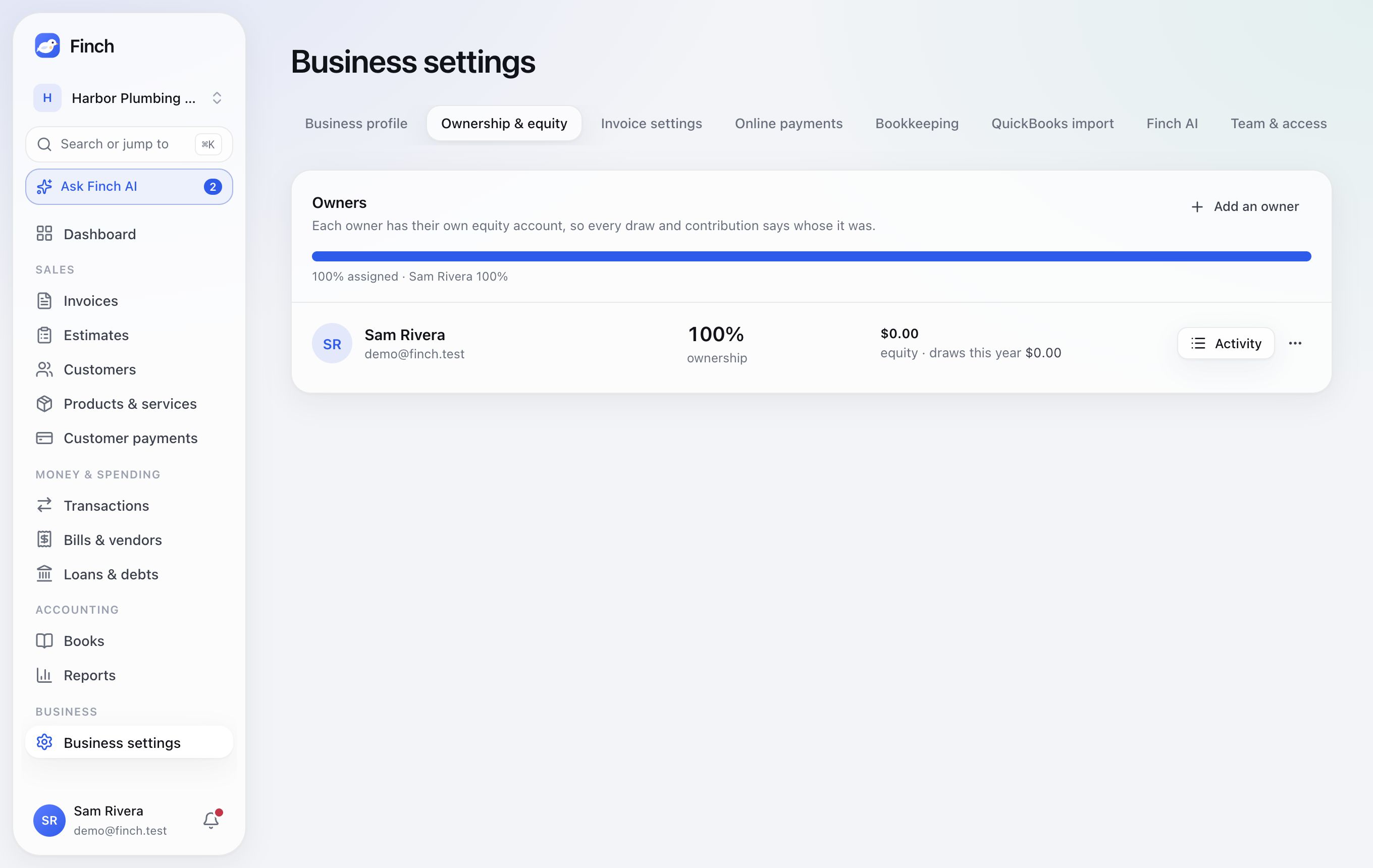
Add an owner with their name, Ownership (%) (up to 100% in total), email and, optionally, their Finch login. Each owner gets their own equity account, so every draw and contribution says whose it was: the category picker shows "Owner's draw · Sam" and "Owner contribution · Sam". The Owners' equity report shows each owner's contributions, draws and share of the profit.
Invoice settings#
Everything about your invoices, on one page, with a live preview you can switch between PDF, Customer page and Email. ⌘S saves.
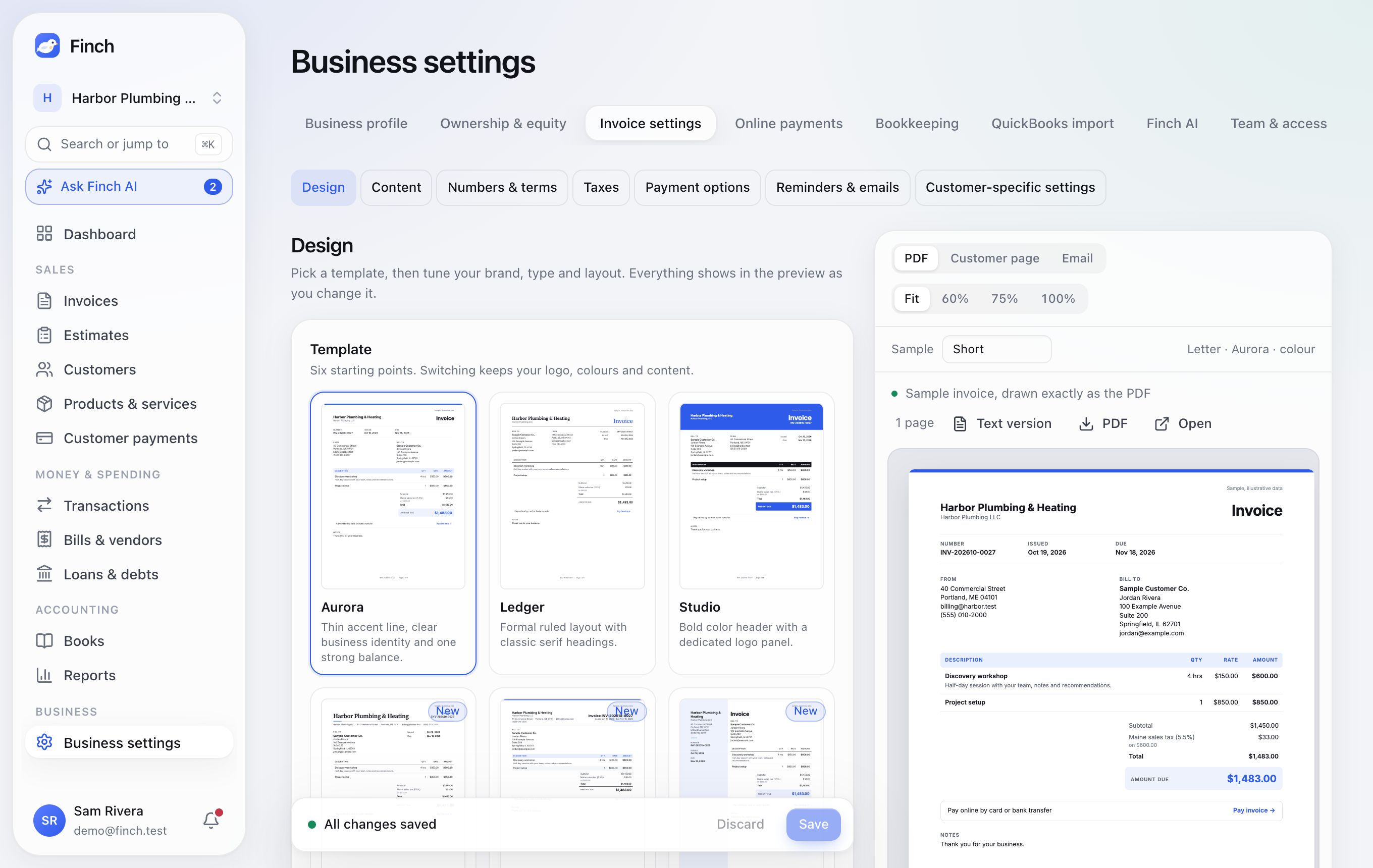
- Design: six templates (Aurora, Ledger, Studio, Editorial, Compact and Signature) and three quick profiles (Consultants & agencies, Formal professional services, Trades & detailed invoices). Your logo, its size and position, eight accent colors or your own, type style and size, Letter or A4, margins, density, which columns show (with renameable labels), a color banner and grayscale printing.
- Content: language (English, Español, Français, Deutsch or Português), date format, currency as a symbol or code, 16 items to show or hide, a QR code to pay, billing email and phone, signature and thank-you note.
- Numbers & terms: prefix, padding, next number, optional year and month, default payment terms, and standard notes, terms and footer.
- Taxes: your tax rates (up to 50%) with registration numbers, and Prices include tax. You choose the rates on each line; Finch doesn't work out tax from an address.
- Payment options: accept Cards and wallets and/or Bank transfer (ACH), Let customers pay part of an invoice, and Autopay advance notice (1, 3 or 7 days).
- Reminders & emails: see Reminders, thank-you emails and late fees.
- Customer-specific settings: customers with their own terms, CCs, design, reminders, tax-exempt status or notes.
Online payments#
Customers pay by card, Apple Pay, Google Pay or bank transfer. Each business applies once, and the Finch team reviews the application.
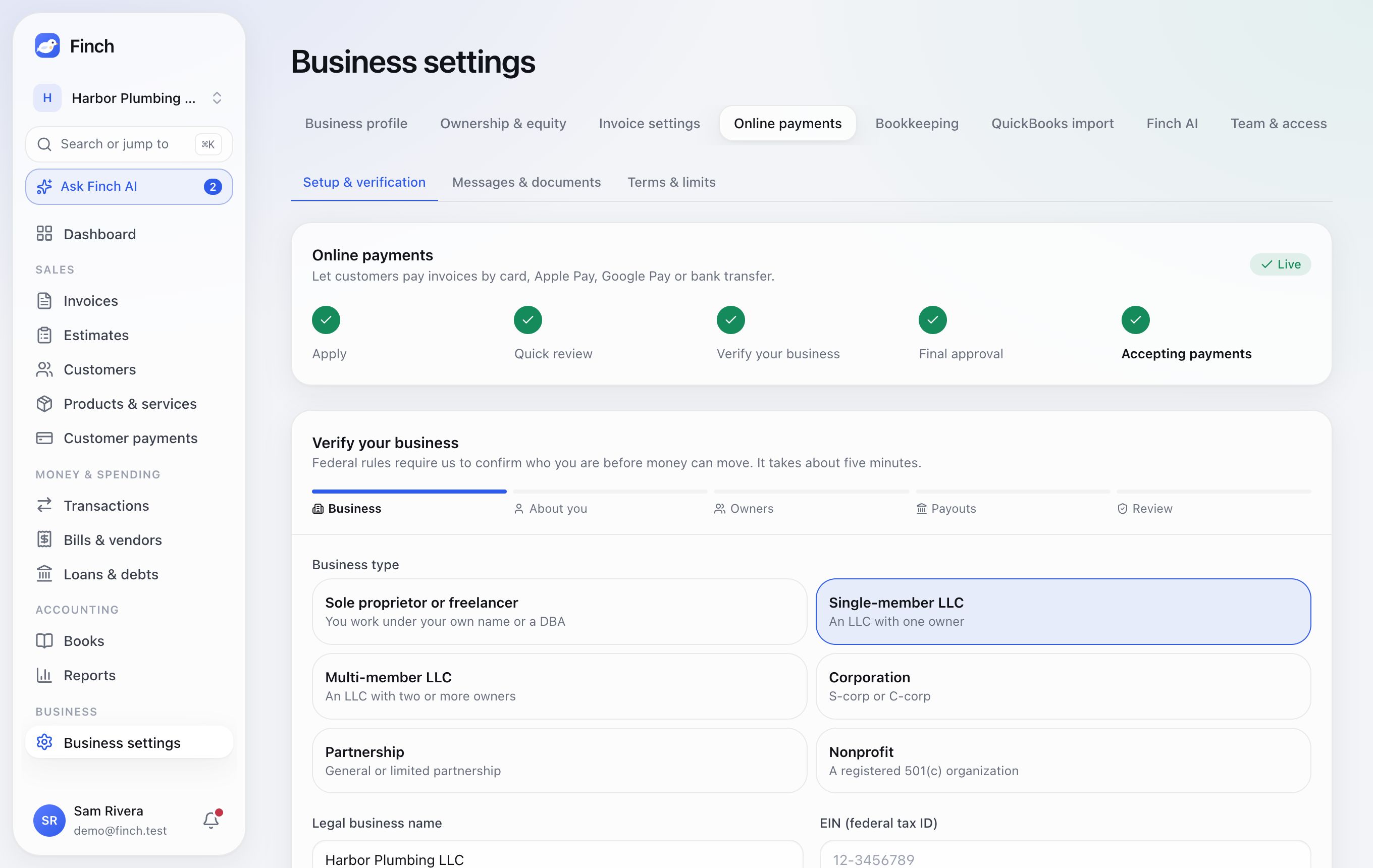
- Setup & verification: the tracker runs Apply → Quick review → Verify your business → Final approval → Accepting payments. Apply for online payments (admins) takes about five minutes: business details, how you get paid, your policies, and owners with 25% or more. Verify your business has five steps: Business, About you, Owners, Payouts and Review. Finch never stores your SSN or bank account numbers.
- Messages & documents: a thread with the Finch team, and any documents they've asked for.
- Terms & limits: your rates (standard: card 2.9% + 30¢, bank transfer 0.8% capped at $5), chargeback and return fees, payout schedule, reserve, and any limits. Owners sign any personal guarantee here, and can Close your payments account.
Bookkeeping#
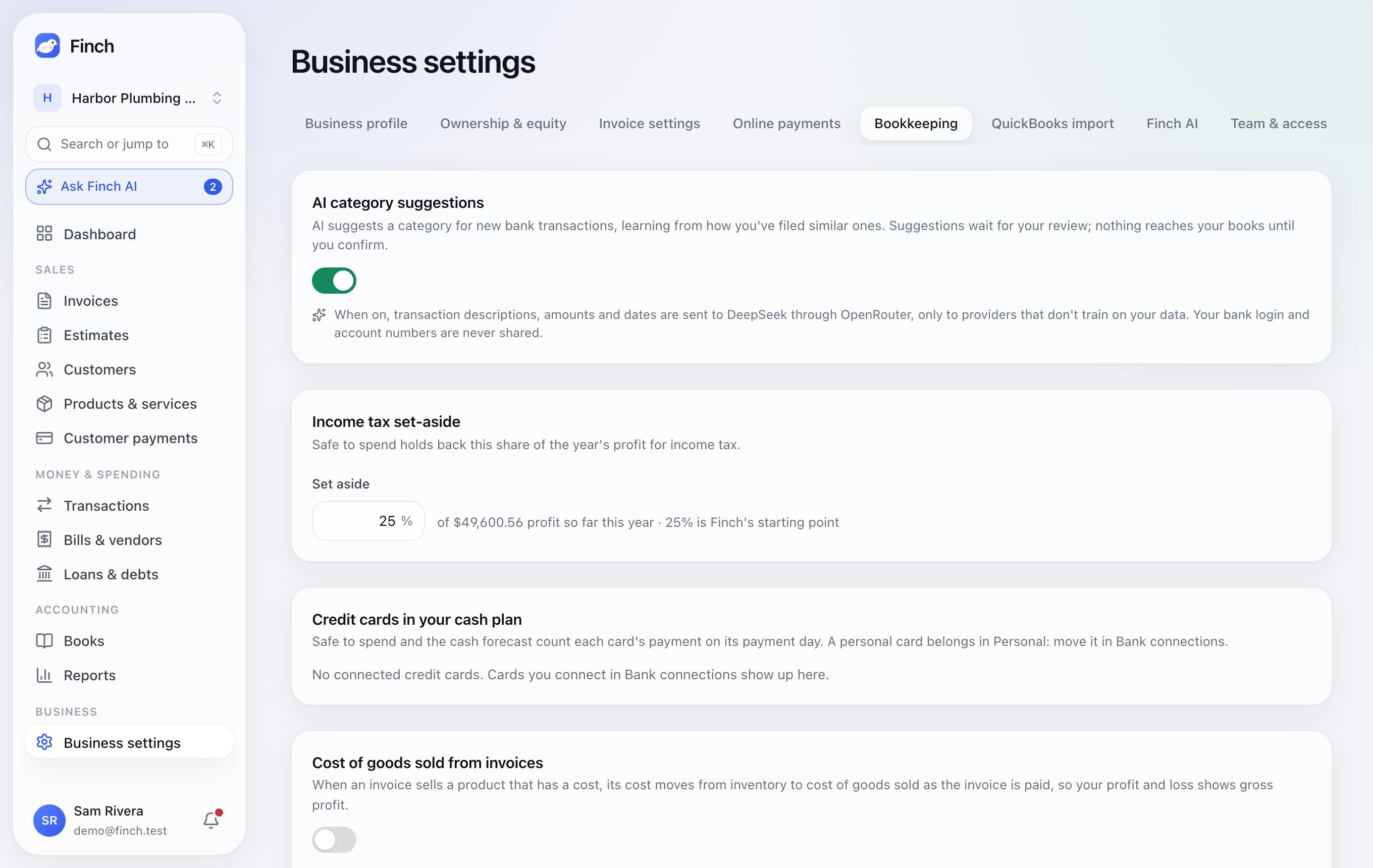
- AI category suggestions: on unless you turn them off.
- Income tax set-aside: 25% unless you change it (0% for Personal), from 0% to 60%. Safe to spend holds it back.
- Credit cards in your cash plan: paid in full or a fixed amount each month, and the payment day.
- Cost of goods sold from invoices (off unless you turn it on): when a product with a cost sells, its cost moves from Inventory to Cost of goods sold, so your Profit and loss shows gross profit. Choose a Start from date and the accounts. Recalculate with today's costs reposts invoices; closed periods are never rewritten.
QuickBooks import#
Where: Business settings → QuickBooks import (owners and admins). Bring a QuickBooks Online company into a business: its chart of accounts with the same names and numbers, customers, vendors, products, invoices, bills and the full ledger on both cash and accrual.
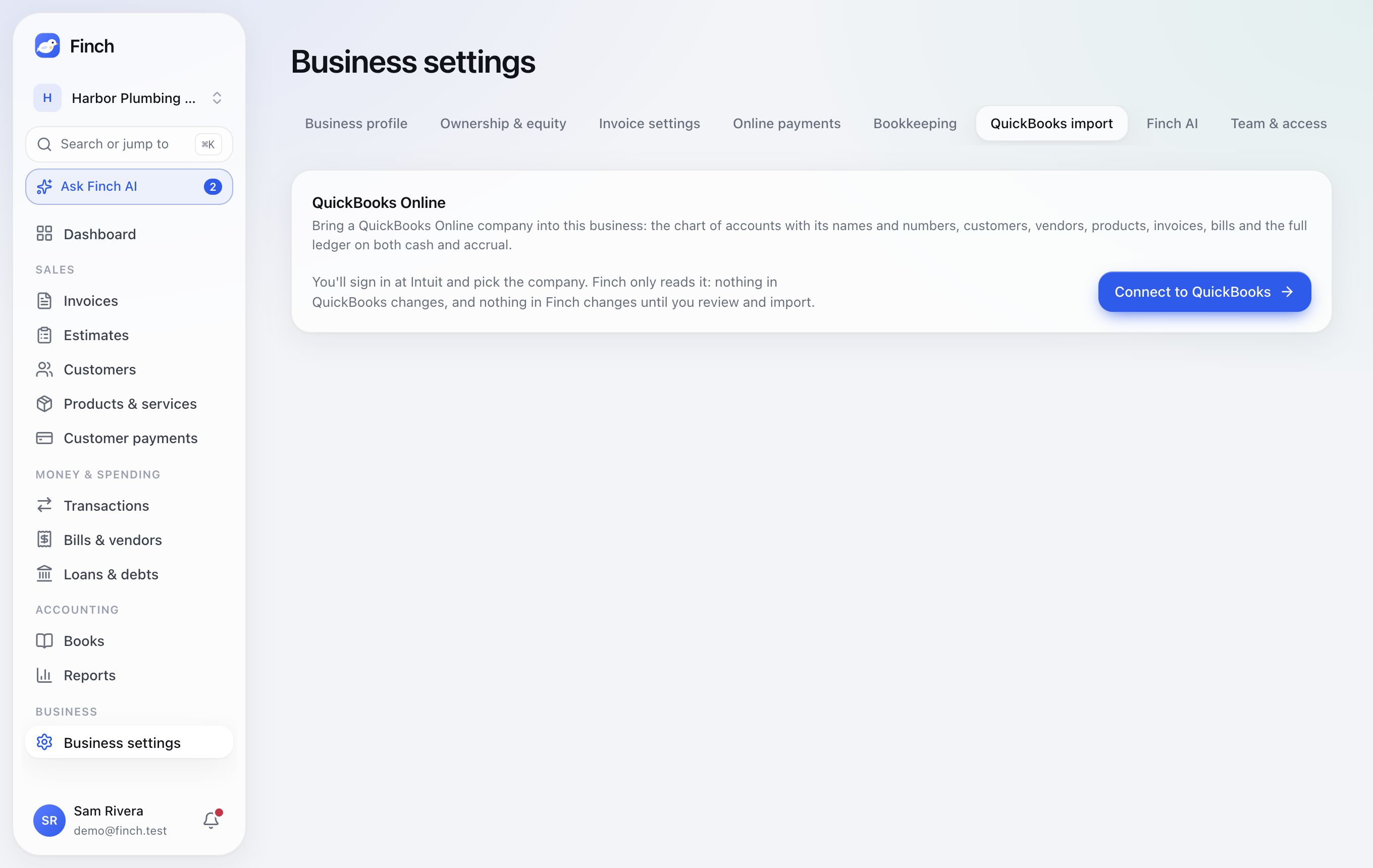
- Connect to QuickBooks. Sign in at Intuit and pick the company. Finch only reads it; nothing in QuickBooks changes.
- Read QuickBooks. Finch copies the company to a holding area. Nothing in your books changes yet.
- Review the plan. Every QuickBooks account is listed with where it will go. Accounts that do a job Finch posts to (Accounts Receivable, Undeposited Funds, Sales Tax Payable and so on) replace Finch's own and take QuickBooks' name and number; accounts with the same name as a Finch default replace it; everything else is new. Choose how accounts are numbered (keep QuickBooks', number them Finch's way, or none), the accounting basis, and your sales account. Change any account's destination in the list.
- Import. The chart, lists, documents and ledger come over. The books close through QuickBooks' closing date.
- Check the tie-out. Finch compares its trial balance with QuickBooks' at each year end and the last day read, on both bases, and lists any account that differs.
- Carry on with your bank feed. Link each imported bank or card account to its feed. Feed transactions up to the import date are set aside, because QuickBooks already had them.
Imported invoices, bills and payments are history: they don't post again and can't be edited, though credit notes, write-offs and new payments on them work as usual. Read again for changes brings in what's new or changed in QuickBooks without duplicating anything. Undo the import removes everything it made and puts your chart, closed periods and basis back.
Team & access#
Where: Business settings → Team & access, or Your settings → Your team to invite someone to several businesses at once.
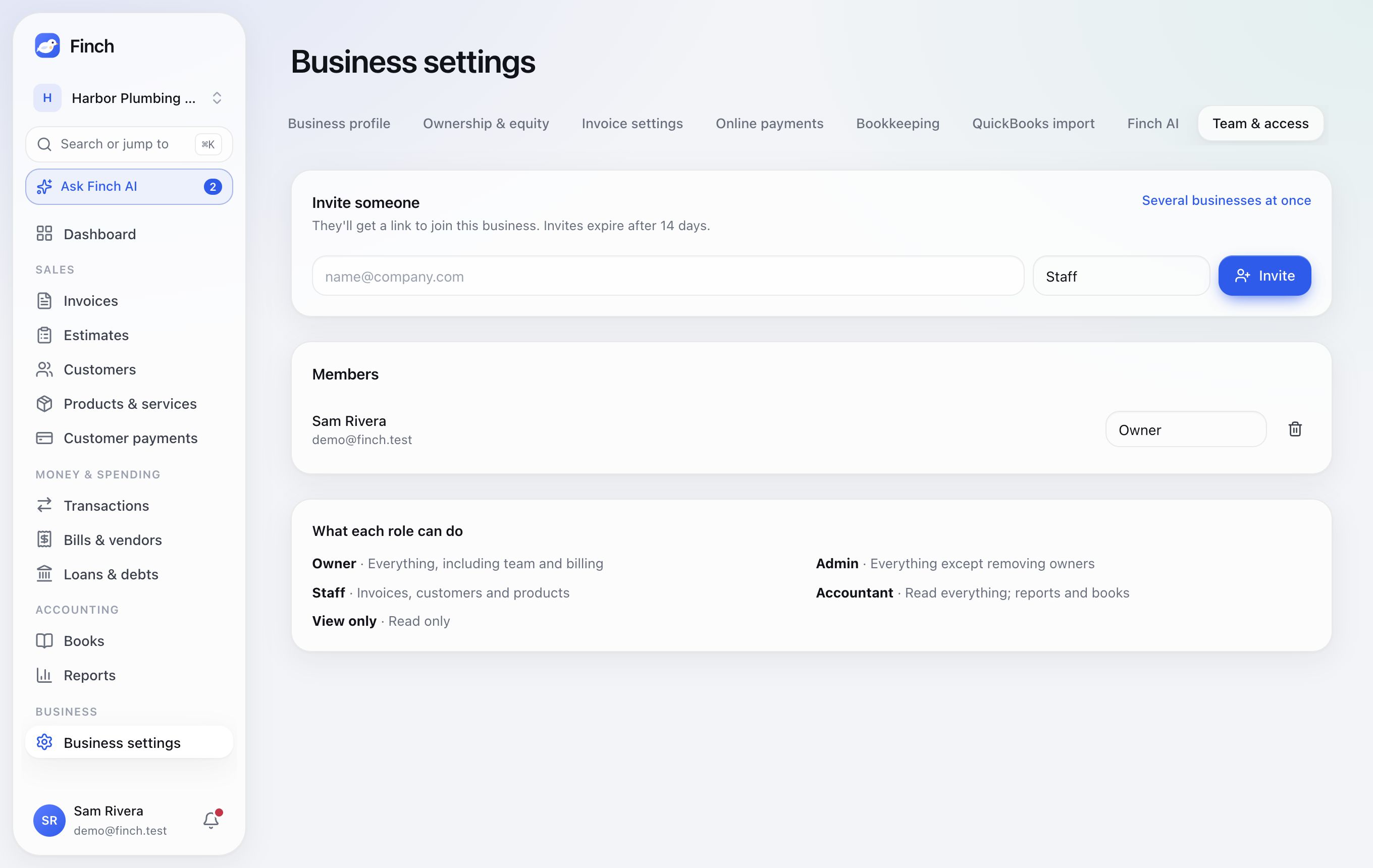
- Enter their email, choose a role, and click Invite.
- Finch emails them the invite, and also copies the link for you. (Until email is set up for your Finch, send the link yourself.) Links expire after 14 days.
- Change roles, remove people, or revoke invites at any time.
Every business keeps at least one Owner, and only owners can make other owners.
| Role | Can do |
|---|---|
| View only | see everything; ask Finch AI |
| Accountant | plus bookkeeping: categorize, rules, bills, journal entries, reconcile, receipts, budgets, confirm Finch AI proposals, and sign off closed periods (only this role signs off) |
| Staff | plus invoices, estimates, customers, products, recording payments and reminders |
| Admin | plus settings, refunds, voids, credit notes, closing the books, the team, and Finch AI autopilot |
| Owner | everything, including owners, the personal guarantee and closing the payments account |
Accountants get the notifications about their work: statements that need a look, statements that should be out, and the bank changing a reconciled transaction.
Your accountant#
Where: Business settings (or Personal settings) → Accountant. Owners and admins manage it.
Connect the accounting or bookkeeping practice that keeps your books. They work in Finch with you, and you decide exactly what they can see and do.
- Turn on two-step sign-in first (Your settings → Sign-in & security). Your accountant will see your books, so Finch asks for it on both sides.
- Choose what they can do:
- Bookkeeper: categorize transactions, reconcile accounts and statements, and work with documents.
- Accountant: everything a bookkeeper does, plus journal entries, closing the books and signing off a year.
- View only: see the books and every report; changes nothing.
- Sales (invoices, estimates, customers, customer payments) and owners & equity (or net worth in Personal) stay private unless you switch them on.
- Enter their email and click Invite. Finch emails them a link (until email is set up for your Finch, the link is copied for you to send). They accept with that email and pick their practice, or set one up in a minute.
If your accountant invites you instead, open their link, choose which business to connect and what they can do, and click Connect.
Once connected, the list shows the practice, what it can do and the people working on your books. Change access takes effect at once. Pause closes your books to the practice until you Resume; End removes their access for good, and their past work stays in your books and in Activity. A practice can also disconnect itself; you're notified when it does.
People at a practice can never send invoices, take payments, change payment settings, see your bank sign-ins, invite anyone to your business or change who works on it. Finch AI stays with your own team.
Activity#
Where: Business settings → Activity. Owners and admins see it.
Everything that happened in the business, newest first: who did it, what they did, and a link to the record. Filter by area (invoices, transactions, books, documents, Finch AI, team, settings) or by person. Changes Finch AI made for someone say via Finch AI (or Finch AI, on its own under autopilot), anything Finch support did while helping you says Finch support, and work by your accountant carries their practice's name. The person filter lists people at your practice too.
Your settings#
Where: your account menu → Your settings. These belong to you, not to a business.
- Profile: your name. Your sign-in email is shown here; to change it, contact support.
- Sign-in & security: see chapter 2.
- Your team: invite someone once to several businesses and Personal, with a role in each.
- Bank connections: see Connect a bank.
- Plan & billing: Free includes invoicing, payments, bank sync, the books and 100 Finch AI actions per business (chat messages and AI categorizing; reading statements and receipts doesn't count). Superpower AI makes Finch AI unlimited and lowers the card rate, for $49 a month plus $29 for each extra business. Tick the businesses you own that it should cover and click Upgrade; checkout, your card, invoices and cancelling are on a secure payment page (Card, invoices and cancelling). Change the businesses it covers any time; the next invoice is adjusted. A business on Superpower AI can't be deleted until it's taken off the plan.
11. Keyboard shortcuts#
| Shortcut | What it does |
|---|---|
| ⌘K / Ctrl+K | Search, jump to any page, or create something |
| ⌘J / Ctrl+J | Open Finch AI |
| ⌘S / Ctrl+S | Save (invoice editor, invoice settings) |
| ⌘↵ / Ctrl+Enter | Review & send (invoice editor) |
| J / K or ↓ / ↑ | Next / previous transaction (review mode) |
| C | Mark done (review mode) |
| E | Choose a category (review mode) |
| N | Add a note (review mode) |
| X | Exclude (review mode) |
| Esc | Leave review mode, or close a panel |
12. Troubleshooting and questions#
I can't send an invoice: "Confirm your email address first." Your settings → Sign-in & security → Confirm email. Finch needs to know the address your invoices come from is really yours.
I didn't get the password reset or confirmation email. Check spam, wait a minute, and click Send a new code. Codes are limited to one a minute and five an hour per address. Each code works for 15 minutes.
I lost the phone with my authenticator app. Use one of your recovery codes on the code screen (Use a recovery code). If you don't have them, email support from your account's address.
My customer says they didn't get the invoice. Open the invoice's Activity tab. "Bounced" means the address is wrong: fix it on the customer's page (Fix the email address appears on the invoice list) and send it again. You can also click Copy pay link and send the link yourself.
The bank balance and Finch don't match. Open Transactions → Bank accounts & cards. A Difference usually means transactions are still waiting for review; Review to fix shows them. If the feed is broken, Reconnect it from Bank connections.
Finch says my statement is off by an amount. Open the statement. Under What would make it add up, Finch names a line that may be read the wrong way round or twice. Fix that line, add one it skipped, or correct the balances. If the PDF is a scan, try Read it again, or upload the bank's CSV export instead.
The bank changed a transaction I already reconciled. Finch kept the reconciled figures. On the account's page, choose Keep reconciled if the statement is right. If the bank is right, an admin undoes that reconciliation (Books → Reconcile → Full history), then picks Use the bank's.
A transaction shows up twice. Open one and Exclude it as a Duplicate. Unusual activity in Reports also lists possible duplicates.
I can't edit an invoice. Invoices with payments or credits are locked so your books stay right. Issue a credit note, or duplicate the invoice and void the original.
Why can't I change a transaction from last year? It's in a closed period or it's been reconciled. An admin can reopen periods (Books → Close the books → Reopen all periods) or undo the latest reconciliation.
Why are my numbers different on the dashboard and in a report? Check the Basis (cash or accrual) and the period. Transactions still waiting for review don't count anywhere until you confirm them.
A customer was charged a late fee by mistake. Void the late fee's invoice (that waives it), then turn off late fees for that invoice on its Collection tab, or for the customer on their page.
Can Finch pay my bills or move money? No. Finch records bills and matches their payments. It reads your bank through SimpleFIN and can't move money. Customers pay you through Finch's online payments.
Does Finch file my taxes? No. Finch keeps the books and reports (including the Sales tax summary and a Profit and loss your accountant can use), but doesn't file returns.
How do I give my accountant access? Business settings → Team & access: invite them with the Accountant role. They can do the bookkeeping and reports but can't send invoices or change settings.
How do I get help? Start with this manual: User manual in your account menu or in ⌘K opens it, and its search box finds every section that mentions your words. For anything else, email the support address shown on the two-step sign-in screen and in Finch's emails. If you've applied for online payments, you can also message the Finch team under Online payments → Messages & documents.
13. Glossary#
Accounts payable (A/P). Money your business owes on bills it hasn't paid yet. Shown on the balance sheet on the accrual basis.
Accounts receivable (A/R). Money customers owe you on invoices. Shown on the balance sheet on the accrual basis.
Accrual basis. Counting income when you invoice and expenses when you're billed, whether or not money has moved. See Cash or accrual.
Autopay. A customer's saved card or bank account paying a recurring invoice automatically, with notice first.
Cash basis. Counting income when it's paid and expenses when you pay them.
Chart of accounts. The list of every account in your books: bank accounts, categories, debts and equity.
Closed period. A stretch of time you've locked so its reports stop changing.
Cost of goods sold (COGS). What the things you sold cost you. Subtracted from income to give gross profit.
Credit note. A document that lowers what a customer owes without moving money.
Double-entry. Every change is recorded twice, as a debit and a credit, so the books always balance.
Equity. What's left for the owners: what the business owns minus what it owes.
Opening balance equity. A holding account that balances your starting figures until you move them into owner's equity.
Payout. Money from online payments landing in your bank account.
Practice. An accounting or bookkeeping firm on Finch. A business connects to a practice and decides what its people can do. See Your accountant and Your practice.
Proposal. A change Finch AI has prepared for you to confirm or turn down. Confirmed proposals can be undone.
Proven statement. A statement whose beginning balance plus every line equals its ending balance to the cent, so Finch knows it read all of it.
Reconcile. Checking your books against a bank statement until they match to the cent.
Rule. An instruction that files matching bank transactions for you as they arrive.
Safe to spend. Cash you can use today after setting aside taxes, bills and card payments.
SimpleFIN Bridge. The read-only service Finch uses to see your bank and card accounts.
Write-off. Giving up on collecting the rest of an invoice and recording it as a bad debt.